 Creating
a Basic Flash MX Animation
Creating
a Basic Flash MX Animation
written by kirupa
chinnathambi
Just when you thought you had learned Flash
5, and could now devote resources to becoming a Flash
master, Flash MX comes along. Flash MX is really not a
complicated program, but there are numerous enhancements
that will take a while getting used to.
This tutorial will help you to learn the very
basics of Flash MX - basics such as layers, tweens, colors,
text, lines, shapes, and more. By the end of this tutorial,
you will have created the following animation:
[ you will create the above
animation ]
Setting Up the Movie
Before you can create your Flash
masterpiece, you have to adjust the actual movie. Not all
movies are created the same, and many movies feature varying
background colors, widths, heights, and more. The next few
steps will explain how to setup the movie for creating the
above animation:
-
Create a new document in Flash MX
by going to File | New. A new, blank Flash MX movie will be
displayed.
-
First we need to modify the
movie's properties such as background color, dimensions,
speed, and more. Click anywhere in your movie and the
Properties panel will display near the bottom of the
screen.
-
Press the Size 550x440
button in the Properties panel near the bottom-center of
your Flash window. The Document Properties
dialog box will appear. In the width and height
text fields, enter the values 300 and 200 respectively.
-
Now, press the Background Color
square in the Document Properties dialog box. Pick a light
yellow or beige color from the list of colors visible.
-
The final step involves
changing the value for the frames per second (fps). In the
Frame Rate field, enter a value of 25.
-
Your Document Properties dialog box
should look like the following image after completing the
above steps:
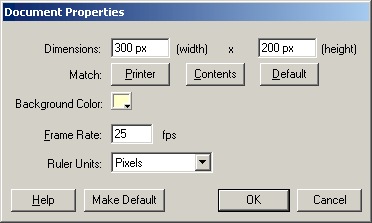
[ the modified document
properties dialog box ]
-
Press OK to accept the changes you made to the Document
Properties dialog box. Your Flash movie will now reflect
the changes you made.
I recommend that you save your file now.
Saving often can help save hours of frustration when an
unforeseen error causes you to lose all of your work!
Now that the movie is set-up, let's add some
text, lines, and shapes to the stage. Click the next page
link below to go to the next page!
|









