by
Jesse Marangoni aka TheCanadian |
10 January 2007
A shared library allows multiple movies to use the same assets, which means that
the user will only have to download them once no matter how many movies they are
used in. This is useful with large bitmaps, sounds, fonts and components which
can be very large, especially when used in multiple movies.
Let’s start by creating our shared library. Create a new Flash document and save
it as library.fla somewhere on your hard drive. Now create a
new symbol (Insert > New Symbol), call it circle and set the symbol type as
movie clip.
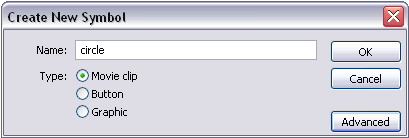
[ the Create New Symbol window ]
If your advanced tab isn’t open yet, open it by pressing the Advanced button.
Now check the Export for runtime sharing check box. You’ll notice that the URL
field becomes active; this is where you type the path to your shared library.
For this example all of our movies will be in the same directory, so just type
library.swf. If your shared library is located in another directory, this field
must reflect that using the appropriate path.
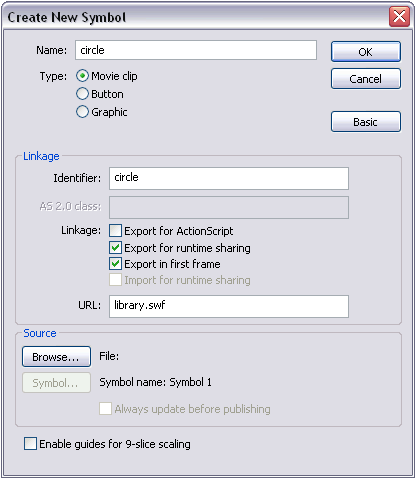
[ set your Linkage URL value to library.swf ]
Save library.fla again, publish it and close the document. Now create a new
document and save it as myMovie.fla in the same directory as library.fla. Now go
to File > Import > Open External Library and select library.fla.
This will simply open library.fla’s library. Drag the circle movie clip from the
shared library to the library of myMovie.fla. If you right click in the circle
symbol in myMovie.fla’s library and select linkage, you’ll see that the symbol
is being imported for run-time sharing.
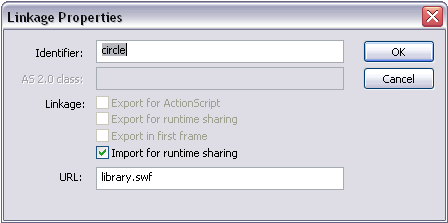
[ select Import for runtime sharing and enter library.swf ]
That’s it. The symbol is now being imported from library.swf and will not add to
myMovie.swf’s file size. The process is the same for all symbols as well as
bitmaps, sounds and fonts.
The source files for the above example can be found here:
Shared Library Source Files.
- If you export a symbol for runtime sharing that has
nested symbols, those symbols must also be exported for
runtime sharing. Otherwise, those symbols will be
imported as regular symbols, not shared with the
external library.
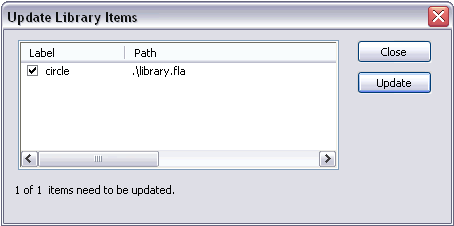
- If you change the symbol in the shared library, the
changes will not be reflected in the libraries movies
importing them until you update the symbol. To do this,
right-click on the symbol in the library of the
importing movie and select Update. On the window that
pops up, select Update again and the symbol will be
updated.
-
If you modify the symbol in the shared
library and republish it, the new symbol will be used in
any other movie importing it without republishing the
other movies.
All in all, shared libraries are very easy to use and can save a lot of
bandwidth as well as reduce downloading times for your viewers. Please direct
your questions to the
kirupaForums.
 |
TheCanadian |
|



 Using the Shared Library






