by Jaspal Sohal | 22
December 2005Using the Command Line feature, you can execute your
Applications from the command line and pass any arguments to the projector using
custom defined parameters. The application can then be programmed to run any
number of tasks based upon the passed arguments. Command Line Parameters can be
used to initiate triggers within your Application, or set options for the end
user. They provide a very powerful method of communication from the Command Line
for advanced applications.
This tutorial requires
Zinc
V2.5.
Step 1
Create a new file in Macromedia Flash (or your preferred SWF
Authoring tool) and add a button with the following code:
- on (release)
{
- cmdParam1 =
mdm.Application.cmdParams(1)
- mdm.Dialogs.prompt(cmdParam1)
- }
This code has two parts: The first command retrieves the
first command line parameter (which is always assigned the id "1") and returns
it to the variable cmdParam1. The second part of the code executes a prompt to
display the value of cmdParam1.
Step 2
To execute a projector with command line parameters, you must launch
the projector from the command line. Click on the Windows Start button and then
select Run. Enter "cmd" (as shown below) in the Run dialog box:
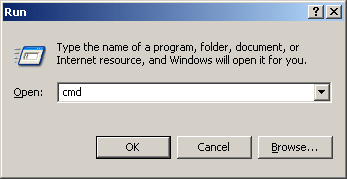
Press OK to launch the Command Line Window.
Step 3
In the Command Line Window, you can now execute your projector with
up to 5 additional parameters of your choice. These values can be anything from
a single word to a string of numbers. Separate each parameter with a single
space:
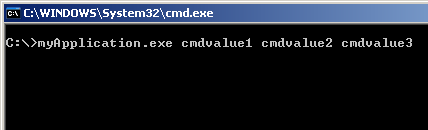
In the example above, we have the application name followed by 3 additional
parameters with the values: cmdvalue1, cmdvalue2 and cmdvalue3
Once the Projector is launched and we press the button created in Step 1, the
first {mdm}Script Command will retrieve the value of the first parameter (in
this case, "cmdvalue1") and assign it to the variable
cmdParam1.
The prompt command will then prompt the value of
cmdParam1, which will be "cmdvalue1"
Export your SWF and then compile a Projector using Zinc™ v2.5. That's all there
is to it.
If you have any questions, please post them on the
MDM support forums.
|



 Command Line Parameters






