In this tutorial we will create
a blur effect that works great with Text or Images. I
recommend using this as roll over movie for a button. You
can find a tutorial on how to make an animated Button roll
over
Here. Before embarking on this tutorial you should have
some basic Flash Knowledge.
Launch FLASH and Photoshop
and make sure your frame rate is at 30fps in Flash. You can
edit the movie properties by going to Modify>Movie . Lets
begin...
Step 1: Photoshop Tricks
We will first
begin this tutorial in Photoshop. Start a new image and
make it no more than
334x150 in dimension size.
Now, Using the
Text tool Type in the text you plan to use in your flash
movie(be sure to remember the Font and font size you are
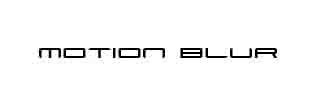
using). In this case we will use the words "motion blur"
and a font size of 20. Merge the text layer with the
backroundlayer by selecting the text layer and pressing
CTRL+E.
Step 2: Blurring in
Photoshop
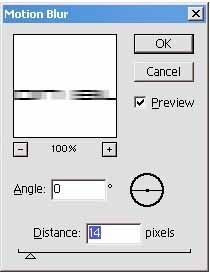
Now that you have your text ready its time to blur it. Go to
Filters>blur and select motion
blur. Bluring the text by 14 pixels for a medium sized blur.
If you want to give the illusion that your
text is moving at even higher speeds, simply adjust the
settings to Blur the text by 24 or 34 pixels.
Now that you have the desired blur save the image. (set the
Quality setting between 2-4)
Step 3: Back to Flash
Switch to Flash. Type in the same word we used using the
same Font and Font Size as before.
Make the text into a symbol by pressing F8. You can make the
text a button or movie clip depending
on what you need. For this demonstration we will make it
into a graphic. Next, import the blured image
convert it into a graphic symbol and place it in its own
layer. Name the new layer "imported text". and
Name the Layer that contains our Flash text "Flash text".
Step 4: Keyframes
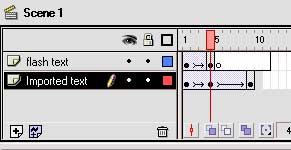
Line up the Blurred image so that its lined up with our
Flash text. In the "Flash Text" layer, make a key frame on
frame 4, and move the flash text graphic to the left. Now,
select the "Imported text" layer and do the same. On frame 4
of the "flash text" select our flash text. go to
Modify>instance and set the alpha to 0.
On frame 1 of the " imported text" layer set the Alpha of
our imported image to 0. Now add a blank key frame on frame
5 of the "flash text" layer. Add a keyframe on frame 9 of
the "imported text layer" and move our imported image all
the way to the left so that it is off of the stage.
This is our
Finished movie. Experiment and have fun:
contact info:
This tutorial
was written by Edwin Rosero. If you frequent the kirupa.com
Message Board, you will see him under the name Vts31. So,
drop by and post him a message! He is also the webmaster of
the ultracool Edwin's Art page. You can view that by
clicking the following link:
http://vts330.tripod.com
Just a final word before we wrap up. What you've seen here is freshly baked content without added preservatives, artificial intelligence, ads, and algorithm-driven doodads. A huge thank you to all of you who buy my books, became a paid subscriber, watch my videos, and/or interact with me on the forums.



 Motion Blur: Special
FX
Motion Blur: Special
FX