Sometime or another, you are
going to be linking your Flash animation to another page
through your Web browser. In Flash, only buttons can be used
to link to another page when the user clicks the mouse. This
tutorial will teach you how to link to another page and the
various window states that can be used.
Click the button to see what
you will have created by the end of this tutorial:
Creating And Making The
Button Work:
First, download the partial
FLA for this tutorial by
clicking here. The partial FLA only includes the
button with no actual coding. You will add the small portion
of code yourself!
Here's How:
Once you have opened the
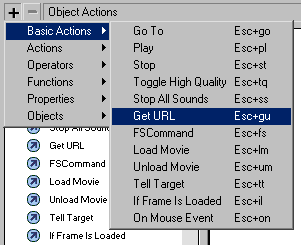
partial FLA, right click on the button and select Actions.
Next, click the plus sign ( + ) and select Basic Actions |
Get URL.
Once you select
Get URL, you will see the current Object Actions window
display the various fields for creating and modifying a
URL (Uniform Resource Locator).
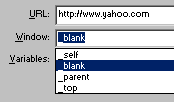
In the URL field, enter the address http://www.yahoo.com.
When the button is clicked, it will take the visitor to
Yahoo's home page.
Publish the animation and preview it in your browser
(File | Publish Preview | HTML). Once the button is
clicked, Yahoo's home page will load in the current
browser window.
Opening in a Separate Browser
Window When the button was clicked, Yahoo loaded
in your current browser window. Most of the time, you would
rather have people stay on your site while visiting another
site at the same time. To accomplish that, many sites open
links pointing to pages outside of their site in a separate
browser window. You too can do that to your animation.
Right click on the button and
select Actions. You will see the Object Actions window.
Select the second line of code that says "getURL". The URL
fields will be displayed again. Click the Window drop-down
menu and select _blank. The _blank setting
will allow the link (URL) you specified to open in a new
browser window.
Below you will find an
explanation about each selection in Window drop-down menu:
_self
Loads the link in the current page or the current page in
a Frame. This is the default selection used by Flash to
open any link.
_blank
Loads the link in a separate browser window. You selected
_blank in the tutorial above.
_parent
Loads the link into the frameset file of a frame. The
frameset file controls all the frames, and setting the
window to _parent will eliminate frames in the subsequent
links. As you may have seen, often times, links get loaded
inside frames unintentionally. Setting _parent will solve
the misuse of frames!
_top
Loads the link on the top frame.
To see how my FLA looks like
compared to yours, download my FLA by clicking
here. Also, if you are interested in making a new window
open without having to display the browser buttons, address
bar, etc. you should look at the JavaScript Window Open
tutorial by clicking the following link:
Just a final word before we wrap up. What you've seen here is freshly baked content without added preservatives, artificial intelligence, ads, and algorithm-driven doodads. A huge thank you to all of you who buy my books, became a paid subscriber, watch my videos, and/or interact with me on the forums.



 Linking
A Button
Linking
A Button