In this
tutorial we will create an animated button similar to the
one found on my site. Before reading this tutorial Launch
FLASH and make sure your frame rate is at 30fps. You can
edit the movie properties by going to Modify>movie. Lets
begin...
Step 1.
[click image
for larger picture]
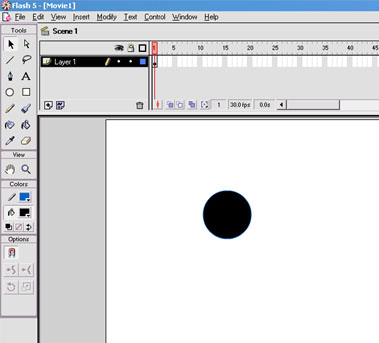
-First Begin by
creating a circle on the Main stage. It should look
something like image above.
Step 2.
[click image
for larger picture]
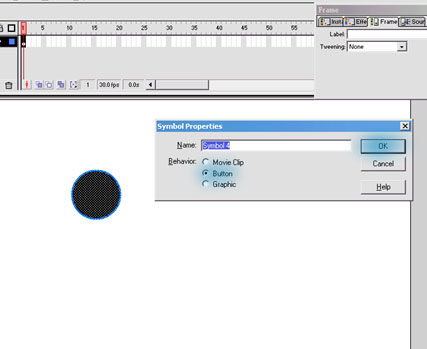
- Once you have
your circle drawn we need to make it into a button. We do
this
by selecting the button and pressing F8. This will bring up
the symbol properties. Chose button and click "OK".
Step 3.
[click image
for larger picture]
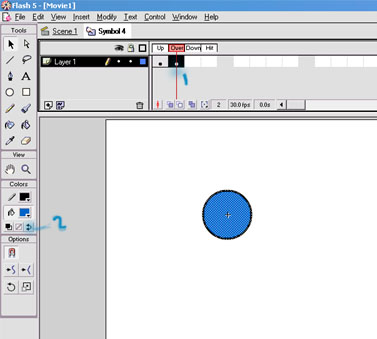
- Double
clicking the button will allows into the edit mode. We first
we
insert a key frame in the "over frame" by pressing F6 or
right clicking on the
"over frame" and choosing insert key frame. Next we need to
reverse the colors
by clicking on the "reverse color" button as is shown in the
image above.
Step 4.
[click image
for larger picture]
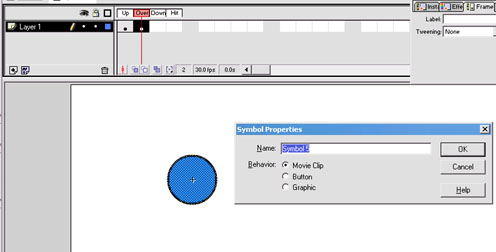
-Select the
circle who's colors you just reversed and convert it to a
Movie Clip
by pressing F8. Double click on the symbol to edit the movie
clip. Select the
Circle once more press F8 and Choose "graphic".
Step 5.
[click image
for larger picture]
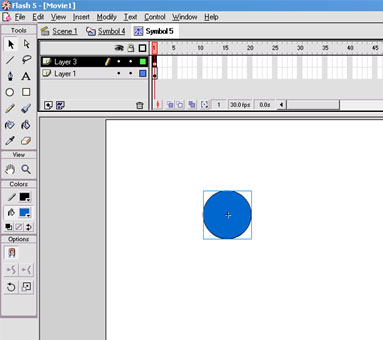
-Select the graphic and go to Edit>copy. Create another
layer in the timeline by going to Insert>layer. Click on the
first frame of the newly created layer and go to Edit>paste
in place.( Paste in place pastes our graphic in the same
location it was when we first copied it.).
Step 6.
[click image
for larger picture]
- Click on frame
15 and insert a frame by pressing F5.( Do this for both
layers). Next insert a key frame on frames 8 and 15 of the
upper layer. Go to frame 8 and select on the "scale" button
from the toolbar. Increase the size of the circle
until its about twice as big.
Step 7.
[click image
for larger picture]
-Once you have
scaled the circle to a desired size go to Modify>instance.
Chose the "effect" tab from the instance panel. Select
"Alpha" from the scroll
menu and change the Alpha to 19%.
Step 8.
[click image
for larger picture]
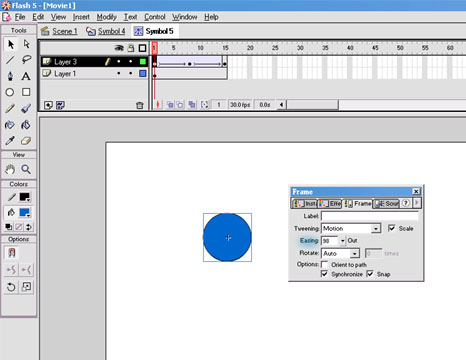
-Select frame 1
and click on the "frame" tab of the instance cannel. Set the
tween type to motion and set the "easing" to 100. Then click
on frame 8 and chose "motion" as the Tween type and set the
easing to -100.
The final
animation should like this:
If you have any
questions, please post in the
Flash forums.
You can contact me directly by e-mailing at:
[email protected] You
can also contact me by using AOL Instant Messenger: Crazy
Flash Pie



 Animated
Rollover
Animated
Rollover