[REACT](https://www.kirupa.com/react/index.htm)
[BOOK](https://www.amazon.com/exec/obidos/ASIN/0134546318/kirupacom)
# Suspense and Error Boundaries
by [ kirupa](https://www.kirupa.com/me/index.htm) | filed under [Learning React](https://www.kirupa.com/react/index.htm)
Every app that does something interesting has two awkward moments. The first is when something isn't ready yet: a chunk of code is still downloading, or the data you need is still on its way. The second is when something goes wrong: the server doesn't answer, or a component throws an error. If you do nothing about either one, your users see a blank spot in the first case and a completely empty page in the second.
React gives us a tool for each situation. **Suspense** lets you say what to show while part of your UI is waiting. **Error boundaries** let you say what to show when part of your UI breaks. They are meant to work together, and that's why they share a tutorial.
In this tutorial, we are going to look at both. Along the way, we'll also meet two hooks, `useTransition` and `useDeferredValue`, that keep your UI from flashing loading screens at people. Every example you'll see here was run on React 19.3, so what you read is what you'll see in your browser.
Onwards!
## The Big Picture
Both Suspense and error boundaries are components that you wrap around other components. Anything inside the wrapper is covered by it. The following diagram shows how I'll set things up for most of this tutorial:
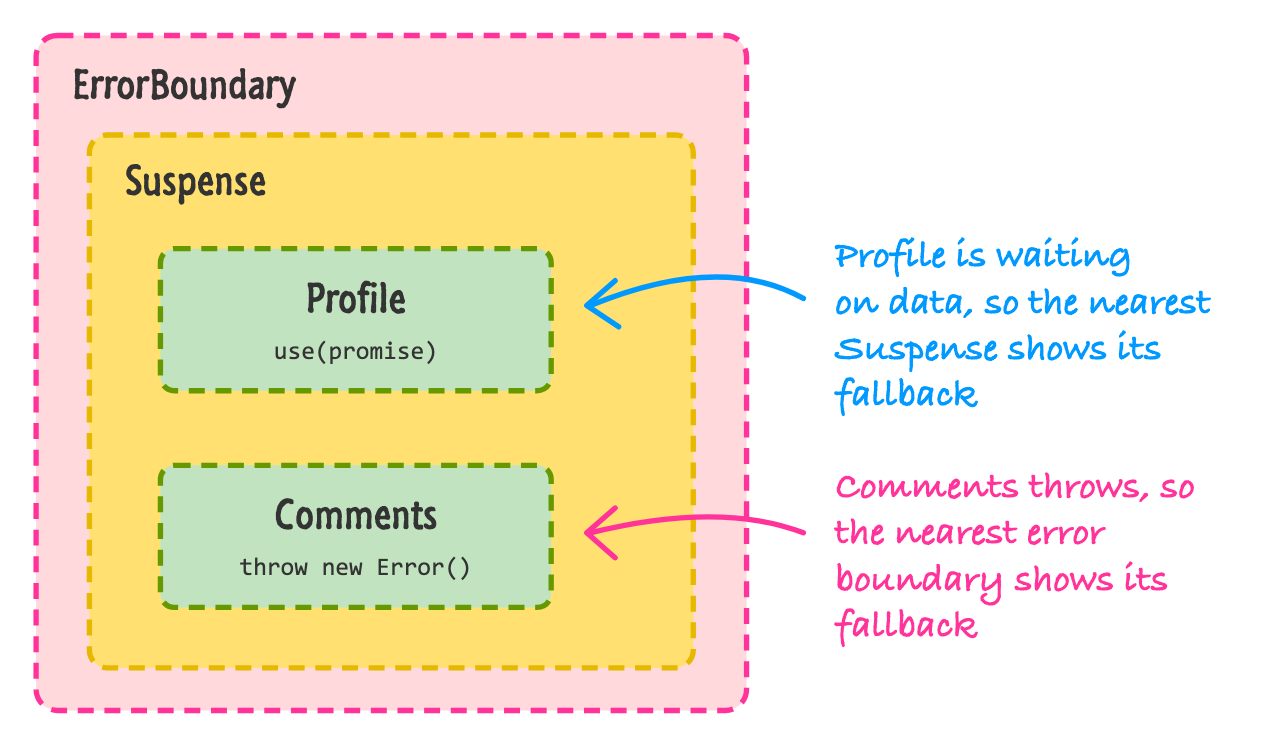
The `Profile` component is waiting for its data, so the nearest `Suspense` above it shows its fallback until the data arrives. The `Comments` component throws an error, so the nearest `ErrorBoundary` above it shows its own fallback instead. Each one looks up the tree to find its closest boundary, a bit like how context looks up the tree to find the closest provider.
Let's start with the waiting part.
## Meet Suspense
The `Suspense` component takes a `fallback` prop. This is whatever you want to show while something inside is not ready:
```jsx
Loading...}>
```
When a component inside a Suspense boundary isn't ready, React *suspends* it, shows the fallback, and then swaps in the real content once everything is ready. You don't write any `isLoading` state or `if` statement. The component that needs the thing just asks for it, and the boundary above it deals with the waiting.
Right now, two things can make a component suspend: code that is loaded lazily, and data that is read with the `use` function. We'll look at both.
## Suspense with Lazy Loading
The easiest way to see Suspense in action is with code splitting. Normally, when you build your app, all of your components get bundled into one big JavaScript file. That is fine for small apps. For bigger apps, you might have a heavy component (a chart, an editor, a settings screen) that most people never open. Why make everyone download it up front?
React's `lazy` function lets you hold off on loading a component until the first time it is shown. Let's say we have a `Chart` component in a file called `Chart.jsx`:
```jsx
export default function Chart() {
return (
);
}
```
It's not much of a chart, but it will do. Now here is an app that loads it only when you ask for it:
```jsx
import { lazy, Suspense, useState } from "react";
const Chart = lazy(() => import("./Chart.jsx"));
export default function App() {
const [showChart, setShowChart] = useState(false);
return (
<>
{showChart && (
Loading chart...}>
)}
);
}
```
The highlighted `lazy` line is where the magic is. We hand `lazy` a function that calls `import()`, the browser's built-in way of loading a JavaScript file on demand. It returns a promise, and `lazy` turns that promise into a component we can use like any other. The file you import needs to have its component as the **default export**, and the `lazy` call needs to live at the top level of your file, outside of any component. If you put it inside a component, you'd create a brand new lazy component on every render and lose everything each time.
When you click **Show Chart**, React tries to render `Chart` for the first time, notices that the code isn't there yet, and shows **Loading chart...** while the file downloads. When the file arrives, the chart replaces the message.
If you build this app with Vite, you will see that `Chart.jsx` ends up as its own separate file in the `dist/assets` folder (mine was called `Chart-` followed by some random characters, and it was under half a kilobyte). That's the code splitting at work. That file is only downloaded when someone clicks the button.
One thing you may notice: when you run this on your own computer, the fallback flashes by so fast that you can barely see it. That's because your dev server answers instantly. To see it, open your browser's developer tools, go to the **Network** tab, and switch the throttling option from **No throttling** to **Slow 4G** (or whatever the slowest preset is called in your browser). Click the button again and you'll get a good look at the fallback.
## Suspense with the use API
Lazy loading is a nice way to meet Suspense, but the more common reason to wait is data. In the [What's New in React 19](https://www.kirupa.com/react/react_19_whats_new.htm) tutorial, we looked at the `use` function, which reads the value out of a promise. If the promise hasn't settled yet, `use` suspends the component, and the closest Suspense boundary shows its fallback.
For the examples in this tutorial, we need some data to wait for. Create a file called `data.js` with the following code:
```js
const cache = new Map();
async function loadUser(id) {
// Pretend this is a network request (Sherlock's is slower)
await new Promise((resolve) => setTimeout(resolve, id === 2 ? 2000 : 1000));
if (id === 3) {
throw new Error("User 3 could not be loaded");
}
return { id, name: ["Batman", "Sherlock Holmes", "Nobody"][id - 1] };
}
export function fetchUser(id) {
if (!cache.has(id)) {
cache.set(id, loadUser(id));
}
return cache.get(id);
}
export function forgetUser(id) {
cache.delete(id);
}
```
The `loadUser` function pretends to be a network request by waiting a second (two seconds for Sherlock) and then returning a user. If you ask for user number 3, it fails on purpose. We'll use that later when we get to errors. The part to pay attention to is the highlighted `fetchUser` function. It keeps every promise it creates in a cache, so asking for the same user twice gives you back the **same** promise. That detail matters more than it looks. The promise you give to `use` has to be the same one on every render. If you create a new promise each time the component renders, React will keep waiting on a new promise forever.
Now let's use it:
```jsx
import { Suspense, use, useState } from "react";
import { fetchUser } from "./data.js";
function Profile({ id }) {
const user = use(fetchUser(id));
return
{user.name}
;
}
export default function App() {
const [id, setId] = useState(1);
return (
<>
Loading profile...}>
);
}
```
When this app first appears, `Profile` calls `use` on a promise that is still pending. React pauses `Profile`, shows **Loading profile...**, and then shows **Batman** about a second later. Notice what's missing: `Profile` has no loading state, no effect, and no `if (!user)` check. By the time the line after `use` runs, `user` is a real user. The waiting is handled by whoever is above it.
If you click **Sherlock**, you'll see the fallback again for about two seconds, and then Sherlock's name appears. Click **Batman** afterwards and he shows up right away, since his promise is already settled and sitting in our cache.
I'll be honest about something here. That hand-rolled cache in `data.js` is fine for learning how things work, but it's not how you'd handle data in a real app. Real apps have to worry about stale data, refetching, and cleaning up the cache. For that, you'd typically use a library such as TanStack Query or SWR, or a framework that takes care of data loading for you. We'll look at the framework option in the [Server Components and Frameworks](https://www.kirupa.com/react/server_components_and_frameworks.htm) tutorial. The good news is that the Suspense part (what you've just seen) works the same way no matter where the promise comes from.
## Fallbacks and Nesting
You aren't limited to one Suspense boundary. You can nest them, and each one controls its own piece of the page. The closest boundary above a suspended component is the one that shows its fallback. Take a look at this example, which uses the same `data.js` file from before:
```jsx
import { Suspense, use } from "react";
import { fetchUser } from "./data.js";
function Profile({ id }) {
const user = use(fetchUser(id));
return
{user.name}
;
}
export default function App() {
return (
Loading the page...}>
Loading the friend...}>
);
}
```
Here is what I saw when I ran this. For the first second, the outer boundary showed **Loading the page...** and nothing else. Then Batman appeared, and below him was **Loading the friend...** from the inner boundary. A little later, Sherlock Holmes replaced that message. Because the second profile has its own boundary, it didn't hold up Batman. Without the inner boundary, Batman would have stayed hidden until both were ready.
This is the main design decision when you work with Suspense: where do you draw the boundaries? One boundary around your whole page gives you a single loading screen. A boundary around each section lets the page fill in piece by piece. Neither is correct for everything. A good rule of thumb is to put a boundary around each part of the page that makes sense to show on its own.
You may also have noticed that Sherlock took a while: about three seconds from the start, as opposed to two. That's because the second request only began after the first profile had finished loading and rendered, so the waits stacked on top of each other. This is often called a **waterfall**. If you can, start your requests as early as possible (such as when the user clicks or navigates), rather than waiting for a component to ask for the data.
## Don't Hide What You Already Showed
Go back to our Batman and Sherlock example. When you clicked **Sherlock**, the existing profile vanished and the fallback appeared. If you are updating something that is already on the screen, that can feel jarring. Wouldn't it be nicer if Batman stayed on the screen until Sherlock was ready?
That's what `useTransition` is for. You tell React that a particular state update isn't urgent, and React keeps showing the old content while it prepares the new content in the background:
```jsx
import { Suspense, use, useState, useTransition } from "react";
import { fetchUser } from "./data.js";
function Profile({ id }) {
const user = use(fetchUser(id));
return
);
}
```
The `useTransition` hook gives us two things: a function called `startTransition`, and a boolean called `isPending` that is `true` while the transition is in progress. We wrap our `setId` call inside `startTransition`. Now when you click **Sherlock**, **Batman** stays on the screen, dimmed to half opacity thanks to `isPending`, for the two seconds it takes to load Sherlock. When Sherlock is ready, he swaps in. No fallback in sight.
There is one exception. The very first time the page loads, there is nothing on the screen to keep around, so you'll still see **Loading profile...**. Transitions only hold back updates to content that is already visible.
### A Quick Look at useDeferredValue
A close cousin of `useTransition` is `useDeferredValue`. It solves a different problem. Let's say that you have a search box and a list underneath it that is slow to render. Every keystroke re-renders the list, and typing starts to feel sluggish. With `useDeferredValue`, you hand React a value, and it gives you back a copy that is allowed to lag behind. React updates the input right away, and then updates the slow part when it has time.
To see this, we'll make a deliberately slow list. Each item will waste a millisecond of time when rendering:
```jsx
import { memo, useDeferredValue, useState } from "react";
const names = Array.from({ length: 2000 }, (_, i) => `Hero number ${i + 1}`);
function SlowItem({ name }) {
const start = performance.now();
while (performance.now() - start < 1) {
// Pretend each item is expensive to render
}
return
);
}
```
The busy loop inside `SlowItem` is there purely to slow things down on purpose, so don't copy that into real code (your linter may even complain about it, and it would be right to). The interesting parts are highlighted. The input shows `query`, which updates on every keystroke, but the list gets `deferredQuery`. While React is busy with the slow list, `deferredQuery` holds the old value, which is why we can compare the two to show an **Updating...** message. When I typed `hero number 12` into the box, the input kept up with my typing, the message appeared while React caught up, and then the list settled on 111 matches.
Notice that `SlowList` is wrapped in `memo`. That's important here. Without it, `SlowList` would re-render every time `App` does, even when `deferredQuery` hasn't changed yet, and you'd lose the benefit. If you are using React Compiler from the [last tutorial](https://www.kirupa.com/react/react_19_whats_new.htm), it takes care of this for you.
Use `useTransition` when you control the state update (like a button click), and `useDeferredValue` when you receive a value that you can't wrap (like the text from an input, or a prop).
## Error Boundaries
That takes care of waiting. Let's talk about things going wrong. By default, if any component throws an error while it is rendering, React unmounts your **entire** UI. Your users end up looking at a white screen. That's a bit extreme for something like a broken comments section.
An **error boundary** is a component that catches errors thrown by the components below it, and shows a fallback UI instead of letting the whole app fall over. Even in React 19, there is no built-in `ErrorBoundary` component, and there is no hook for it. The only way to build a boundary yourself is with a **class component**, using two special methods that function components can't have. This is one of the few places where classes are still the right tool, and the [Functional Components](https://www.kirupa.com/react/functional_components.htm) tutorial explains why they are otherwise legacy.
The good news is that you only need to write this once. Here is a tiny but complete error boundary, followed by the rest of the file that uses it:
```jsx
import { Component, Suspense, use, useState } from "react";
import { fetchUser, forgetUser } from "./data.js";
class ErrorBoundary extends Component {
state = { error: null };
static getDerivedStateFromError(error) {
return { error };
}
componentDidCatch(error, info) {
console.error("Caught by boundary:", error.message, info.componentStack);
}
reset = () => {
this.props.onReset?.();
this.setState({ error: null });
};
render() {
if (this.state.error) {
return this.props.fallback(this.state.error, this.reset);
}
return this.props.children;
}
}
```
The `getDerivedStateFromError` method runs when a child throws. It receives the error, and whatever you return gets merged into the boundary's state. That's how the boundary remembers that something broke. The `componentDidCatch` method runs afterwards, and it's the place for side effects such as logging the error to a service. The `render` method then checks the state: if there is an error, it shows the `fallback` we were given, and if not, it renders the children as usual. We also added a `reset` function that clears the error so the children get another try. Now let's use it:
```jsx
function Profile({ id }) {
const user = use(fetchUser(id));
return
)}
>
Loading profile...}>
);
}
```
This block continues the same file, directly after the class. It is the diagram from earlier come to life: an `ErrorBoundary` on the outside, a `Suspense` inside it, and a `Profile` inside that. When you click **Broken**, `fetchUser(3)` returns a promise that rejects after a second. You'll see **Loading profile...**, and then the rejection hits `use`, which throws it right into the render of `Profile`. The error boundary catches it and shows **Oops: User 3 could not be loaded** and a button to try again.
Let's look at the highlighted lines. The `key={id}` on the boundary is the first one. Once a boundary has caught an error, it stays in its error state, and picking a different user wouldn't automatically clear it. By giving the boundary a key that changes with `id`, React throws away the old boundary and creates a fresh one every time you switch users. (We covered keys back in the tutorial on [state](https://www.kirupa.com/react/dealing_with_state.htm), if you want a quick refresher on how they reset things.) The second is the `onReset` function. Remember that our cache keeps every promise, including the rejected ones. If **Try again** only cleared the error, `Profile` would ask for the same cached, already-rejected promise and fail again instantly. By calling `forgetUser(id)` first, the next attempt makes a brand new request. Since user 3 always fails in our fake data, you'll get the error again after another second, but with a real server, this is how a retry button would work.
### What Error Boundaries Don't Catch
Error boundaries only catch errors that happen **during rendering** (including in lifecycle methods, and in `use` as we just saw). There are a few things they don't catch:
- Errors inside event handlers, like an `onClick` function. Those don't happen during a render, so React has nothing to interrupt. Use a regular `try`/`catch` instead.
- Errors in asynchronous code, such as `setTimeout` callbacks or `await` calls that you make yourself.
- Errors thrown by the boundary itself. A boundary can only catch errors from the components **below** it, so you may want another boundary higher up.
The practical takeaway is that you should place boundaries at a few meaningful spots: perhaps one around the whole app as a last resort, and then more around sections that can fail independently, such as a comments panel or a widget that talks to a third-party service. That way, a failure in one part doesn't take out everything else.
## The react-error-boundary Library
Writing a class once is fine, but most people don't want to maintain their own boundary, especially once they want things like retry behavior. That's why a small library called [react-error-boundary](https://github.com/bvaughn/react-error-boundary) is so popular. It's a well-tested boundary written by a member of the React team, and it works with function components. You install it like any other package:
```bash
npm install react-error-boundary
```
Here is our app again, rewritten to use the library instead of our own class. I used version 6 to run this one:
```jsx
import { Suspense, use, useState } from "react";
import { ErrorBoundary, useErrorBoundary } from "react-error-boundary";
import { fetchUser, forgetUser } from "./data.js";
function Profile({ id }) {
const user = use(fetchUser(id));
return
)}
onReset={() => forgetUser(id)}
resetKeys={[id]}
>
Loading profile...}>
);
}
```
It behaves the same way as our hand-written version, and a few things got easier. The `fallbackRender` prop gets the `error` and a `resetErrorBoundary` function, so you don't have to wire up a reset yourself. The `onReset` callback runs when it is reset, which is where we clear the cache. And the `resetKeys` array replaces our `key={id}` trick: whenever something in that array changes, the boundary resets itself.
The `RiskyButton` component shows my favorite part of the library. Remember that boundaries don't catch errors in event handlers or async code? The `useErrorBoundary` hook gives you a `showBoundary` function. When you call it with an error, the nearest boundary acts as if the error had been thrown during rendering. I clicked the button, the `await` failed, and the fallback showed up, exactly as if a component had thrown.
### Logging Errors at the Root
There is one more spot where you can keep an eye on errors. When you create your React root with `createRoot`, you can pass it options for reporting errors. This is where you would hook up a service such as Sentry:
```jsx
import { createRoot } from "react-dom/client";
import App from "./App.jsx";
createRoot(document.getElementById("root"), {
onCaughtError(error, info) {
console.log("An error boundary caught:", error.message, info.componentStack);
},
}).render();
```
The `onCaughtError` function is called whenever an error boundary catches something. I confirmed that it fires with our broken profile, and that `info.componentStack` tells you which components were involved. There is a companion called `onUncaughtError` for errors that no boundary caught at all. Both of these replace the older, noisier behavior where React re-threw errors to the console.
## Conclusion
Loading and failing are two things every real app has to deal with, and React gives us a neat way to handle each one. `Suspense` shows a fallback while something inside it waits, whether that's code loaded with `lazy` or data read with `use`. The `useTransition` and `useDeferredValue` hooks keep content that is already on the screen from disappearing behind a fallback. And error boundaries catch errors during rendering and show a fallback of their own. You can write one with a small class, or use `react-error-boundary` and get retry support and `showBoundary` for free.
Put the two together, as in the diagram at the top, and your components can focus on the happy path while the boundaries above them take care of everything else. The next question is where all of this data comes from, and who should be fetching it. That brings us to React frameworks and Server Components. Next tutorial: [Server Components and Frameworks](https://www.kirupa.com/react/server_components_and_frameworks.htm).