[REACT](https://www.kirupa.com/react/index.htm)
[BOOK](https://www.amazon.com/exec/obidos/ASIN/0134546318/kirupacom)
# Creating a Sliding Menu in React
by [ kirupa](https://www.kirupa.com/me/index.htm) | filed under [Learning React](https://www.kirupa.com/react/index.htm)
In UIs today, sliding menus are all the rage. All the cool kids are building them, and your friends just can't get enough of them! Anyway, these menus are basically off-screen elements that slide into view when you click or tap on something. That *something* could be an arrow, a hamburger icon, or something else that indicates a menu will appear.
To see a sliding menu like in action, click or tap on the blue circle in the following example (or [open in a new window](https://www.kirupa.com/react/examples/slidingmenu_css/index.html)):
Your browser does not support inline frames or is currently configured not to display inline frames.
You'll see a yellow-colored menu with some navigation links smoothly slide in. If you click on a navigation link or anywhere in the yellow colored region inside that menu, the menu will slide back (really smoothly again, of course!) and the content behind it will reappear. Let's look at how to create all of this using React.
Onwards!
#### Note: For a Non-React Solution
If you are looking to create this menu using just plain JavaScript without any React wizardry, this [Creating a Smooth Siding Menu](https://www.kirupa.com/html5/creating_a_smooth_sliding_menu.htm) tutorial has you covered.
## How the Sliding Menu Works
Before we jump into the code, let's take a few moments to better understand how exactly our sliding menu works. Starting at the very top, we have our page that displays some content:
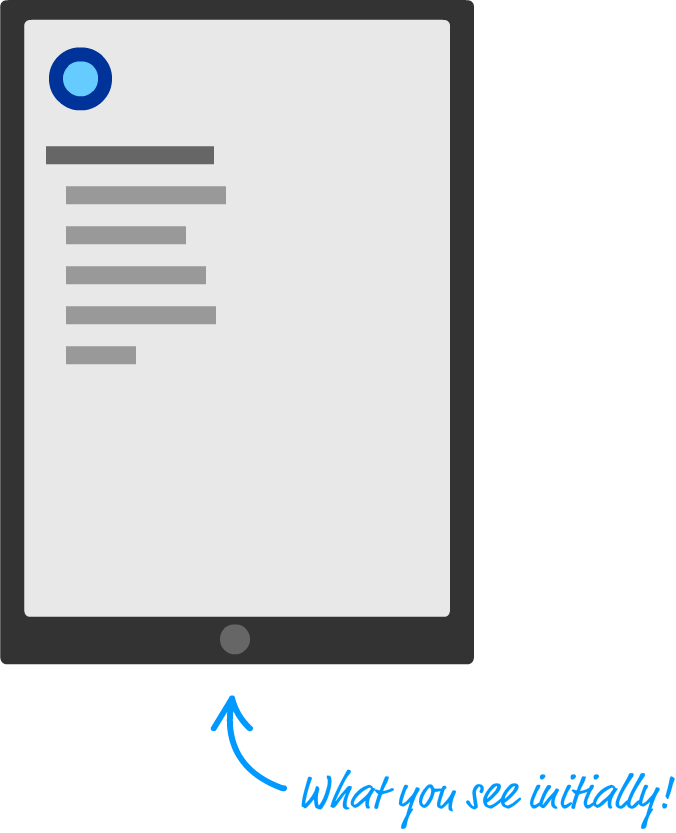
When you decide to bring up the menu (clicking/tapping on the blue circle as is the case in our example), the menu magically slides into view:
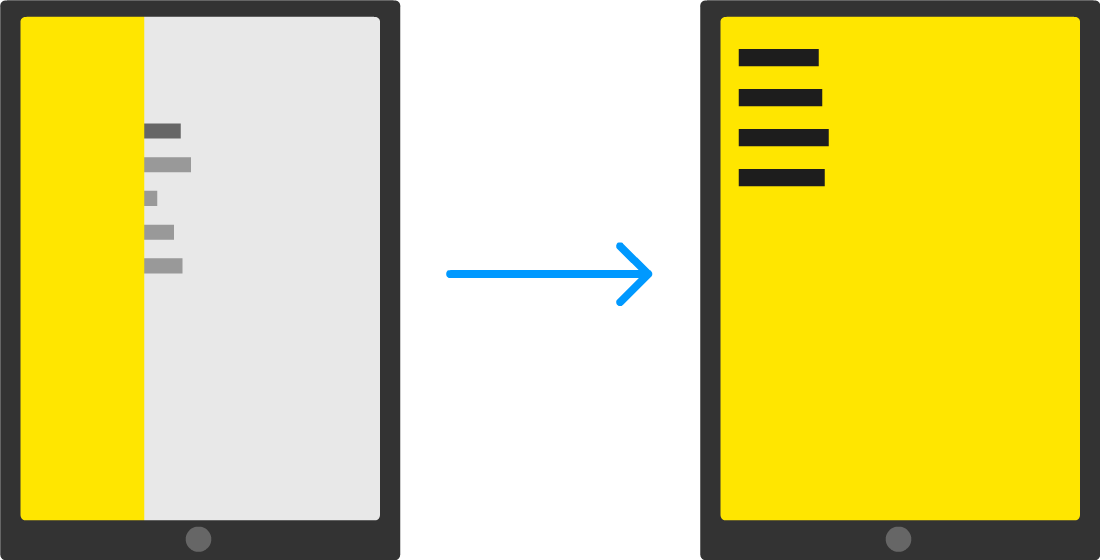
The way this sliding menu works is not as crazy as it seems. The menu is never truly nonexistent. It is simply hidden outside of the view. To see what that looks like, take a look at the following diagram:
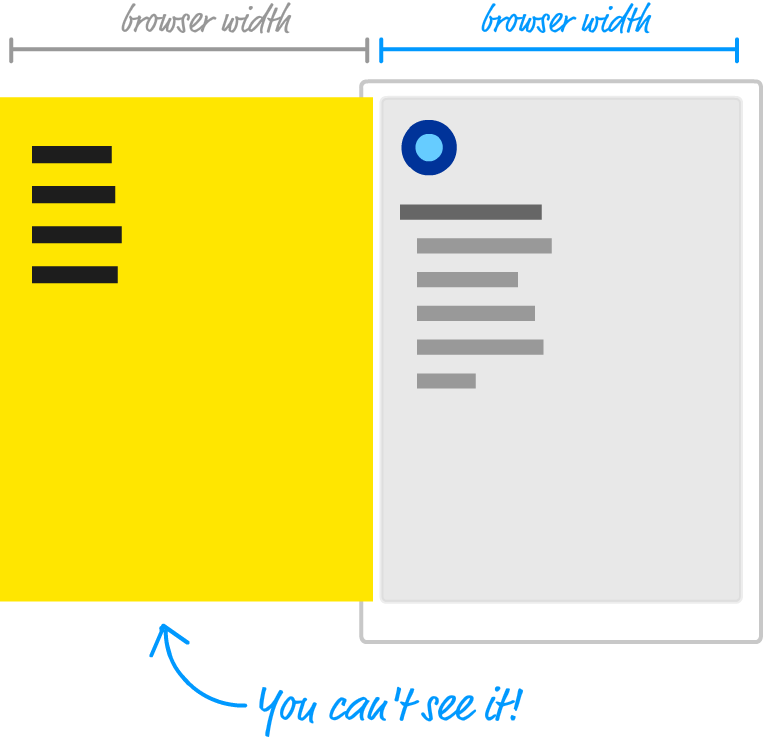
Just to the left of the content that we see, we have our menu...patiently hiding until it is called upon. The way we do that is by shifting the menu as far left as we can until it is fully out of view. Figuring out how far to shift is easy. Our menu's size is the same as our browser's window (aka the viewport) size, for we want the menu to fully cover up whatever is shown. Given that detail, we just shift the menu left by the browser's width. One way of doing that might be by using some CSS that looks as follows:
```css
#theMenu {
position: fixed;
left: 0;
top: 0;
transform: translate3d(-100vw, 0, 0);
width: 100vw;
height: 100vh;
}
```
We set our menu's `position` to **fixed**. This single change gives our menu a whole lot of magical capabilities. For starters, this ensures normal layout rules no longer apply to it. We can position our menu anywhere we want using normal x and y values, and the menu won't shift away from where we have it positioned. If all of that is isn't awesome enough, our menu won't even display a scrollbar if we happen to hide it somewhere off screen.
All of this is a good thing, for the way we hide our menu off screen is by setting our menu's `left` and `top` properties to 0 and setting our menu's `transform` property to a **translate3d** method with a horizontal value of **-100vw**. The negative value ensure we shift the menu left by the amount equivalent to our browser window's width. While not related to position directly, the size of our menu plays an important role as well. That is why in this CSS snippet, we have the `width` and `height` properties set with values of **100vw** and **100vh** respectively to ensure our menu's size is the same as our browser window's size.
#### What is this **vw** and **vh** unit?
If you've never seen the **vw** and **vh** units before, they stand for **viewport width** (vw) and **viewport height** (vh). They are a bit similar to percentage values. Each unit is 1/100th the width or height of your viewport (what we've been simply calling the browser window). For example, a value of 100vw means that its value is the full width of our browser window. Similarly, 100vh refers to a value that is the full height of our browser window.
When the menu is called upon to slide into view, we slide the menu right until its horizontal position is the same as our browser window origin. If we had to look at what the CSS for it might look like, this would be an easy change from what we already have. We simply set our `transform` property's **translate3d** method and set the horizontal position to a value of **0vw**.
This might look something like this:
```css
transform: translate3d(0vw, 0, 0);
```
This change ensures our menu is shifted right from being hidden off-screen (with a horizontal translate value of **-100vw**) and is now visible. When our menu needs to disappear, we we can translate it back:
```css
transform: translate3d(-100vw, 0, 0);
```
The biggest thing we haven't spoken about is the animation that makes the sliding look cool. This is done using a simple CSS transition that animates the `transform` property:
```css
transition: transform .3s cubic-bezier(0, .52, 0, 1);
```
If you are not familiar with CSS transitions, it's a very simple concept to wrap your brain around. While I won't explain it here, take a few moments and read through the short [Introduction to CSS Transitions](https://www.kirupa.com/html5/introduction_css_transitions.htm) article for an overview.
OK. What have we covered so far? What we've done in this section is take a birds-eye view of how our sliding menu works. There are a few details that we haven't looked at, but that is something we'll address in the next couple of sections as part of actually building this menu.
## Setting Up the Sliding Menu
Now that you have a basic idea about how our sliding menu works, let's turn all of that theoretical knowledge into some sweet JSX and code. The first thing we are going to do is look at our example in terms of the individual components that will make it up.
At the very top, we have our `MenuContainer` component:
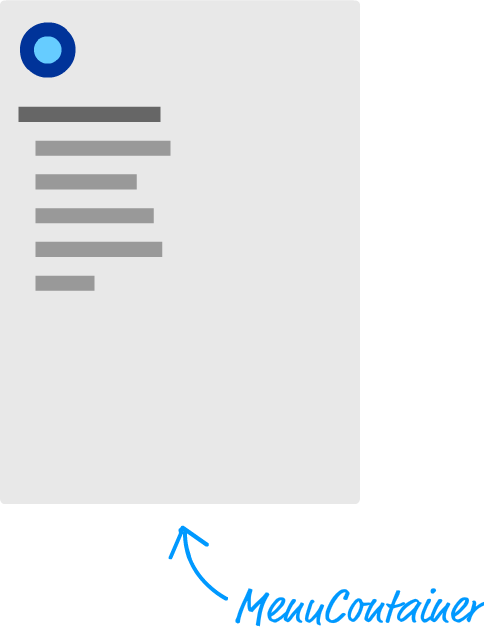
This component is responsible for doing non-visual things like managing state, hosting our `Menu` & `MenuButton` components, and displaying some of the initial text. The birds eye view would look a bit like this:
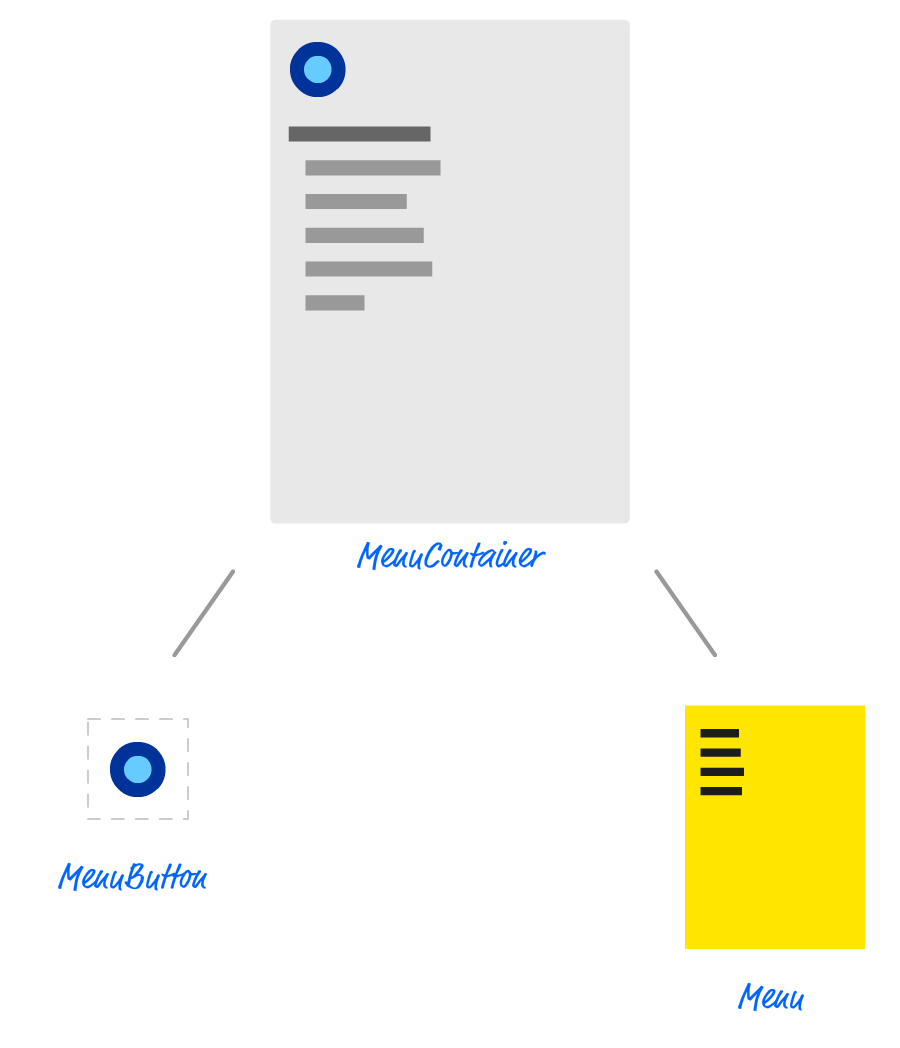
What we are going to do in the next few sections is start creating these components and get the example up and running.
## Getting Started
Use `create-react-app` to create a new project called **slidingmenu**. If you aren't familiar with how to do that, check out [this tutorial](https://www.kirupa.com/react/setting_up_react_environment.htm) that walks you through the details of creating and working with React projects. Anyhoo, once you've created your project, we want to start from a blank slate. Delete everything in your **public** and **src** folders. We'll re-create the necessary pieces ourselves in a few moments.
We will start by creating our HTML document. In your **public** folder, create a file called **index.html**. Inside it, add the following contents:
```js
Sliding Menu in React
```
This HTML page is simply the destination that all of our React components will eventually render their output into. The main thing to note is that we have a `div` element here called **container**.
Next, we'll create a file called **index.js** in our **src** folder that will be responsible for teeing things up in our code. Add the following content into this file:
```js
import React from "react";
import ReactDOM from "react-dom";
import "./index.css";
import MenuContainer from "./MenuContainer";
ReactDOM.render(
,
document.querySelector("#container")
);
```
The `render` call here is responsible for displaying the output of our `MenuContainer` component into the **container** `div` element we specified in our HTML a few moments ago. In our import statements, besides pulling in the **react** and **react-dom** libraries, we are referencing **index.css** and our `MenuContainer` component. That is all there is to our index.js file.
What we are going to do next is create the **index.css** file in our **src** folder and get the page's basic styling defined. In this file, add the following two style rules:
```css
body {
background-color: #EEE;
font-family: sans-serif;
font-size: 20px;
padding: 25px;
margin: 0;
overflow: auto;
}
#container li {
margin-bottom: 10px;
}
```
There isn't much to say about these style rules, so the last thing we will do for getting our initial app setup is create our `MenuContainer` component. Create a file called **MenuContainer.js** in the **src** folder and add the following JS and JSX into it:
```js
import React, { Component } from "react";
class MenuContainer extends Component {
render() {
return (
Can you spot the item that doesn't belong?
Lorem
Ipsum
Dolor
Sit
Bumblebees
Aenean
Consectetur
);
}
}
export default MenuContainer;
```
Make sure to save the changes you made to all of your files, and test your app out (using `npm start`) to ensure our initial setup of our app works fine. If everything worked out properly, your default browser will launch and you'll see something that looks as follows:
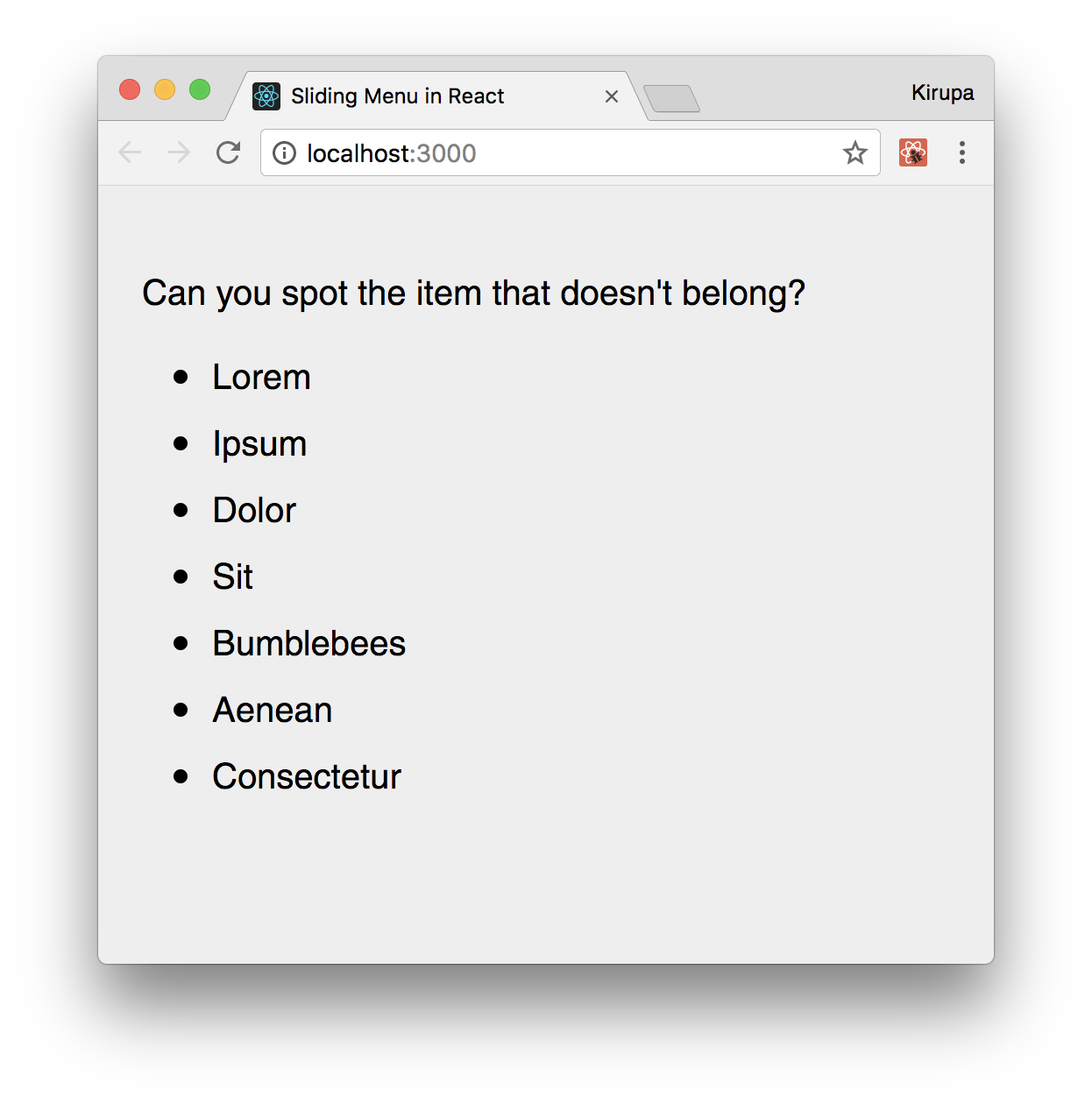
There is no menu to slide or button to press. Those are both things we'll add in the next couple of sections.
## Showing and Hiding the Menu
With the initial setup out of the way, it's time for the fun part: actually building the menu! The way our menu is shown or hidden is as follows:
1. When you click on a button, the menu slides into view
1. When you click anywhere on the menu, the menu slides out of view
This means that there are a few things going on that we need to account for. There is some state we will need to maintain to keep track of whether the menu is hidden or shown. This state needs to be something we update from both the button and the menu, for clicking on either will toggle whether the menu is visible or not. We need our state to live in a common location that both the menu and the button can access. That common location will be inside our `MenuContainer` component, so let's add the code relating to our state logic.
In our **MenuContainer.js** file, add the `constructor` and `toggleMenu` methods just above our render method:
```js
constructor(props, context) {
super(props, context);
this.state = {
visible: false
};
this.toggleMenu = this.toggleMenu.bind(this);
}
toggleMenu() {
this.setState({
visible: !this.state.visible
});
}
```
The code we've just added should look like a walk in the park by now. We are storing a variable called `visible` in our `state` object, and we create a method called `toggleMenu` that will be responsible for toggling whether `visible` is **true** or **false**.
Next up is dealing with the click events on the button and menu. If the goal is to update our state from inside our `MenuContainer` component, then we need to place our event handler inside `MenuContainer` as well. Go ahead and add the following highlighted lines:
```js
import React, { Component } from "react";
class MenuContainer extends Component {
constructor(props, context) {
super(props, context);
this.state = {
visible: false
};
this.handleMouseDown = this.handleMouseDown.bind(this);
this.toggleMenu = this.toggleMenu.bind(this);
}
handleMouseDown(e) {
this.toggleMenu();
console.log("clicked");
e.stopPropagation();
}
toggleMenu() {
this.setState(
{
visible: !this.state.visible
}
);
}
.
.
.
}
```
When the `handleMouseDown` method is called, we call `toggleMenu` that will toggle whether the menu appears or not. At this point, you are probably wondering where the actual code for dealing with a click event is. What exactly will trigger a call to `handleMouseDown`? The answer is...nothing so far! What we've done is do things in a bit of a reverse order where we defined our event handler first. The association between it and our click event is something that we will address in a few moments when dealing with our button and menu components!
### Creating the Button
In your **src** folder, create two files called **MenuButton.js** and **MenuButton.css**. Once you've created both of these files, open **MenuButton.js** in your code editor. Inside it, add the following lines of code:
```js
import React, { Component } from "react";
import './MenuButton.css';
class MenuButton extends Component {
render() {
return (
);
}
}
export default MenuButton;
```
Take a moment to see what this code is doing. There isn't a whole lot going on. We define a `button` element called **roundButton**, and we associate the **onMouseDown** event with a prop we are referencing as `handleMouseDown`. Before we move on, open **MenuButton.css** and add the following style rules:
```css
#roundButton {
background-color: #96D9FF;
margin-bottom: 20px;
width: 50px;
height: 50px;
border-radius: 50%;
border: 10px solid #0065A6;
outline: none;
transition: all .2s cubic-bezier(0, 1.26, .8, 1.28);
}
#roundButton:hover {
background-color: #96D9FF;
cursor: pointer;
border-color: #003557;
transform: scale(1.2, 1.2);
}
#roundButton:active {
border-color: #003557;
background-color: #FFF;
}
```
Once you've made this change, it is time to actually instantiate our newly created `MenuButton` component. Go back to the `MenuContainer` component and add the following highlighted line inside the `render`method:
```js
render() {
return (
.
.
);
}
```
For this line to actually do something, be sure to add the apropriate `import` statement at the top for our **MenuButton.js** file. That's an easy one to overlook!
Notice that we are passing in a prop called `handleMouseDown`, and its value is the `handleMouseDown` event handler that we defined earlier. This ensures when you click on the button inside our `MenuButton` component, the `handleMouseDown` method that lives in our `MenuContainer` component gets called. All of this is great, but our button isn't very useful without a menu to help slide into view. We'll fix that up next.
### Creating the Menu
It is time to create our `Menu` component that will be responsible for all things dealing with the menu! Before we actually create this component, let's first pretend it already exists and call it from our `render` method inside our `MenuContainer`. Add the following highlighted call to our (currently imaginary) `Menu` component just below where you added the call to `MenuButton` a few short moments earlier:
```js
render() {
return (