[REACT](https://www.kirupa.com/react/index.htm)
[BOOK](https://www.amazon.com/exec/obidos/ASIN/0134546318/kirupacom)
# The JavaScript You Need for React
by [ kirupa](https://www.kirupa.com/me/index.htm) | filed under [Learning React](https://www.kirupa.com/react/index.htm)
React is JavaScript. There is no special React language that you have to learn, and the code you write in a component is the same code you would write in any other JavaScript file. What makes React code look strange to a newcomer is that it leans on a particular set of modern JavaScript features, and it uses them everywhere. You'll see curly braces in the middle of function parameters, three dots in front of variables, question marks in places that don't look like questions, and arrow functions stacked inside other arrow functions.
Good news! You don't need to know all of JavaScript to read and write React. You need a specific slice of it, and that slice is what we'll look at here. For each feature, we'll see how it works on its own first, and then where you'll run into it in React. If you've written a bit of JavaScript before, this will work as a quick refresher. If you've never touched JavaScript, you'll want to build a little more of a foundation first, and the [What to Know Prior to Learning React?](https://www.kirupa.com/react/how_much_to_know_prior_learning_react.htm) tutorial will help you figure out how much.
Onwards!
## How to Use This Tutorial
You don't have to memorize anything here, and you don't have to read this all in one sitting. A good way to use it is to skim through once, and then come back to a section when a line of React code stops making sense. The examples that don't mention React can be run in your browser's developer console or in a plain JavaScript file. The ones that do mention React are snippets from components, and you'll see them in action in the tutorials that follow.
The code in this tutorial was run against current versions of JavaScript (in Node 24) and React (19.x), so what you see in the comments is what you'll see on your screen. If you'd like the big picture of where this tutorial fits, the [Your React Learning Path](https://www.kirupa.com/react/your_react_learning_path.htm) tutorial has the full map.
## Variables with const and let
Modern JavaScript has two ways to declare a variable that you'll use all the time: `const` for values that won't be reassigned, and `let` for values that will be:
```js
const name = "Batman";
let lives = 9;
lives = lives - 1;
console.log(name, lives); // Batman 8
```
If you try to give a `const` a new value, JavaScript throws an error:
```js
const name = "Batman";
name = "Robin"; // TypeError: Assignment to constant variable.
```
Now here is a detail that trips up a lot of people. `const` doesn't mean the value is frozen. It means the variable can't be pointed at something else. If the value is an object or an array, you can still change what's inside it:
```js
const hero = { name: "Batman", city: "Gotham" };
hero.city = "Metropolis"; // allowed
const list = ["a", "b"];
list.push("c"); // also allowed
```
That detail will matter a lot when we get to updating state later on. For now, the habit to build is this: use `const` by default, and only reach for `let` when you know a variable will be reassigned. You'll almost never need the older `var` keyword, and you'll rarely see it in React code.
**Where you'll see it in React:** Nearly every line that sets up a component's data starts with `const`, including the pair that `useState` gives you back:
```jsx
const [count, setCount] = useState(0);
```
We'll unpack that line in the destructuring section below.
## Arrow Functions
An arrow function is a shorter way of writing a function. Here is a regular function next to its arrow function equivalent:
```js
function addOld(a, b) {
return a + b;
}
const add = (a, b) => a + b;
console.log(addOld(1, 2), add(1, 2)); // 3 3
```
When the body is a single expression, you can skip the curly braces and the `return` keyword, and the result of the expression is returned automatically. If there's only one parameter, the parentheses around it are optional too:
```js
const double = (n) => n * 2;
console.log(double(4)); // 8
```
If your function has more than one line, put the body inside curly braces and use `return` like you normally would:
```js
const greet = (name) => {
const message = `Hello, ${name}`;
return message;
};
```
There's one gotcha. If you want a short arrow function to return an object, you have to wrap the object in parentheses. Otherwise JavaScript thinks the curly braces are the start of a function body:
```js
const makeUser = (name) => ({ name, active: true });
console.log(makeUser("Alfred")); // { name: 'Alfred', active: true }
```
**Where you'll see it in React:** Everywhere. Components themselves are often written as arrow functions, and so are event handlers and the callbacks you pass to `map` and `filter`:
```jsx
```
If you'd like to see how components fit into this, the [Functional Components](https://www.kirupa.com/react/functional_components.htm) tutorial covers the details.
## Template Literals
Template literals let you build strings by dropping values straight into them. Instead of quotation marks, you use backticks, and anything inside `${}` gets evaluated and inserted. Compare this to joining strings with a plus sign:
```js
const name = "Bruce";
const count = 3;
console.log("Hi " + name + ", you have " + count + " new messages.");
console.log(`Hi ${name}, you have ${count} new messages.`);
// Both print: Hi Bruce, you have 3 new messages.
```
You can put any expression inside the `${}`, which means you can do math, call functions, or even use a ternary operator (we'll get to those shortly):
```js
console.log(`You have ${count} new message${count === 1 ? "" : "s"}.`);
// You have 3 new messages.
```
Template literals can also span multiple lines without any extra tricks, which makes them nice for longer text.
**Where you'll see it in React:** Mostly when building class names or text on the fly. This is something you'll see when we look at [styling in React](https://www.kirupa.com/react/styling_in_react.htm):
```jsx
{label}
```
## Destructuring
Destructuring is a way of pulling values out of an object or an array and putting them into variables, all in one line. It's one of the most common things you'll see in React, and it looks odd until you've seen it a few times.
### Destructuring Objects
Say you have an object and you want to use a few of its properties. Without destructuring, you'd write this:
```js
const hero = { name: "Batman", city: "Gotham", sidekick: "Robin" };
const name = hero.name;
const city = hero.city;
```
With destructuring, the same thing looks like this:
```js
const { name, city } = hero;
console.log(name, city); // Batman Gotham
```
The curly braces on the left side aren't an object. They are a pattern that says "find the properties called `name` and `city` on this object, and make variables with those names." The names have to match the property names. If you want a different variable name, use a colon to rename it:
```js
const { sidekick: partner } = hero;
console.log(partner); // Robin
```
You can also provide a default value that is used when the property doesn't exist (or is `undefined`):
```js
const { cape = "black" } = hero;
const { name: heroName = "Unknown", age = 35 } = hero;
console.log(cape); // black
console.log(heroName, age); // Batman 35
```
### Destructuring Arrays
Array destructuring works the same way, except that you use square brackets and the position decides which value goes where. The names are up to you:
```js
const pair = ["Batman", "Robin"];
const [first, second] = pair;
console.log(first, second); // Batman Robin
```
You can skip an item by leaving a gap before the comma:
```js
const [, onlySecond] = pair;
console.log(onlySecond); // Robin
```
### Destructuring Function Parameters
You can destructure right in the parameter list of a function, and you can combine that with default values:
```js
function Greeting({ name, mood = "happy" }) {
return `${name} is ${mood}`;
}
console.log(Greeting({ name: "Alfred" })); // Alfred is happy
console.log(Greeting({ name: "Joker", mood: "chaotic" })); // Joker is chaotic
```
It also works on nested objects, in case you need to dig a bit deeper:
```js
const person = { name: "Bruce", address: { city: "Gotham", zip: "10001" } };
const { address: { city } } = person;
console.log(city); // Gotham
```
**Where you'll see it in React:** All over the place. The first spot is the pair that `useState` returns, which is an array that you destructure into a value and a function that updates it:
```jsx
const [count, setCount] = useState(0);
```
The second spot is a component's parameters, because the props a component receives arrive as a single object:
```jsx
function Greeting({ name, mood = "happy" }) {
return
{name} is {mood}
;
}
```
That looks like a function with some mysterious curly braces, but it's the same destructuring we just saw. You can read more about how props work in the [Transferring Properties](https://www.kirupa.com/react/transferring_properties.htm) tutorial, and about state in [Dealing with State](https://www.kirupa.com/react/dealing_with_state.htm).
## Spread and Rest
The three dots (`...`) do two related jobs, depending on where they appear. When they are used to expand something into individual pieces, it's called **spread**. When they are used to gather the leftovers into one piece, it's called **rest**. Spread is the one that matters most in React, so let's start there.
### Spreading Objects
Spreading an object copies all of its properties into a new object. Here we make a copy of `user` and change one property along the way:
```js
const user = { name: "Bruce", city: "Gotham", theme: "dark" };
const updated = { ...user, city: "Metropolis" };
console.log(user); // { name: 'Bruce', city: 'Gotham', theme: 'dark' }
console.log(updated); // { name: 'Bruce', city: 'Metropolis', theme: 'dark' }
console.log(updated === user); // false
```
Here is a picture of what happened:
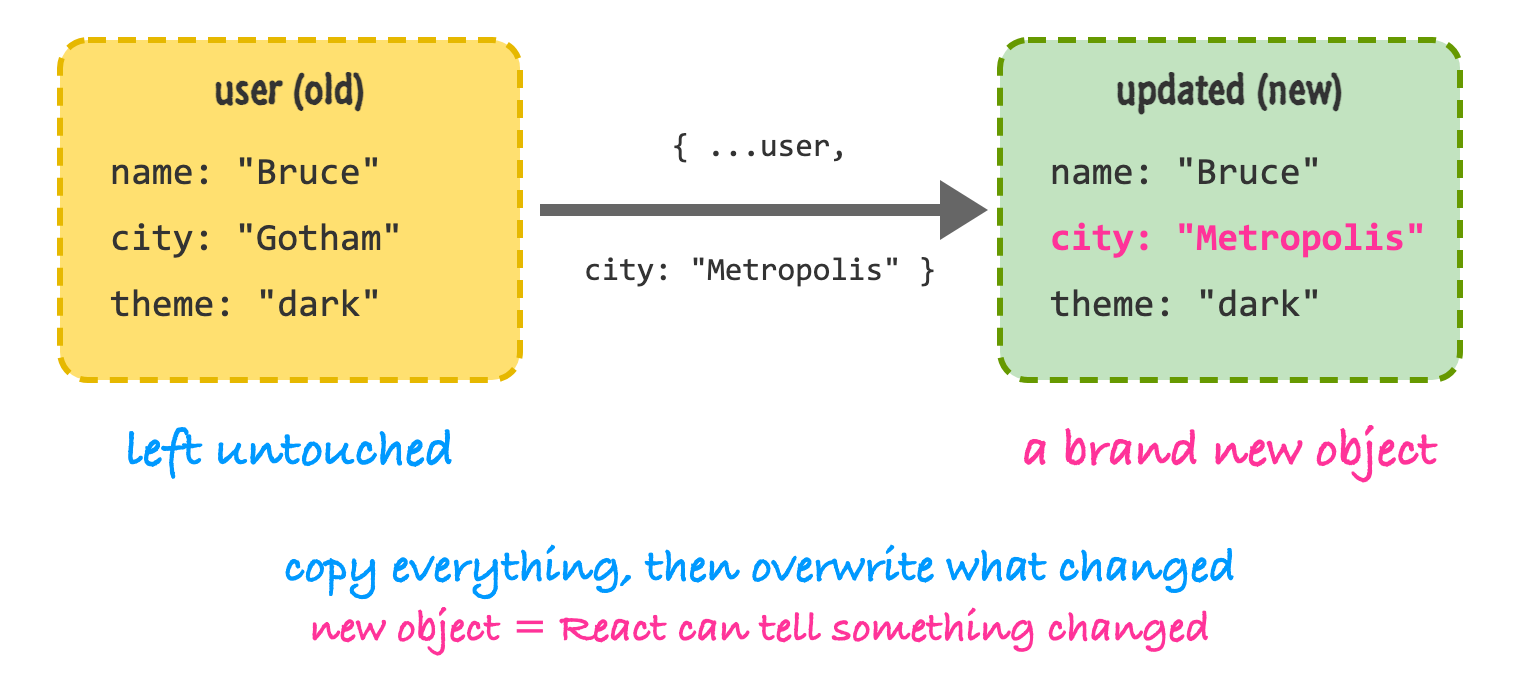
The original object is untouched, and you now have a brand new object with the one change you wanted. The order matters, too. Properties that come later win, so if you put the spread last, it will overwrite your change:
```js
const wrongOrder = { city: "Metropolis", ...user };
console.log(wrongOrder.city); // Gotham
```
Compare all of this to just assigning the object to another variable, which does not make a copy at all. Both variables now point at the same object, so changing one changes the other:
```js
const same = user;
same.city = "Metropolis";
console.log(user.city); // Metropolis
console.log(same === user); // true
```
### Spreading Arrays
Spread works on arrays, too, and it's how you add an item to a list without changing the original list:
```js
const todos = ["Buy milk", "Walk dog"];
const added = [...todos, "Learn React"];
const prepended = ["Wake up", ...todos];
console.log(added); // [ 'Buy milk', 'Walk dog', 'Learn React' ]
console.log(prepended); // [ 'Wake up', 'Buy milk', 'Walk dog' ]
console.log(todos); // [ 'Buy milk', 'Walk dog' ]
```
Removing and editing items is done with the array methods we'll look at in the next section, `filter` and `map`, since they also return new arrays instead of changing the old one.
### Updating Nested Objects
Spread only makes a **shallow** copy. It copies the top-level properties, but anything nested inside (like another object) is still shared between the old and new objects. To change something deep inside, you spread at each level along the way down:
```js
const state = {
user: { name: "Bruce", address: { city: "Gotham" } },
count: 0
};
const next = {
...state,
user: {
...state.user,
address: { ...state.user.address, city: "Metropolis" }
}
};
console.log(next.user.address.city); // Metropolis
console.log(state.user.address.city); // Gotham
console.log(next.user === state.user); // false
```
If we had only written `{ ...state }`, then `next.user` would be the exact same object as `state.user`. This is the one case where spread surprises people, and it's a good reason to keep the data you store in state as flat as you can.
### Rest
Rest is the opposite of spread. It collects what's left over. In an object destructuring pattern, it gathers the remaining properties into a new object:
```js
function props({ name, ...others }) {
return { name, others };
}
console.log(props({ name: "Bruce", id: 7, className: "hero" }));
// { name: 'Bruce', others: { id: 7, className: 'hero' } }
```
It works with arrays and with function parameters as well:
```js
const [head, ...tail] = [1, 2, 3, 4];
console.log(head, tail); // 1 [ 2, 3, 4 ]
function sum(...numbers) {
return numbers.reduce((total, n) => total + n, 0);
}
console.log(sum(1, 2, 3, 4)); // 10
```
**Where you'll see it in React:** Spread is the way you update state without changing the old value. Here is a list of people in state, with one person being renamed and another being added:
```jsx
function rename(id) {
setPeople(
people.map((p) => (p.id === id ? { ...p, name: p.name + "!" } : p))
);
}
function add() {
const next = { id: people.length + 1, name: "Barry", active: true };
setPeople([...people, next]);
}
```
Spread and rest also show up with props. A component can take the props it cares about and pass everything else along to an element:
```jsx
function Badge({ label, color = "gray", ...others }) {
return (
{label}
);
}
```
Here, `label` and `color` are pulled out, and `data-testid` ends up in `others` and gets spread onto the `span`. We'll go deeper into why you update state this way in the [Dealing with State](https://www.kirupa.com/react/dealing_with_state.htm) tutorial.
## Array Methods: map, filter, find, and reduce
Lists are everywhere in an app: a list of messages, products, comments, and so on. JavaScript arrays come with methods that let you work with them without writing loops by hand. These four will cover most of what you need. In each of the examples below, assume we have this data:
```js
const prices = [10, 25, 5];
const people = [
{ id: 1, name: "Bruce", active: true },
{ id: 2, name: "Clark", active: false },
{ id: 3, name: "Diana", active: true }
];
```
### map
The `map` method runs a function on every item and gives you back a new array with the results. It always returns an array of the same length:
```js
const labels = prices.map((p) => `$${p}`);
console.log(labels); // [ '$10', '$25', '$5' ]
console.log(prices); // [ 10, 25, 5 ] (unchanged)
```
### filter
The `filter` method keeps the items for which your function returns something truthy, and drops the rest:
```js
const activePeople = people.filter((p) => p.active);
console.log(activePeople.map((p) => p.name)); // [ 'Bruce', 'Diana' ]
```
Because each of these methods returns an array, you can chain them. This keeps the active people and then pulls out just their names:
```js
const names = people.filter((p) => p.active).map((p) => p.name);
```
### find
The `find` method returns the first item that matches, instead of an array. If nothing matches, you get `undefined`:
```js
console.log(people.find((p) => p.id === 2)); // { id: 2, name: 'Clark', active: false }
console.log(people.find((p) => p.id === 99)); // undefined
```
Don't mix up `find` with `filter`. If you run `filter` with a condition that matches nothing, you get an empty array (`[]`), and not `undefined`.
### reduce
The `reduce` method boils an array down to a single value. You give it a function that takes the running total and the current item, plus a starting value:
```js
const total = prices.reduce((sum, p) => sum + p, 0);
console.log(total); // 40
```
There are a few other helpers worth knowing about. The `some` method tells you whether at least one item matches, `every` tells you whether all of them do, `includes` checks for a value, and `findIndex` gives you the position of a match:
```js
console.log(people.some((p) => p.active)); // true
console.log(people.every((p) => p.active)); // false
console.log(prices.includes(25)); // true
console.log(people.findIndex((p) => p.id === 3)); // 2
```
### A Warning About sort
Unlike the methods above, `sort` changes the array it is called on. That's a problem when the array is something you got from state, because changing state directly is exactly what we need to avoid. The fix is to sort a copy:
```js
const nums = [3, 1, 2];
const sorted = [...nums].sort((a, b) => a - b);
console.log(nums); // [ 3, 1, 2 ]
console.log(sorted); // [ 1, 2, 3 ]
```
Modern JavaScript also has `toSorted`, `toSpliced`, and `with`, which do the same work and return a new array while leaving the original alone:
```js
console.log(nums.toSorted((a, b) => a - b)); // [ 1, 2, 3 ]
console.log(nums); // [ 3, 1, 2 ]
```
**Where you'll see it in React:** `map` is how you turn data into elements, and `filter` is how you show a subset of them. Each item in a list also needs a `key` so React can keep track of which is which:
```jsx
const visible = showAll ? people : people.filter((p) => p.active);
return (
{visible.map((p) => (
{p.name}
))}
);
```
That `showAll ? ... : ...` part is a ternary, which is next. If you'd like to see how data becomes UI in more detail, the [From Data to UI in React](https://www.kirupa.com/react/from_data_to_ui_in_react.htm) tutorial goes through it.
## Ternaries, &&, ||, and ??
Because you can only put expressions (and not statements like `if`) inside the curly braces of JSX, a handful of small operators do most of the decision making in React code.
### The Ternary Operator
A ternary is a compact if/else that gives back a value. It has a condition, a question mark, the value when true, a colon, and the value when false:
```js
const loggedIn = true;
console.log(loggedIn ? "Welcome back" : "Please sign in"); // Welcome back
```
### Short-Circuit with &&
The `&&` operator looks at the left side. If it's falsy, it stops and gives you that value. If it's truthy, it gives you the right side:
```js
console.log(loggedIn && "Welcome"); // Welcome
console.log(false && "Welcome"); // false
```
That makes it a handy way to say "show this only if that is true."
### Fallbacks with || and ??
The `||` operator gives you the left side if it's truthy, and the right side if it isn't. This is useful for a fallback value:
```js
const nickname = "";
console.log(nickname || "Anonymous"); // Anonymous
```
The `??` operator (called nullish coalescing) is pickier. It only falls back when the left side is `null` or `undefined`. Look at what happens with a value of zero:
```js
const volume = 0;
console.log(volume || 50); // 50
console.log(volume ?? 50); // 0
```
With `||`, a perfectly valid volume of zero gets replaced with 50, because zero counts as falsy. With `??`, the zero is kept. When zero, an empty string, or `false` are legitimate values, `??` is what you want.
### Truthy and Falsy
All of these operators rely on JavaScript's idea of truthy and falsy values. The falsy values are `false`, `0`, `0n`, `""` (an empty string), `null`, `undefined`, and `NaN`. Everything else is truthy, including a few that look like they shouldn't be:
```js
console.log(Boolean("0")); // true
console.log(Boolean("false")); // true
console.log(Boolean([])); // true
console.log(Boolean({})); // true
```
An empty array is truthy, so `[]` by itself is not a check for "has no items." Use the length for that.
**Where you'll see it in React:** Ternaries pick between two pieces of UI, and `&&` shows something only when a condition holds:
```jsx
{visible.length > 0 &&
{visible.length} shown
}
```
Pay attention to that `> 0` in the last line. It exists because of the truthy and falsy rules. If you write `items.length &&
...
` and the list is empty, the left side is `0`, which is falsy, so `&&` gives you back the `0`. And React happily renders a number. This is the result in the page:
```html
0
```
So the page shows a stray zero, where you expected nothing. Comparing with `> 0` turns the left side into a real `true` or `false`, and a `false` renders nothing. Both of these are covered in more depth in the [Conditional Rendering in React](https://www.kirupa.com/react/conditional_rendering_in_react.htm) tutorial.
## Optional Chaining
What happens when you try to read a property from something that is `null` or `undefined`? JavaScript throws an error:
```js
const user = { name: "Bruce", address: null };
console.log(user.address.city);
// TypeError: Cannot read properties of null (reading 'city')
```
That's the kind of error you'll see a lot when working with data that hasn't loaded yet. Optional chaining (`?.`) is the fix. If the thing on the left is `null` or `undefined`, it stops and gives you `undefined` instead of throwing:
```js
console.log(user.address?.city); // undefined
```
It also works for calling a function that may not exist, and for reading an item from an array that may be empty:
```js
const user2 = { name: "Bruce", getEmail: () => "bruce@wayne.com" };
console.log(user2.getEmail?.()); // bruce@wayne.com
console.log(user2.getPhone?.()); // undefined
const users = [];
console.log(users[0]?.name); // undefined
```
It pairs really well with `??`, so that you can supply a readable fallback:
```js
console.log(user.address?.city ?? "Unknown city"); // Unknown city
```
**Where you'll see it in React:** Whenever data may not be there yet or may be missing a piece:
```jsx
{p.name} {p.address?.city ?? "Unknown city"}
```
One word of caution. Optional chaining can hide a problem if you sprinkle it everywhere. Use it where data is truly optional, and not as a way to silence an error you haven't figured out yet.
## ES Modules: import and export
A real React project is split across many files, and modules are how those files share code with each other. A file can `export` things, and another file can `import` them. Exports come in two flavors: named and default.
Here is a file called `prices.js` that has two named exports and one default export:
```js
// prices.js
export const TAX_RATE = 0.08;
export function addTax(price) {
return price * (1 + TAX_RATE);
}
export default function formatPrice(price) {
return `$${price.toFixed(2)}`;
}
```
A file can have many named exports, but only one default export. When you import them, named exports go inside curly braces and must use the exact names, while the default export has no curly braces and you can call it whatever you want:
```js
// main.js
import formatPrice, { addTax, TAX_RATE } from "./prices.js";
console.log(formatPrice(10)); // $10.00
console.log(addTax(10), TAX_RATE); // 10.8 0.08
console.log(formatPrice(addTax(10))); // $10.80
```
You can rename a named import with `as`, and you can grab everything in a module at once with `* as`:
```js
import { addTax as withTax } from "./prices.js";
import * as prices from "./prices.js";
console.log(Object.keys(prices)); // [ 'TAX_RATE', 'addTax', 'default' ]
```
Notice that the default export shows up under the name `default` when you look at the module as a whole.
**Where you'll see it in React:** At the top of nearly every file. Each component usually lives in its own file with a default export, and hooks and libraries are named exports:
```jsx
// App.jsx
import { useState } from "react";
import Greeting from "./Greeting.jsx";
export default function App() {
const [count, setCount] = useState(0);
return ;
}
```
If you get an error saying a component is "undefined" or "not a function," a mismatch between default and named imports is one of the first things to check. The [Building Your First React App](https://www.kirupa.com/react/building_your_first_react_app.htm) tutorial shows modules in action in a real project.
## Closures
A closure is what you get when a function remembers the variables that were around when it was created, even after the code that created it has finished running. That sounds abstract, so let's look at a counter:
```js
function makeCounter() {
let count = 0;
return () => {
count = count + 1;
return count;
};
}
const a = makeCounter();
const b = makeCounter();
console.log(a(), a(), a(), b()); // 1 2 3 1
```
Each call to `makeCounter` creates a fresh `count`, and the function that gets returned holds on to its own. That's why `a` and `b` count independently. They are closures, each carrying around the variable from the moment it was made.
Where this gets interesting for React is that a function sees the value that was in place when it was created, and not necessarily the latest value. Here's a plain JavaScript example of that:
```js
function render(count) {
return () => console.log("count was", count);
}
const firstRender = render(0);
const secondRender = render(1);
const thirdRender = render(2);
firstRender(); // count was 0
secondRender(); // count was 1
thirdRender(); // count was 2
```
Each time you call `render`, you get back a function that remembers the number it was given. That is a pretty good model of how a React component behaves. Every time a component renders, React calls your function again, and it gets a fresh `count` and fresh event handlers that remember that count:
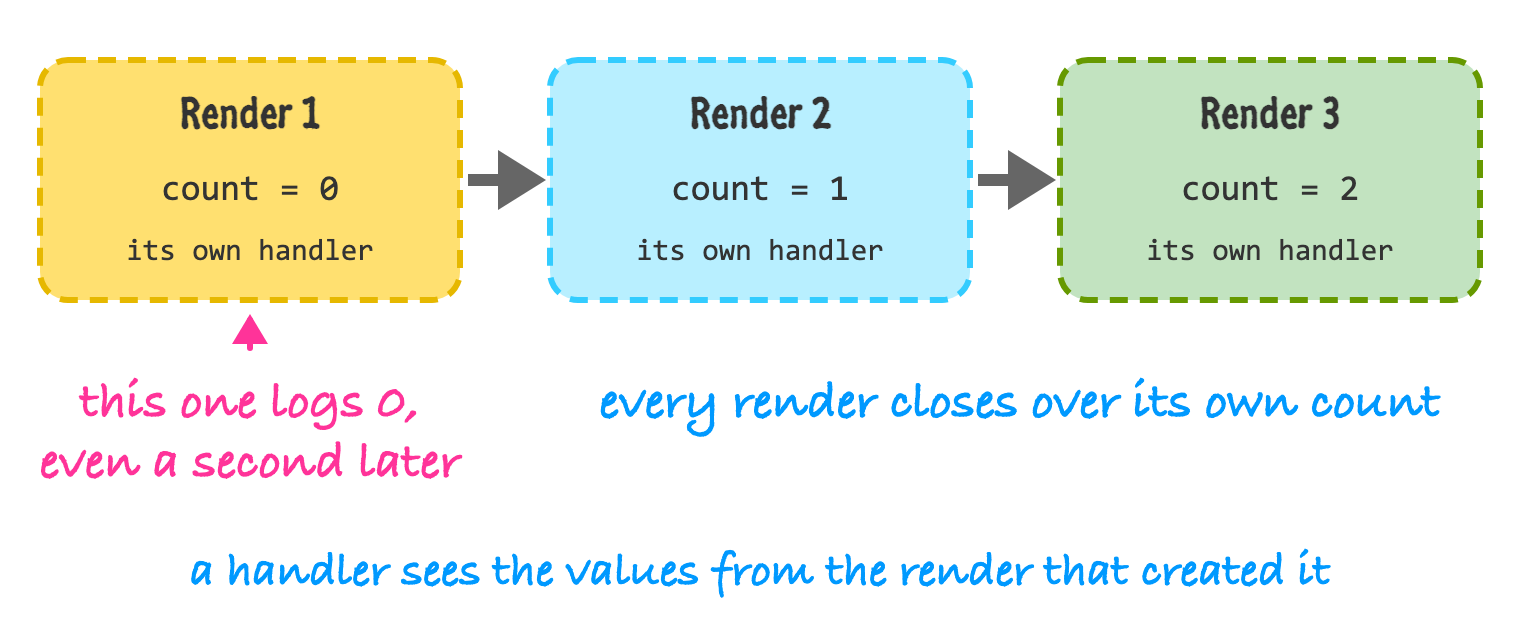
**Where you'll see it in React:** Whenever a function runs later than the render that created it. In this component, clicking "Show in 1 second" starts a timer, and the function inside the timer closes over whatever `count` was at the moment of the click:
```jsx
function StaleCounter() {
const [count, setCount] = useState(0);
function showLater() {
setTimeout(() => {
console.log(`count was ${count}`);
}, 1000);
}
return (
);
}
```
If you click "Show in 1 second" and then click the count button three times before the timer fires, the message says `count was 0`. The timer's function was created in a render where `count` was 0, so that's the number it remembers. React didn't lose track of anything. It's simply how closures work.
The same idea explains a second thing that surprises people. Calling `setCount(count + 1)` three times in a row only adds one, because all three calls use the same `count` from this render. If you want each update to build on the previous one, pass a function instead, which React will call with the latest value:
```jsx
// Adds 1 in total
onClick={() => {
setCount(count + 1);
setCount(count + 1);
setCount(count + 1);
}}
// Adds 3 in total
onClick={() => {
setCount((c) => c + 1);
setCount((c) => c + 1);
setCount((c) => c + 1);
}}
```
The [Dealing with State](https://www.kirupa.com/react/dealing_with_state.htm) and [Effects with useEffect](https://www.kirupa.com/react/effects_with_useeffect.htm) tutorials come back to this idea often, so it's worth giving it some thought now.
## Equality and References
The last core idea is a little unexpected: how JavaScript decides whether two things are the same. For simple values like numbers, strings, and booleans, it compares the actual values, and you get what you'd expect:
```js
console.log(1 === 1); // true
console.log("a" === "a"); // true
```
For objects and arrays, `===` doesn't look at what's inside. It checks whether both sides are the very same object in memory. Two separate arrays that happen to contain the same things are not equal:
```js
console.log([] === []); // false
console.log({} === {}); // false
const a = [1, 2];
const b = a;
const c = [...a];
console.log(a === b); // true (same array)
console.log(a === c); // false (a new array with the same contents)
```
Here's what is going on, in picture form:
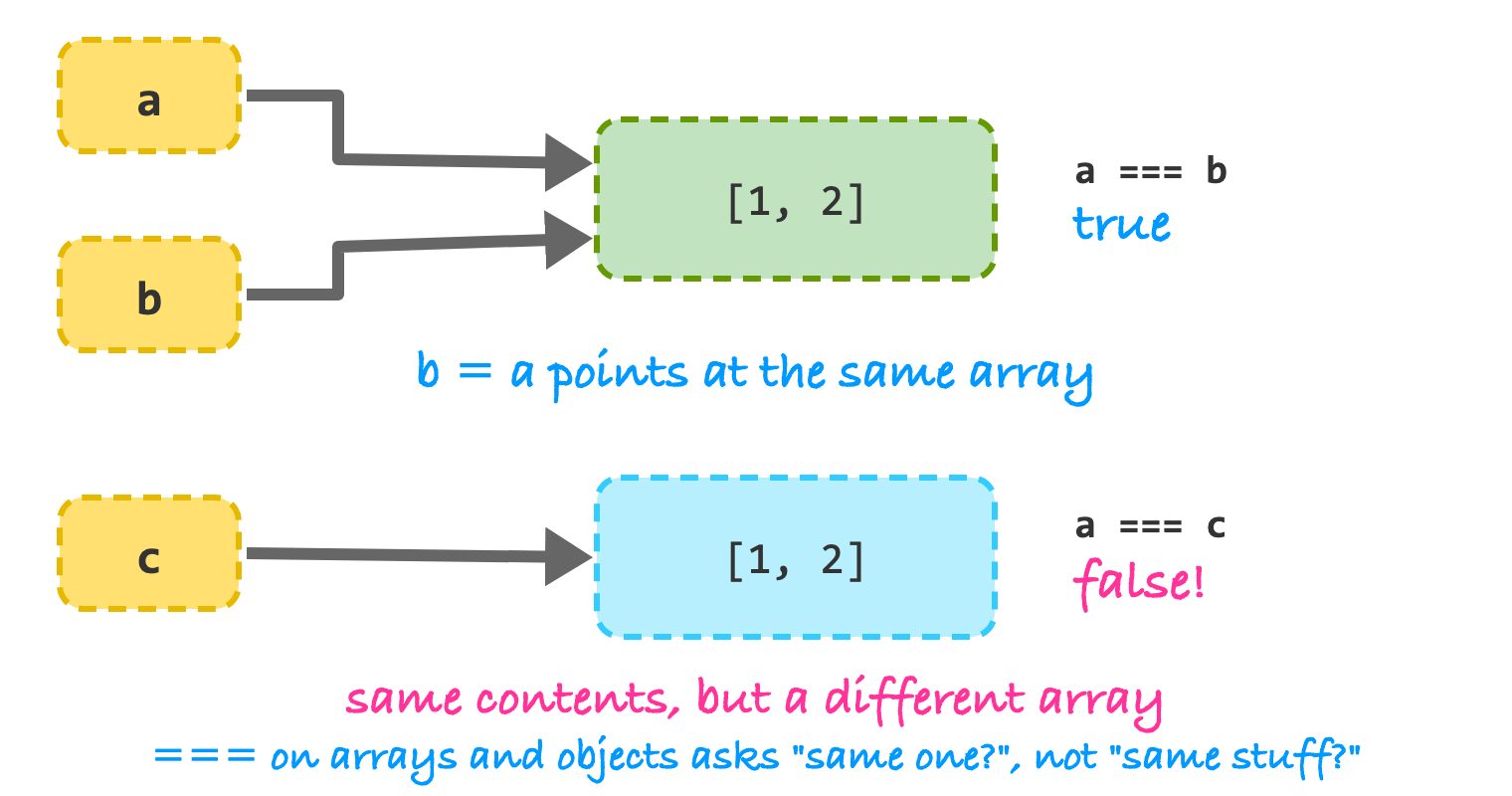
The variables hold a reference (you can think of it as an address) to the array, and not the array itself. The variables `a` and `b` hold the same address. The variable `c` holds a different one, even though what it points to looks identical.
As an aside, you'll often see `===` used rather than `==`. The double-equals version converts types before comparing, which gives results like `"5" == 5` being `true`. Stick with `===` and you can skip that whole category of surprises.
**Where you'll see it in React:** React uses this same kind of check to decide whether state has changed. When you call a state setter, React compares the new value to the old one. If they're the same reference, React assumes nothing changed and skips the update. That means mutating an object and handing it back doesn't work:
```jsx
function renameBad() {
user.name = "Batman";
setUser(user); // same object, so React sees no change
}
function renameGood() {
setUser({ ...user, name: "Batman" }); // a new object
}
```
When I ran this, clicking the first button left the name on screen as `Bruce`, and clicking the second one changed it to `Batman`. This is the reason you spread objects and arrays when updating state, and why `sort` on a state array needs a copy.
The same reference check is behind another surprise, which involves the dependency array of `useEffect`. If you create an object inside your component and list it as a dependency, it's a new object on every render, so React thinks it changed every time:
```jsx
function Looper() {
const [count, setCount] = useState(0);
const options = { sort: "asc" };
useEffect(() => {
console.log("EFFECT ran");
}, [options]);
return ;
}
```
I clicked that button three times, and the effect ran for all three renders. The fix is to depend on the primitive values you actually care about (like the string `"asc"`), or to move the object outside the component so it's created once. You'll go through this in [Effects with useEffect](https://www.kirupa.com/react/effects_with_useeffect.htm), but now you know why.
## Promises and async/await
Some things in JavaScript take time: loading data from a server, waiting for a timer, reading a file. Instead of freezing the page while that happens, JavaScript starts the work, keeps going, and lets you know when the result is ready. A **promise** is the object that represents that future result.
This example makes a helper that returns a promise that finishes after a delay, and the output shows the order things happen in:
```js
const wait = (ms) => new Promise((resolve) => setTimeout(resolve, ms));
console.log("1. before");
wait(50).then(() => console.log("3. after the wait"));
console.log("2. right after calling wait");
// 1. before
// 2. right after calling wait
// 3. after the wait
```
The code that comes after `wait(50)` doesn't stand around waiting. It runs immediately, and the function passed to `.then` runs later. You can chain several `.then` calls (each one gets the result of the one before), and add a `.catch` to handle a failure:
```js
Promise.resolve(42)
.then((v) => v * 2)
.then((v) => console.log("chained", v)); // chained 84
Promise.reject(new Error("nope"))
.catch((e) => console.log("caught:", e.message)); // caught: nope
```
Chains of `.then` get hard to read quickly, which is why `async` and `await` exist. Marking a function as `async` lets you use `await` inside it, which pauses that function until a promise finishes, and gives you the result as if it were a normal value. Here is a function that loads a user from a server with `fetch`:
```js
async function loadUser(id) {
try {
const response = await fetch(
`https://jsonplaceholder.typicode.com/users/${id}`
);
if (!response.ok) {
throw new Error(`Request failed: ${response.status}`);
}
const user = await response.json();
return user;
} catch (error) {
console.log("Something went wrong:", error.message);
return null;
}
}
const user = await loadUser(1);
console.log(user.name); // Leanne Graham
const missing = await loadUser(9999);
// Something went wrong: Request failed: 404
console.log(missing); // null
```
A few details in there are worth pointing out. First, `fetch` only throws an error when the request can't be made at all, like when you're offline. If the server answers with a 404 or a 500, `fetch` considers that a successful trip, so you have to check `response.ok` yourself. Second, a `try`/`catch` around the awaited calls is how you handle failures. And third, an `async` function always returns a promise, even if you return a plain value, so whoever calls it needs to `await` it (or use `.then`):
```js
async function demo() {
return 5;
}
console.log(demo()); // Promise { 5 }
console.log(await demo()); // 5
```
If you have several independent requests, `Promise.all` starts them together and waits for all of them, which is faster than loading them one after another:
```js
const [u1, u2] = await Promise.all([loadUser(1), loadUser(2)]);
console.log(u1.name, u2.name); // Leanne Graham Ervin Howell
```
**Where you'll see it in React:** Loading data from inside an effect. One thing to know is that the function you hand to `useEffect` can't itself be `async`, so the usual pattern is to define an async function inside the effect and then call it:
```jsx
function User({ id }) {
const [user, setUser] = useState(null);
useEffect(() => {
async function loadUser() {
const response = await fetch(
`https://jsonplaceholder.typicode.com/users/${id}`
);
const data = await response.json();
setUser(data);
}
loadUser();
}, [id]);
if (!user) {
return
Loading...
;
}
return
{user.name}
;
}
```
When this component first appears, it shows "Loading...", and a moment later it changes to the name of the user. Real code should also check `response.ok` and handle errors like in the earlier example. The [Working with External Data](https://www.kirupa.com/react/working_with_external_data.htm) tutorial covers that completely, including loading and error states, and the [Effects with useEffect](https://www.kirupa.com/react/effects_with_useeffect.htm) tutorial explains how the dependency array on the last line works.
## What to Do If Something Here Is Still Fuzzy
It's completely normal to read through all this and feel like only some of it stuck. A few of these ideas (closures and references especially) take time and a few real bugs before they feel natural. When you hit a confusing line in a React component, try breaking it apart. Which part is destructuring? Which part is spread? Is a value possibly `null` here? Pasting the line into the browser's console and running it in pieces is a very good way to see what each part is doing.
You can also lean on an AI assistant for this, which is great at explaining a single line of unfamiliar syntax. Just ask it to explain the line, and then try a change yourself to see if your understanding holds up.
## Conclusion
That's the JavaScript slice that React leans on. `const` and arrow functions keep your code short. Destructuring pulls props and state apart. Spread lets you update state by making new copies instead of changing the old ones. Array methods turn data into lists of elements. Ternaries, `&&`, and `??` decide what to show, and optional chaining keeps missing data from crashing the page. Modules connect your files. Closures and references explain a lot of the behavior that feels strange in React at first, and `async` and `await` are how you load data.
You don't need to master any of this before moving on. You'll see each of these again, in context, many times over the rest of the tutorials, and they'll become second nature faster than you'd expect. With that, it's time to meet React itself.
**Next tutorial:** [Introducing React](https://www.kirupa.com/react/introducing_react.htm)