{user.address.city}
; } ``` The user has no `address`, so this can't work. When I rendered it in a Vite app, the page went completely blank, and the console showed this: ```bash Uncaught TypeError: Cannot read properties of undefined (reading 'city') An error occurred in the{user.address?.city ?? "No city on file"}
; } ``` That one is really a JavaScript error that happened to occur inside a component. Now let's look at the ones that come from React itself. ## The Mistakes You'll Meet Most Often I made a small app for each of the following and ran it with React 19 and StrictMode turned on (which is what the Vite template gives you). The messages below are what I saw. If your text is slightly different, that is probably because you are on a different version of React, but the cause will almost always be the same. ### Rendered Fewer Hooks Than Expected In the [hooks tutorial](https://www.kirupa.com/react/meet_react_hooks.htm), we learned that React keeps track of your hooks by the order in which you call them. If the order or the number of calls changes between renders, React loses its place. This is what happens when a hook comes after an early `return`: ```jsx function Profile({ loggedIn }) { const [name] = useState("Kirupa"); if (!loggedIn) { returnPlease log in.
; } const [greeting] = useState("Hello"); return ({greeting}, {name}
); } ``` The first render with `loggedIn` set to `true` calls two hooks. When the user logs out, the component only calls one, and React complains: ```bash Uncaught Error: Rendered fewer hooks than expected. This may be caused by an accidental early return statement. ``` The message even tells you the likely culprit. The fix is to call every hook before any early return: ```jsx function Profile({ loggedIn }) { const [name] = useState("Kirupa"); const [greeting] = useState("Hello"); if (!loggedIn) { returnPlease log in.
; } return ({greeting}, {name}
); } ``` You will usually never see this error if you run the linter that came with your project. Vite's React template now includes `oxlint`, and running `npm run lint` on the broken version printed this before I ever opened the browser: ```bash error react-hooks(rules-of-hooks): React Hook "useState" is called conditionally. React Hooks must be called in the exact same order in every component render. ``` I'll say more about the linter at the end. The mirror image of this error, `Rendered more hooks than during the previous render`, has the same cause. In both cases the answer is the same: hooks go at the top, always, unconditionally. ### Too Many Re-renders This is the classic one. It happens when you *call* a function in your JSX instead of passing it: ```jsx function Counter() { const [count, setCount] = useState(0); return ; } ``` The parentheses make `setCount(count + 1)` run *while the component renders*. That updates the state, which triggers a render, which runs `setCount` again, and so on. React gives up after a while and the page goes blank with this: ```bash Uncaught Error: Too many re-renders. React limits the number of renders to prevent an infinite loop. ``` What `onClick` wants is a function that React can call later. Wrap the call in an arrow function: ```jsx function Counter() { const [count, setCount] = useState(0); return ; } ``` If you see this error and you are not calling a setter in your JSX, check whether you are calling one directly in the body of your component. Anything that sets state unconditionally during render will do this. (We talked about events and handlers in the [events tutorial](https://www.kirupa.com/react/events_in_react.htm).) ### Each Child in a List Should Have a Unique Key Forget the `key` when rendering a list, and you'll get a warning in the console. The list still works, which is why this one gets ignored a lot: ```jsx function Fruits() { const fruits = ["Apple", "Banana", "Cherry"]; return ({message}
I am the child.
; } ``` ```bash Cannot update a component (`Parent`) while rendering a different component (`Child`). To locate the bad setState() call inside `Child`, follow the stack trace as described in https://react.dev/link/setstate-in-render ``` Rendering is supposed to be a pure calculation: props and state go in, JSX comes out. Calling `onReady()` in the middle of that calculation is a side effect. Side effects belong in event handlers or in `useEffect` (which we covered in the [effects tutorial](https://www.kirupa.com/react/effects_with_useeffect.htm)). In this example, the simplest fix is to call it from an event: ```jsx function Child({ onReady }) { return ; } ``` The message handily tells you which component did the bad thing (`Child`), so that is where to look. ### Objects Are Not Valid as a React Child JSX can render strings, numbers, elements, and arrays of those things. A plain object is not on that list: ```jsx function UserInfo() { const user = { name: "Ada", age: 36 }; return{user}
; } ``` ```bash Uncaught Error: Objects are not valid as a React child (found: object with keys {name, age}). If you meant to render a collection of children, use an array instead. ``` React even lists the object's keys, which helps you recognize which variable it was. Pick out the values you want to show: ```jsx return ({user.name} is {user.age}
); ``` A Date object and a Promise do the same thing, by the way. If you ever see this error with a variable that you thought held a string, `console.log` it and see what's really in there. ### Uncontrolled to Controlled, and Value Without onChange Two form warnings that are worth recognizing. The first appears when an input's `value` starts out as `undefined`, and later gets a real value: ```jsx const [name, setName] = useState(); return ( setName(e.target.value)} placeholder="Your name" /> ); ``` I typed one letter into this input, and the console printed: ```bash A component is changing an uncontrolled input to be controlled. This is likely caused by the value changing from undefined to a defined value, which should not happen. Decide between using a controlled or uncontrolled input element for the lifetime of the component. ``` An input with no `value` is uncontrolled, and an input with one is controlled. React doesn't want it to switch. The fix is to start with an empty string: `useState("")`. The second one comes from giving an input a `value` but nothing to update it: ```bash You provided a `value` prop to a form field without an `onChange` handler. This will render a read-only field. If the field should be mutable use `defaultValue`. Otherwise, set either `onChange` or `readOnly`. ``` This message is almost a tutorial in itself. Add an `onChange` (see the [forms tutorial](https://www.kirupa.com/react/forms_in_react.htm)), use `defaultValue` for an uncontrolled input, or add `readOnly` if you really do want it fixed. A good habit with all of these: read the entire message. React's authors have put a lot of effort into making them say what to do next. ## When There Is No Error The hardest bugs are the ones where nothing is red. The app runs, but a number is wrong, or a list doesn't update. For these, the oldest tool still wins: print the value and look at it. ### console.log, and the Snapshot Surprise Here is a bug that confuses almost everyone at first. We update state, and then log the value on the next line: ```jsx function Counter() { const [count, setCount] = useState(0); function handleClick() { setCount(count + 1); console.log("count is", count); } return ; } ``` I clicked the button once. The screen shows `Count: 1`, and the console says: ```bash count is 0 ``` Nothing is broken here. Each render gets its own snapshot of the state, and `count` inside this click handler is the snapshot from the render that created the handler. Calling `setCount` asks React for a new render, but it doesn't change the variable that is already in your hand. If you want to see the new value, calculate it first and use it twice: ```jsx function handleClick() { const next = count + 1; setCount(next); console.log("count will be", next); } ``` To see the value after the render, log it in the component body or in an effect with that value as a dependency. A few `console.log` habits make this more pleasant: - **Label what you print.** `console.log("count is", count)` beats `console.log(count)` when you have ten of them. - **Log objects as objects**, not strings. The browser lets you expand them. For arrays of objects, `console.table(items)` is much easier to scan. - **Delete them when you're done.** Or better, use the debugger (more on that shortly), which doesn't leave anything behind. ### Why Everything Logs Twice If you open the console in a Vite app and see every log from a component show up twice, you haven't found a bug. The Vite template wraps your app in `StrictMode`, which does extra work in development to flush out impure code. To see exactly what it does, I rendered this: ```jsx function Demo() { console.log("render"); useEffect(() => { console.log("effect: connect"); return () => console.log("cleanup: disconnect"); }, []); returnOpen the console.
; } ``` ```bash render render effect: connect cleanup: disconnect effect: connect ``` The component rendered twice. The effect ran, was cleaned up right away, and then ran again. This is on purpose: if your component is written correctly, running things twice makes no visible difference. If it does make a difference (a duplicate request, a double-subscribed listener), then you've found a missing cleanup function. With `StrictMode` removed, I got a single `render` and a single `effect: connect`. None of this happens in a production build. Don't remove `StrictMode` to make the logs quieter. Fix the component instead. ## Bugs That Hide in Effects Effects are where a lot of subtle bugs live, and two of them are common enough to deserve their own names. ### The Stale Closure Say we want a counter that goes up every second: ```jsx function Timer() { const [count, setCount] = useState(0); useEffect(() => { const id = setInterval(() => { setCount(count + 1); }, 1000); return () => clearInterval(id); }, []); returnSeconds: {count}
; } ``` I let this one run for a few seconds. It showed `Seconds: 1` and then it stopped. No error, no warning in the console. The picture explains why: 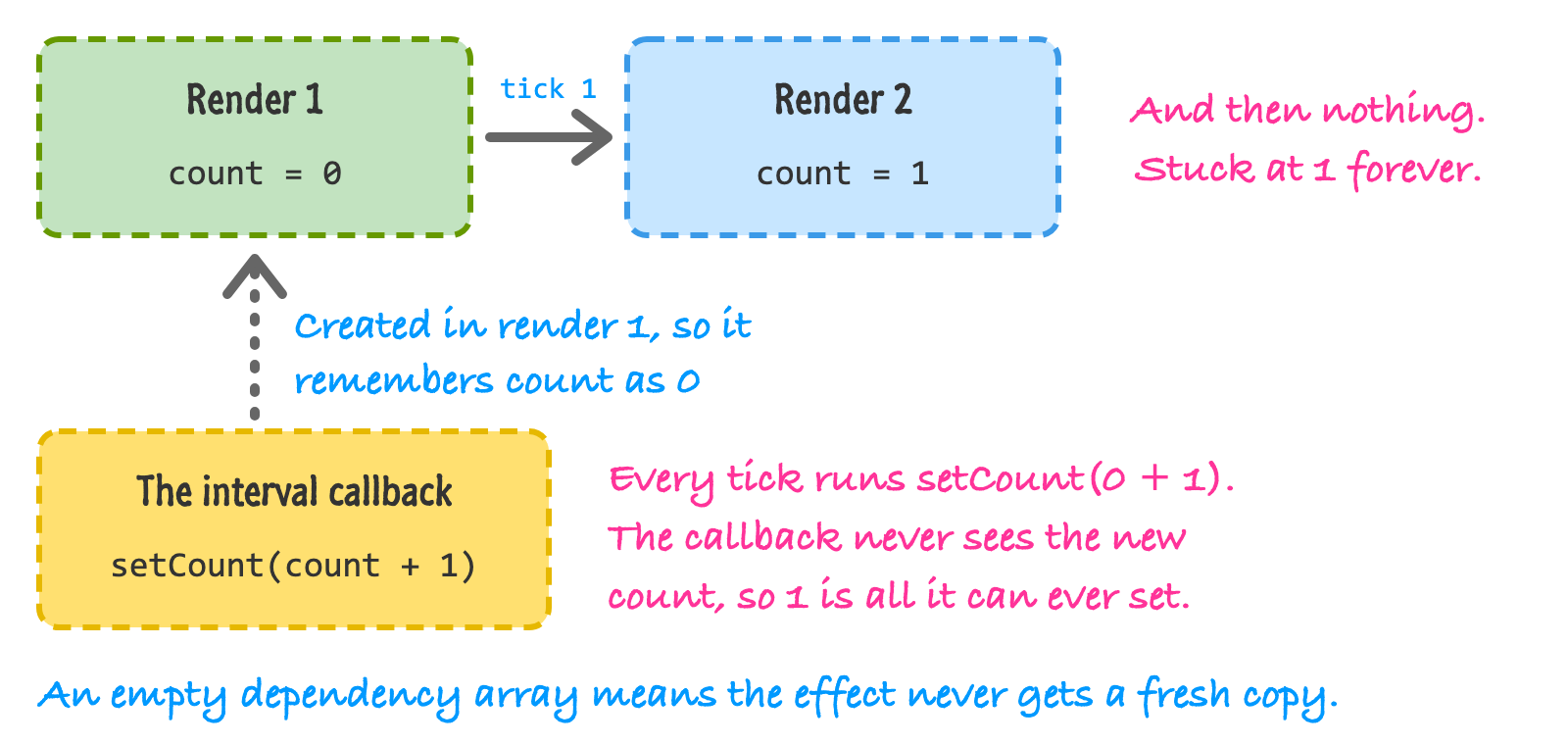 The function we gave to `setInterval` was created during the first render, so the `count` inside it is `0` for as long as that function lives. Because of the empty dependency array, the effect never re-runs, so the interval never gets a newer copy. Every tick does `setCount(0 + 1)`. After the first tick, the state is already `1`, so React has nothing new to show. This is called a **stale closure**. The best fix is to not depend on `count` at all by passing a function to the setter. React hands that function the latest value: ```jsx useEffect(() => { const id = setInterval(() => { setCount((current) => current + 1); }, 1000); return () => clearInterval(id); }, []); ``` With that change, the same page counted up to 4 in about three and a half seconds. The linter also spotted the original problem: `React Hook useEffect has a missing dependency: 'count'`. If you see that warning, take it seriously, and don't silence it. It is usually pointing at a stale closure. ### The Effect That Never Stops The other classic is an effect that sets state, and that state (or something that changes with it) is in the dependency array. Here the culprit is a small object created inside the component: ```jsx function getResults(options) { const letters = ["a", "b", "c"]; return options.reverse ? letters.reverse() : letters; } function Results() { const [results, setResults] = useState([]); const options = { reverse: false }; useEffect(() => { setResults(getResults(options)); }, [options]); returnResults: {results.join(", ")}
; } ``` Here is how the loop works. Every render creates a brand new `options` object. React compares dependencies by identity, and a new object is never the same as the old one, so the effect runs after every render. The effect calls `setResults` with a new array, which causes a render, which creates a new `options`, and around we go. The page looked fine (it showed `Results: a, b, c`), but the console filled up with thousands of these: ```bash Maximum update depth exceeded. This can happen when a component calls setState inside useEffect, but useEffect either doesn't have a dependency array, or one of the dependencies changes on every render. ``` The message is a good description of the problem. Treat any repeated console message (or a tab that is suddenly using a lot of CPU) as a sign of a loop. In this case, the linter caught it as well: `React hook useEffect depends on `options`, which changes every render`. The fix is to make `options` something that doesn't change. Since it never changes, we can move it outside of the component: ```jsx const options = { reverse: false }; function Results() { const [results, setResults] = useState([]); useEffect(() => { setResults(getResults(options)); }, []); returnResults: {results.join(", ")}
; } ``` If the value does need to come from props or state, depend on the primitive pieces (like a boolean or a string) rather than on a new object. Also ask whether you need an effect at all. If you are computing something from existing state or props, you can often calculate it right in the component body and skip the extra state. ## React Developer Tools Logging tells you about one value at a time. For the second bucket (the screen shows the wrong thing), you want to see your entire component tree and what is inside it. This is what **React Developer Tools** is for. It is a browser extension for Chrome, Firefox, and Edge, and it adds two panels to your browser's developer tools: **Components** and **Profiler**. Install it from your browser's extension store (the [official page](https://react.dev/learn/react-developer-tools) has the links). Then open your React app, open your browser's developer tools, and look for the new tabs. ### The Components Panel The Components panel shows your app as a tree of components, just like the trees we drew back in the [thinking in React tutorial](https://www.kirupa.com/react/thinking_in_react.htm). Select a component and, on the right, you'll see its **props**, its **state** (listed as hooks), and which component rendered it. You can edit most of these values and watch the UI respond. That makes it a great way to answer questions like "what happens if this prop is `null`?" without having to change your code. This panel is how you find out whether a bug is in your *data* or in your *rendering*. If the state in the panel is wrong, the problem happened before the render, so look at your event handlers and effects. If the state is right but the screen is wrong, look at the JSX that uses it. The panel's settings (the gear icon) include an option to highlight components when they render. Turn it on, interact with your app, and you'll see boxes flash around everything that re-rendered. Surprising flashes are the starting point of a performance investigation. ### The Profiler The Profiler tab records what React does while you use your app. Click record, do the thing that feels slow, and stop. You get a chart of every render, how long each component took, and which ones rendered during each commit. There is a setting that records *why* each component rendered (a prop changed, state changed, or its parent rendered), which is a quick way to understand why something re-rendered. Pair it with the ideas from [avoiding unnecessary renders](https://www.kirupa.com/react/avoiding_unnecessary_renders.htm). One piece of advice: measure first. A component that renders often isn't automatically a problem, and most of the time, it's fast enough. React 19.2 also added custom tracks to the Performance panel in Chrome DevTools, so you can see React's scheduler and component work next to everything else the browser is doing. The [React 19.2 announcement](https://react.dev/blog/2025/10/01/react-19-2) has the details. ### If Your Browser Isn't Supported If you are using Safari or another browser without the extension, you can install the standalone app: `npm install -g react-devtools`, run `react-devtools` in a terminal, and add a `` tag to the top of your page's `` while you are developing. Remove it when you're done. ## The Browser's Debugger For the third bucket (a value isn't what I expected), the best option is usually a **breakpoint**. A breakpoint pauses your code on a specific line so you can look at every variable at that moment, step through line by line, and see the call stack. Open the **Sources** panel in Chrome's developer tools (it is called **Debugger** in Firefox). Vite serves source maps in development, so you'll see your own files with your own code, not the transformed code the browser actually runs. Open the file, click in the gutter next to a line number, and reload or click whatever triggers it. Execution freezes on that line, and the panel shows the current values of everything in scope. A few buttons let you step over the line, step into a function call, or continue running. If you'd rather stay in your editor, you can write `debugger;` on a line, and the browser will pause there when the developer tools are open: ```jsx function handleClick() { debugger; setCount(count + 1); } ``` Two more settings are worth knowing about. The **Pause on exceptions** button in the debugger stops on the line that throws, which is a quick way to find where a `TypeError` came from. And the **Network** tab shows every request your app makes, including the status code and the response, which is the first place to look when data doesn't show up. This is where you find out that the server returned a 404, or that the JSON doesn't have the shape your component expects. (Fetching data is covered in [working with external data](https://www.kirupa.com/react/working_with_external_data.htm).) ## Don't Let One Error Blank the Page Remember our `UserCity` example, where one missing property wiped out the whole page? An **error boundary** is a component that catches errors in the components below it and shows a fallback instead. Right now, error boundaries still have to be written as a class (or you can use a library like `react-error-boundary`). Here is a minimal one: ```jsx import { Component } from "react"; class ErrorBoundary extends Component { state = { error: null }; static getDerivedStateFromError(error) { return { error }; } render() { if (this.state.error) { returnSomething went wrong: {this.state.error.message}
; } return this.props.children; } } ``` Wrap the part of your app that could fail: ```jsx