# Running Your Code at the Right Time
by [kirupa](https://www.kirupa.com/me/index.htm) | filed under [JavaScript 101](https://www.kirupa.com/javascript/learn_javascript.htm)
An important part of working with JavaScript is ensuring that your code runs at the right time. Things aren't as simple as putting your code at the bottom of your page and expecting everything to work once your page has loaded. Every now and then, you may have to add some extra code to ensure your code doesn't run before the page is ready. Sometimes, you may even have to put your code at the top of your page...like an animal!
There are many factors that affect what the "right time" really is to run your code, and in this tutorial, we're going to look at those factors and narrow down what you should do to a handful of guidelines.
Onwards!
## The Things That Happen During Page Load
Let's start at the very beginning. You click on a link or press Enter after typing in a URL and, if the stars are aligned properly, your page loads. All of that seems pretty simple and takes up a very tiny sliver of time to complete from beginning to end:
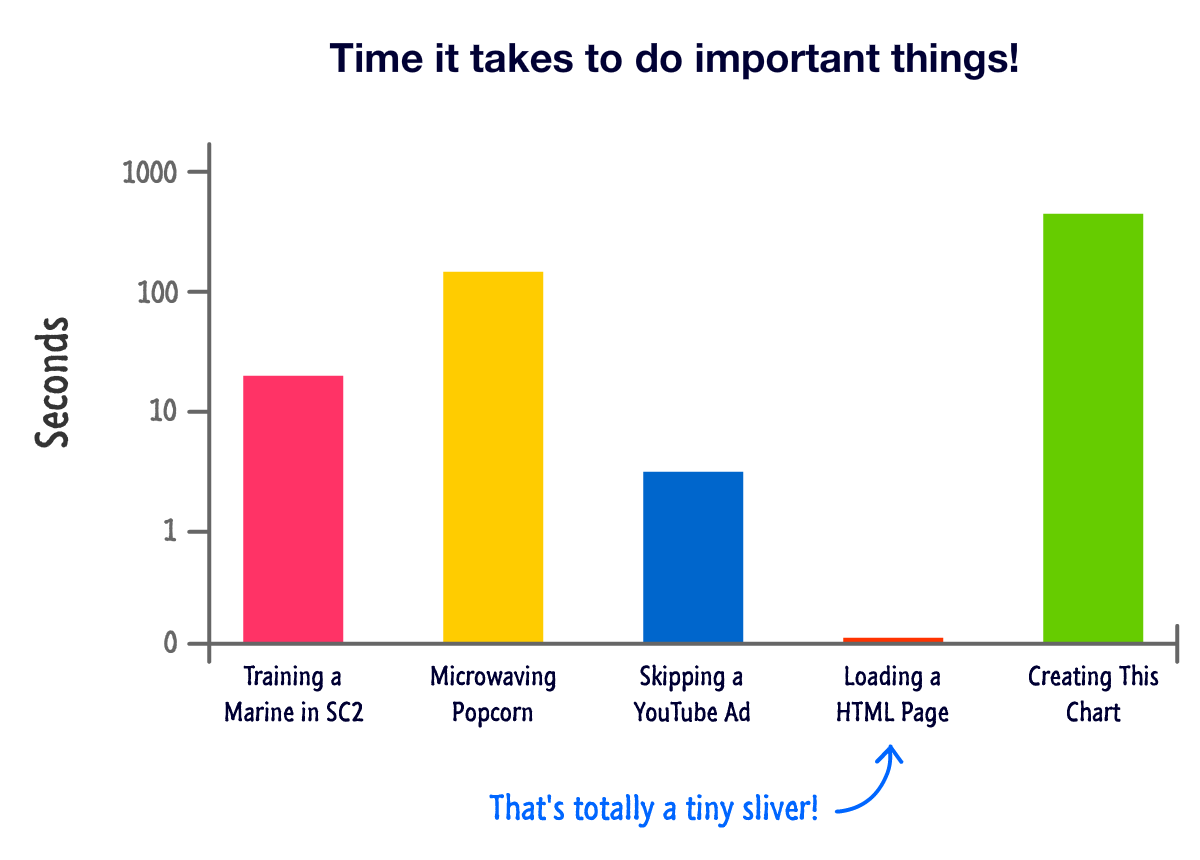
In that short period of time between you wanting to load a page and your page loading, many relevant and interesting stuff happen that you need to know more about. One example of a relevant and interesting stuff that happens is that any code specified on the page will run. When exactly the code runs depends on a combination of the following things that all come alive at some point while your page is getting loaded:
- The **DOMContentLoaded** event
- The **load** Event
- The `async` attribute for script elements
- The `defer` attribute for script elements
- The location your scripts live in the DOM
Don't worry if you don't know what these things are. You'll learn (or re-learn) what all of these things do and how they impact when your code runs really soon. Before we get there, though, let's take a quick detour and look at the three stages of a page load.
### Stage Numero Uno
The first stage is when your browser is about to start loading a new page:
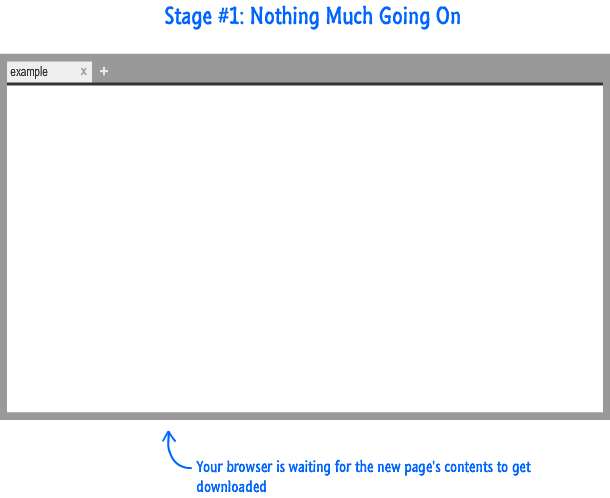
At this stage, there isn't anything interesting going on. A request has been made to load a page, but nothing has been downloaded yet.
### Stage Numero Dos
Things get a bit more exciting with the second stage where the raw markup and DOM of your page has been loaded and parsed:
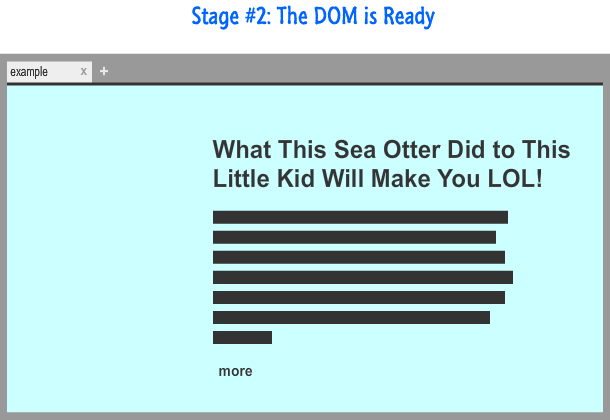
The thing to note about this stage is that external resources like images and stylesheets have not been parsed. You only see the raw content specified by your page/document's markup.
### Stage Numero Three
The final stage is where your page is fully loaded with any images, stylesheets, scripts, and other external resources making their way into what you see:
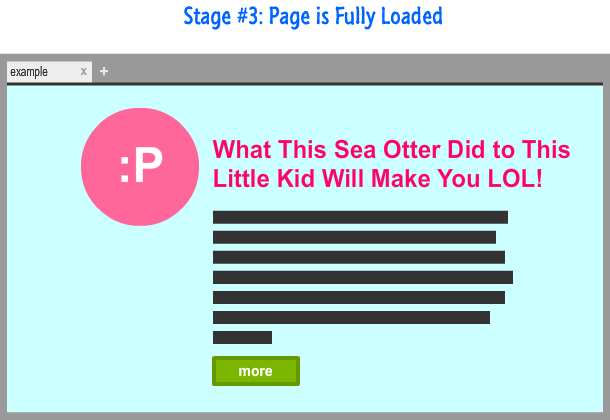
This is the stage where your browser's loading indicators stop animating, and this is also the stage you almost always find yourself in when interacting with your HTML document.
Now that you have a basic idea of the three stages your document goes through when loading content, let's move forward to the more interesting stuff. Keep these three stages at the tip of your fingers (or under your hat if you are wearing one while reading this), for we'll refer back to these stages a few times in the following sections.
## The **DOMContentLoaded** and **load** Events
There are two events that represent the two importants milestones while your page loads. The **DOMContentLoaded** event fires at the end of Stage #2 when your page's DOM is fully parsed. The **load** event fires at the end of Stage #3 once your page has fully loaded. You can use these events to time when exactly you want your code to run.
Below is a snippet of these events in action:
```js
document.addEventListener("DOMContentLoaded", theDomHasLoaded, false);
window.addEventListener("load", pageFullyLoaded, false);
function theDomHasLoaded(e) {
// do something
}
function pageFullyLoaded(e) {
// do something again
}
```
You use these events just like you would any other [ event](https://www.kirupa.com/html5/javascript_events.htm), but the main thing to note about these events is that you need to listen to **DOMContentLoaded** from the `document` element and **load** from the `window` element.
Now that we got the boring technical details out of the way, why are these events important? Simple. If you have any code that relies on working with the DOM such as anything that uses the `querySelector` or `querySelectorAll` functions, you want to ensure your code runs only after your DOM has been fully loaded. If you try to access your DOM before it has fully loaded, you may get incomplete results or no results at all.
A sure-fire way to ensure you never get into a situation where your code runs before your DOM is ready is to listen for the **DOMContentLoaded** event and let all of the code that relies on the DOM to run only after that event is overheard:
```js
document.addEventListener("DOMContentLoaded", theDomHasLoaded, false);
function theDomHasLoaded(e) {
var images = document.querySelectorAll("img");
// do something with the images
}
```
For cases where you want your code to run only after your page has fully loaded, use the `load` event. In my years of doing things in JavaScript, I never had too much use for the `load` event at the document level outside of checking the final dimensions of a loaded image or creating a crude progress bar to indicate progress. Your mileage may vary, but...I doubt it :P
## Scripts and Their Location in the DOM
In the [ Where Should Your Code Live](https://www.kirupa.com/html5/where_should_your_code_live.htm) tutorial, we looked at the various ways you can have scripts appear in your document. You saw that your script elements' position in the DOM affects when they run. In this section, we are going to re-emphasize that simple truth and go a few steps further.
To review, a simple script element can be some code stuck inline somewhere:
```html
```
A simple script element can also be something that references some code from an external file:
```js
```
Now, here is the important detail about these elements. Your browser parses your DOM sequentially from the top to the bottom. Any script elements that get found along the way will get parsed in the order they appear in the DOM.
Below is a very simple example where you have many script elements:
```html
Example
```
It doesn't matter if the script contains inline code or references something external. All scripts are treated the same and run in the order in which they appear in your document. Using the above example, the order the scripts will run is: **inline 1**, **external 1**, ** inline 2**, **external 2**, and **inline 3**.
Now, here is a really REALLY important detail to be aware of. Because your DOM gets parsed from top to bottom, your script element has access to all of the DOM elements that were already parsed. Your script has no access to any DOM elements that have not yet been parsed. Say what?!
Let's say you have a script element that is at the bottom of your page just above the closing `body` element:
```html
Example
Quisque faucibus, quam sollicitudin pulvinar dignissim, nunc velit
sodales leo, vel vehicula odio lectus vitae mauris. Sed sed magna
augue. Vestibulum tristique cursus orci, accumsan posuere nunc
congue sed. Ut pretium sit amet eros non consectetur. Quisque
tincidunt eleifend justo, quis molestie tellus venenatis non.
Vivamus interdum urna ut augue rhoncus, eu scelerisque orci
dignissim. In commodo purus id purus tempus commodo.
```
When **something.js** runs, it has the ability to access all of the DOM elements that appear just above it such as the `h1`, `p`, and `button` elements. If your script element was at the very top of your document, it wouldn't have any knowledge of the DOM elements that appear below it:
```html
Example
Quisque faucibus, quam sollicitudin pulvinar dignissim, nunc velit
sodales leo, vel vehicula odio lectus vitae mauris. Sed sed magna
augue. Vestibulum tristique cursus orci, accumsan posuere nunc
congue sed. Ut pretium sit amet eros non consectetur. Quisque
tincidunt eleifend justo, quis molestie tellus venenatis non.
Vivamus interdum urna ut augue rhoncus, eu scelerisque orci
dignissim. In commodo purus id purus tempus commodo.
```
By putting your script element at the bottom of your page as shown earlier, the end behavior is identical to what you would get if you had code that explicitly listened to the `DOMContentLoaded` event. If you can guarantee that your scripts will appear towards the end of your document after your DOM elements, you can avoid doing the whole `DOMContentLoaded` approach described in the previous section. Now, if you really want to have your script elements at the top of your DOM, ensure that all of the code that relies on the DOM runs after the `DOMContentLoaded` event gets fired.
Here is the thing. I'm a huge fan of putting your script elements at the bottom of your DOM. There is another reason besides easy DOM access that I prefer having your scripts live towards the bottom of the page. When a script element is being parsed, your browser stops everything else on the page from running while the code is executing. If you have a really long-running script or your external script takes its sweet time in getting downloaded, your HTML page will appear frozen. If your DOM is only partially parsed at this point, your page will also look incomplete in addition to being frozen. Unless you are Facebook, you probably want to avoid having your page look frozen for no reason.
## Script Elements, Defer, and Async
In the previous section, I explained how a script element's position in the DOM determines when it runs. All of that only applies to what I call **simple** script elements. To be part of the non-simple world, script elements that point to external scripts can have the `defer` and `async` attributes set on them:
```html
```
These attributes alter when your script runs independent of where in the DOM they actually show up, so let's look at how they end up altering your script.
### Async
The `async` attribute allows a script to run asynchronously:
```html
```
If you recall from the previous section, if a script element is being parsed, it could block your browser from being responsive and usable. By setting the `async` attribute on your script element, you avoid that problem altogether. Your script will run whenever it is able to, but it won't block the rest of your browser from doing its thing.
This casualness in running your code is pretty awesome, but you must realize that your scripts marked as `async` will not always run in order. You could have a case where several scripts marked as `async` will run in a order different than what they were specified in your markup. The only guarantee you have is that your scripts marked with `async` will start running at some mysterious point before the `load` event gets fired.
### Defer
The `defer` attribute is a bit different than `async`:
```html
```
Scripts marked with `defer` run in the order in which they were defined, but they only get executed at the end just a few moments before the `DOMContentLoaded` event gets fired. Take a look at the following example:
```html
Example
```
Take a second and tell the nearest human / pet the order in which these scripts will run. It's OK if you don't provide them with any context. If they love you, they'll understand.
Anyway, your scripts will execute in the following order: ** inline 1**, **external 1**, **inline 2**, **inline 3**, **external 3**, and ** external 2**. The **external 3** and ** external 2** scripts are marked as `defer`, and that's why they appear at the very end despite being declared in different locations in your markup.
## Conclusion
In the previous sections, we looked at all sorts of factors that influence when your code will execute. The following diagram summarizes everything you saw into a series of colorful lines and rectangles:
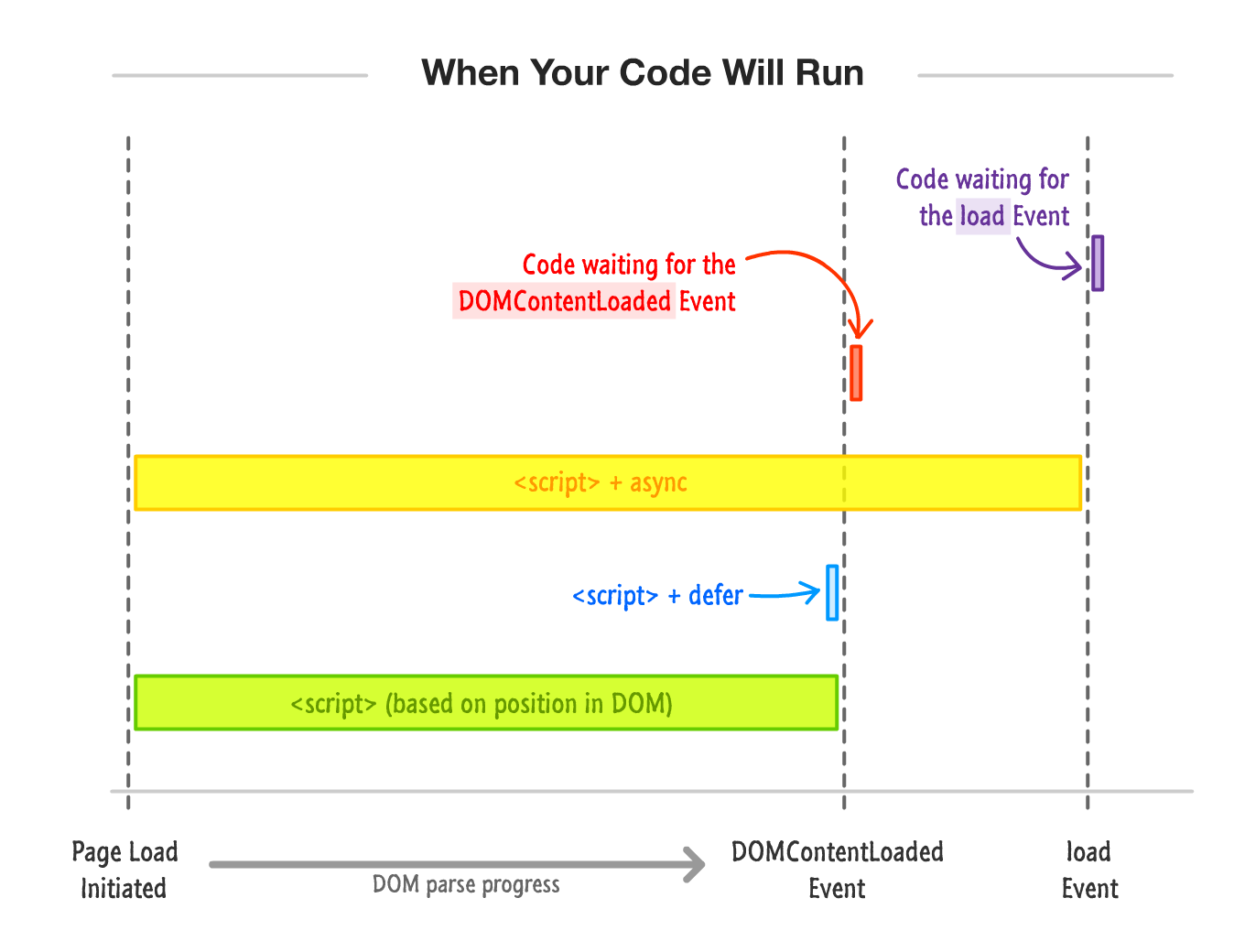
Now, here is probably what you are looking for. When is the right time to load your JavaScript? The answer is...
1. Place your script references below your DOM directly above your closing `body` element.
1. Unless you are creating a library that others will use, don't complicate your code by listening to the ** DOMContentLoaded** or **load** events. Instead, see the previous point.
1. Mark your scripts referencing external files with the ` defer` attribute.
1. If you have code that doesn't rely on your DOM being loaded and runs as part of teeing things off for other scripts in your document, you can place this script at the top of your page with the `async` attribute set on it.
That's it. I think those four steps will cover almost 90% of all your cases to ensure your code runs at the right time. For more advanced scenarios, you should definitely take a look at a 3rd party library like [ require.js](http://requirejs.org/) that gives you greater control over when your code will run.