# Make Take Up 100% of the Browser Height
by [kirupa](https://www.kirupa.com/me/index.htm) | 11 June 2015
Ok, so here is the setup! A short while ago, I was trying to listen for mouse events on the `body` of a mostly empty page. What I wanted to do was make the `body` element take up the full height of the page so that I have a giant hit target that I can do all sorts of event-related shenanigans on. Knowing what I had to do, I specified the `body` element in the HTML and wrote some CSS that looked as follows:
```css
body {
height: 100%;
margin: 0;
padding: 0;
background-color: #FFCC00;
}
```
When I previewed this page in the browser, this is what I saw:

From what you and I can see, the `body` element seems to take up the full size of the page. The yellow background color we specified in the CSS fills up everything. Life seems good. Right? Despite what you see, this is one of the many cases involving HTML and CSS where looks can be deceiving. Your `body` element literally has a height of **0**. Let's pause for a moment and let that sink in. Take a measured walk around the room if needed.
Once you are ready, read on to learn both why you have such a bizarre height and how to fix it so that our `body` element truly takes up 100% of the available space.
Onwards!
## How Percentage Sizes are Calculated
In HTML and CSS, some of the greatest mysteries revolve around two things:
1. What an element's size should be
1. What that element's size actually ends up being
To follow along and help explain the confusion around this topic, take a look at the following markup:
```html
Guess the height!
```
This is the full markup for the example you saw earlier, and if you preview all of this in your browser, you'll see an empty page with a yellow background. Our goal is to have our `body` element take up the full height of the page, and despite overwhelming evidence to the contrary, that isn't happening right now. You can verify that this isn't happening when you inspect the height of the `body` element using an in-browser development tool such as what you get with Chrome:
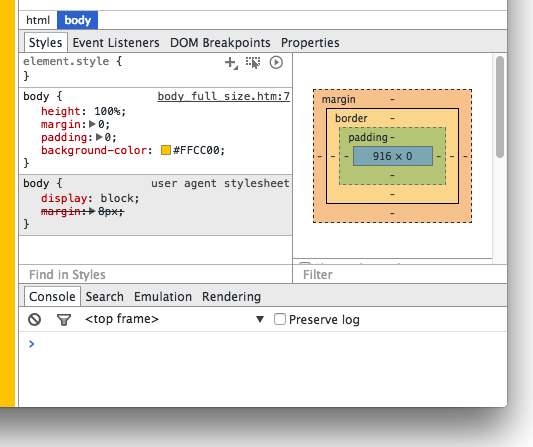
Notice that the reported height of the `body` element in the box model visualization is in fact 0 pixels. This means that your body element might as well not exist from a visual point of view. What is going on here?
To fully understand what is going on here, let's learn a bit about how the `html` and `body` elements are sized along with some general height calculation trivia. By default, both the `html` element and `body` element have their `height` CSS property set to **auto**. This means they don’t have an explicit height out of the box. They’ll either **take up whatever height they are told to be**, or they will **take up whatever height of the content that is inside them**.
Let’s revisit our CSS:
```css
body {
height: 100%;
margin: 0;
padding: 0;
background-color: #FFCC00;
}
```
Doesn't the highlighted line satisfy the "they'll take up whatever height they are told to be" part of what I wrote earlier? The answer is “No” and the reason has to do with what a percentage value for height actually means. Allow me to bore you with the relevant information [from the spec](http://www.w3.org/TR/CSS2/visudet.html#propdef-height):
**The percentage is calculated with respect to the height of the generated box's containing block**. If the height of the containing block is not specified explicitly (i.e., it depends on content height), and this element is not absolutely positioned, the value computes to 'auto'. A percentage height on the root element is relative to the initial containing block.
The emphasized part holds the key. See, our ` body` element's height is set to be 100% of the height of the containing block. The containing block is the ` html` element, and we never specified a height on it. Because there isn’t any content on the page, the height of the `html` element...wait for it...is also 0. The solution to our problem then would be to specify a `height` value of **100%** on the `html` element as well:
```css
body {
height: 100%;
margin: 0;
padding: 0;
background-color: #FFCC00;
}
html {
height: 100%;
}
```
Once you do this, the height of our body element naturally becomes the 100% height that we had always wanted it to be:
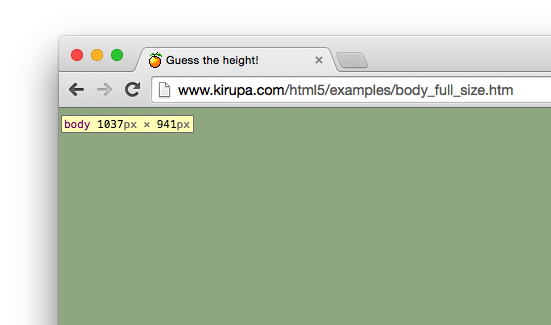
There is just one more thing we need to do. Your body element will often contain more content than can be displayed in one screen of your browser. In such cases, you will want a scrollbar to appear and not have your `body` element's size fixed to whatever initial size your browser was. There is an easy fix to address this valid concern - replace the `height` property on the `body` element with `min-height` instead:
```css
body {
min-height: 100%;
margin: 0;
padding: 0;
background-color: #FFCC00;
}
html {
height: 100%;
}
```
This will ensure your `body` element's size grows along with the content inside it. If you have no content in your `body` element, the `body` will take up all the space available to it anyway.
## Conclusion
The twisted path to writing this article started with something completely unrelated - making the `body` element a click/hit area as big as the browser window. Figuring all of this out was 80% fun and 20% frustrating, but the result is that I learned a lot about how sizing in HTML/CSS works. I hope my rambling writing here helped you to learn more about it as well.