# Drawing Rectangles (and Squares) on the Canvas
by [kirupa](https://www.kirupa.com/me/index.htm) | 22 April 2015
When drawing shapes on the `canvas`, you can actually go really REALLY far without ever having to draw a rectangle. The reason for that is simple. Rectangles are terrible things that nobody should ever have to deal with:
Putting my irrational hatred for our rectangular brethren aside, a rectangle is a shape that you must learn to properly represent on a `canvas`. Even if you can never envision yourself using rectangles, remember - **squares** are rectangles as well. They are rectangles whose sides are all the same size. In this short tutorial, we'll walk through the basics of how to draw rectangles inside a `canvas` element.
Onwards!
#### Brief Intro to Canvas
The `canvas` element allows you to programmatically place pixels on the screen. It does all of this by expecting you to specify simple (and often tedious) draw commands that mimic the path a pen would take on a piece of paper. It's not as boring as I am making it out to be, but it's no episode of [ Game of Thrones](http://en.wikipedia.org/wiki/Game_of_Thrones) either.
The [ DOM vs. Canvas article](https://www.kirupa.com/html5/dom_vs_canvas.htm) gives you better idea of why the canvas does things the way it does.
## Drawing Rectangles
To help explain how to work with rectangles, let's work together on a simple example. First, make sure you have a `canvas` element defined in your HTML page, and give it an `id` of **myCanvas**. To help you out with this, here is what my HTML looks like:
```
Rectangle Canvas Example
```
There isn't much going on here...except for the totally sweet `canvas` element whose `id` value is **myCanvas** with a `width` and `height` of 500 pixels.
### Meet the `rect` Method
It is inside this canvas element we will draw our rectangles, and the primary way you draw a rectangle is by using the `rect` method to define a rectangular path. This method takes four arguments that map to the following things:
- Starting x position the rectangle will start from
- Starting y position the rectangle will start from
- Width of the rectangle
- Height of the rectangle
Let's take a look at what this method looks like when used in a simple example. Inside the `script` tag, add the following lines of code:
```
var canvasElement = document.querySelector("#myCanvas");
var context = canvasElement.getContext("2d");
// the rectangle
context.beginPath();
context.rect(75, 100, 250, 150);
context.closePath();
// the outline
context.lineWidth = 10;
context.strokeStyle = '#666666';
context.stroke();
// the fill color
context.fillStyle = "#51DCFF";
context.fill();
```
Once you've done this, preview your page in your browser. If everything worked out properly, you should see a blue rectangle appear:
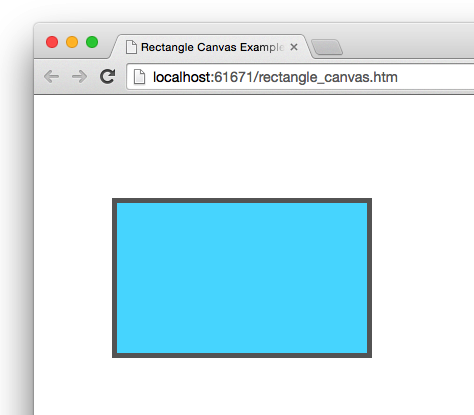
See, wasn't that easy? Now, let's look at how the lines of code you've written map to the rectangle that you see on the screen. Starting at the top...
```
var canvasElement = document.querySelector("#myCanvas");
var context = canvasElement.getContext("2d");
```
The first line gets a pointer the `canvas` element in our HTML. The second line gets you access to the `canvas` element's context object that allows you to actually draw things into the canvas. Almost every `canvas`-related code you write will have some variation of this code defined somewhere!
Now, we get to the interesting stuff:
```
// the rectangle
context.beginPath();
context.rect(75, 100, 250, 150);
context.closePath();
```
Because these lines are crucial to drawing our rectangle, I'm going to slow down and dive into greater detail on what each line does.
The first line sets it all up:
```
context.beginPath();
```
The `beginPath` method signals to the canvas that you intend to draw a path. I know that is a very unsatisfying explanation, but I never said this line of code was deep and full of meaning. It will hopefully make more sense as we look at the rest of the lines :P
The next line is our `rect` method that defines the starting point and size of the rectangle we wish to draw:
```
context.rect(75, 100, 250, 150);
```
We are specifying a rectangular path that starts at an x position of 75, y position of 100, is 250 pixels wide, and 150 pixels tall:
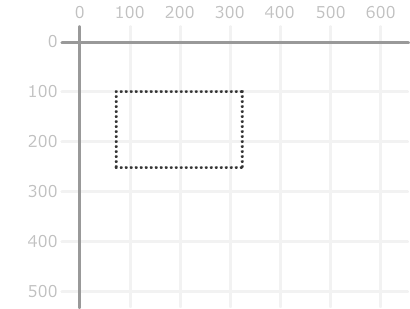
There is one other thing to note about where we are right now. What we've done so far isn't visible to the eye. That is because we've only defined the path. We haven't actually defined what exactly gets drawn, the next two chunks of code fix that up. The first chunk is where we define the rectangle's outline:
```
// the outline
context.lineWidth = 10;
context.strokeStyle = '#666666';
context.stroke();
```
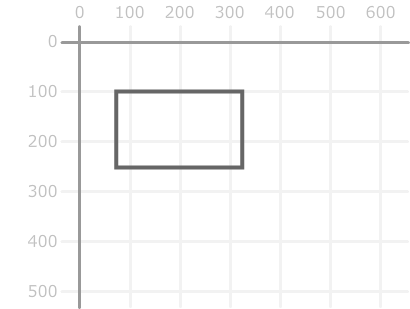
The `lineWidth` and `strokeStyle` properties specify the thickness and color of the line we want to draw. The actual drawing of the line is handled by calling the `stroke` method. At this point, you will see a rectangle whose outlines are actually visible:
The second chunk of code gives our rectangle some color:
```
// the fill color
context.fillStyle = "#51DCFF";
context.fill();
```
The `fillStyle` property allows you to define the color. The `fill` method tells your canvas to go ahead and fill up the insides of our closed path with that color. After this line of code has executed, you will end up with the rectangle in its final form:
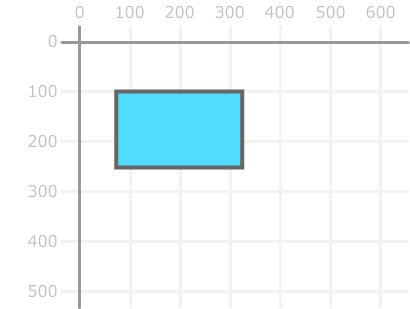
You now have a rectangle that has an outline and a fill. This would be a great moment of celebration if it weren't for a rectangular shape that we completed.
### The `fillRect` and `strokeRect` Methods
If all the excitement from the `rect` method wasn't enough, you also have the ` fillRect` and `strokeRect` methods that allow you to draw rectangles as well. To make things even more exciting, these two methods take arguments that are the same as what the `rect` method expects - the first two arguments specify the position, and the next two arguments specify the size.
To best explain what is going on, let's look at some code that uses both of these methods:
```
var canvasElement = document.querySelector("#myCanvas");
var context = canvasElement.getContext("2d");
// Outline
context.strokeStyle = "#FF3399";
context.strokeRect(300, 50, 200, 200);
// Filled
context.fillStyle = "#00CCFF";
context.fillRect(50, 50, 200, 200);
```
If you had to visualize this using our numbered grid, you would see two squares that look as follows:
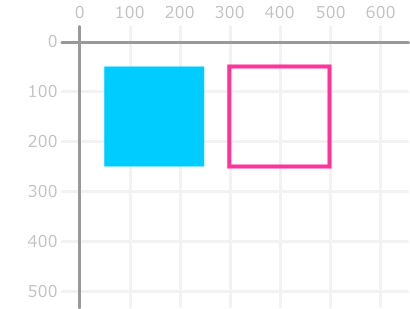
The `strokeRect` method draws an outline of a rectangle. The `fillRect` method draws a solid colored rectangle. These two methods are basically macro draw commands. You specify them and, just like magic, the rectangle of your choosing gets drawn.
That is very different than what the `rect` method provides. The `rect` method is part of your path commands. You specify a bunch of path commands that start with `beginPath`. Some of these commands may be related to your rectangle. Some may not. In the end, you have a giant grouping of path commands that tell your ` canvas` all the various things it needs to draw.
## Conclusion
So...there you have it! You just saw a quick overview of how to draw rectangles on the canvas using `rect`, `fillRect`, and ` strokeRect`. You may be wondering which of the three methods you'll want to use. If you need to just draw a rectangle quickly, either the `fillRect` (solid shape) or `strokeRect` (outline of a shape) methods are fine. For drawing a rectangle as part of a series of other draw commands, the `rect` method is your best friend. In case it matters, I almost always use the `rect` method for the unfortunate times I need to draw a rectangle or square :P