# Disable Form Autocompletion
by [kirupa](https://www.kirupa.com/me/index.htm) | filed under [HTML and CSS](https://www.kirupa.com/html5/learn_html_css.htm)
Learn how to turn our browser's default form autocompletion behavior off.
One of the greatest inventions since sliced bread is our browser's auto completion behavior where we focus on an element like `input`, `select`, `textarea`, or `form` and see a list of possible values we can select instead of writing those values manually again...like an animal:
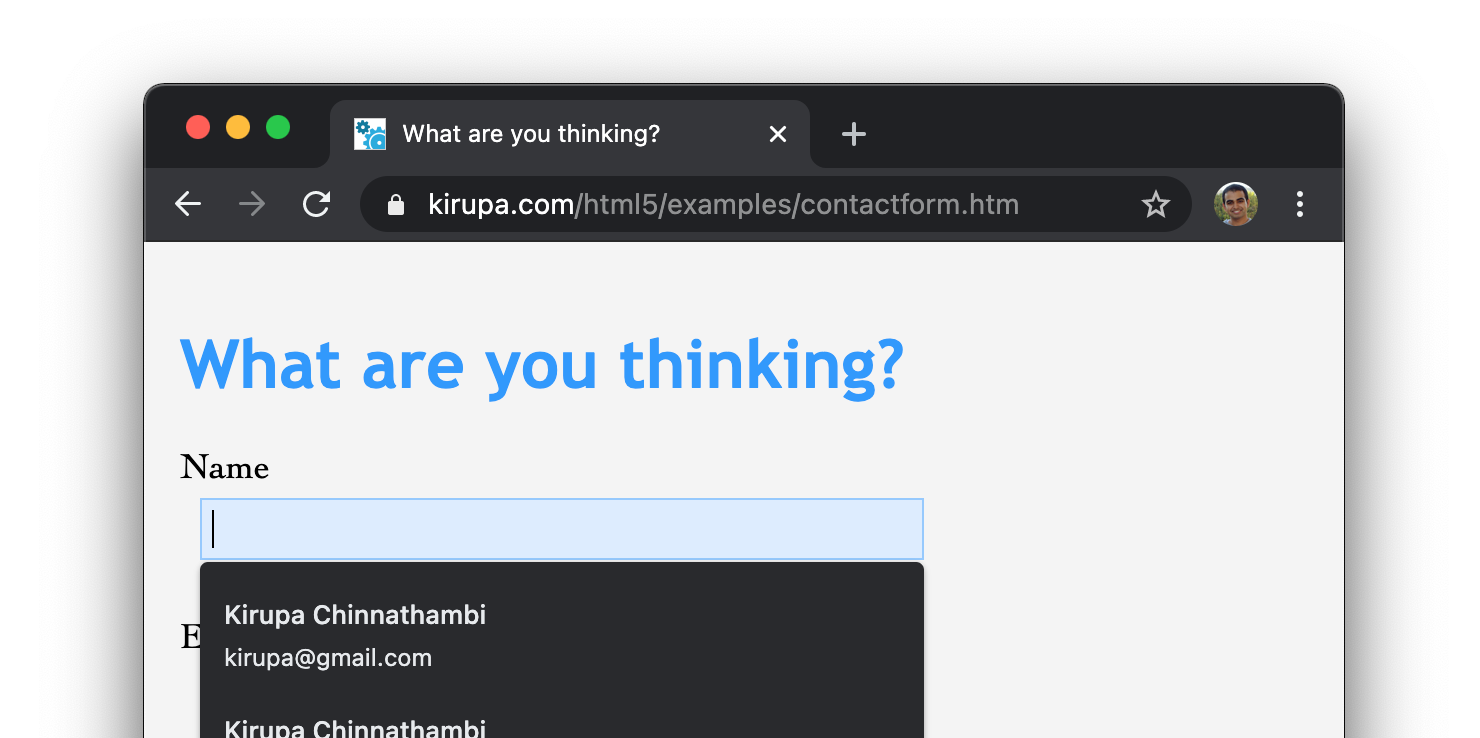
I don’t know about you, but this simple act of our browsers remembering commonly provided information is a major timesaver. It has made the boring act of typing and re-typing names, addresses, phone numbers, and more a non-activity! Now, there will be times when the form autocomplete/autofill behavior isn’t quite what we want. Some examples of such times are when we are providing:
1. A one-time pin as part of a two-factor authentication check
1. Something really sensitive like a government-issued ID value
1. A trivial/repetitive value that like some words/numbers as part of an online calculator, word game, etc.
There are probably a boatload more examples, but the important detail is that we as developers may want to disable the autocompletion behavior our browsers provide by default. This article will show us how.
Onwards!
## Meet the Autocomplete Attribute
The way we can control the autocomplete behavior of an entire form or an individual input element is by using the appropriately named `autocomplete` attribute. A value of **on** for this attribute is the default behavior, and a value of **off** disables the autocomplete behavior.
The following is a example where we disable autocomplete on an entire form:
```html
```
If we want to disable autocomplete on just a single input element, we can scope the `autocomplete` attribute to just that element:
```html
```
All of this isn't just limited to HTML. If you need to change the autocomplete behavior via JavaScript, you can use `setAttribute`([see tutorial](https://www.kirupa.com/html5/modifying_dom_elements.htm)) on the `form` or `input` element as shown in the following snippet:
```js
```
Whether HTML or JavaScript is your jam, the important bit is that we have the `autocomplete` attribute that provides us with a simple way to disable autocomplete on your entire form or just selectively on individual elements.
## Conclusion
What we have seen so for are a handful of ways to toggle the form autocompletion behavior on and off. To better fine-tune our autocompletion behavior, we have a bunch of values we can provide to the `autocomplete` attribute beyond **on** and **off**. These values like **name**, **username**, **e-mail**, etc. make it easier for the browser's autocompletion to display more appropriate values with some help from us. [This MDN article](https://developer.mozilla.org/en-US/docs/Web/HTML/Attributes/autocomplete) goes into more detail on all the values you can (and probably should!) use to make your form's autocompletion behavior even better than what you may get by default from the browser.