# Element Attributes and JavaScript
by [ kirupa](https://www.kirupa.com/me/index.htm) | filed under [JavaScript 101](https://www.kirupa.com/javascript/learn_javascript.htm)
An important part of HTML elements are the attributes they carry with them. Common attributes we see all the time include the **id** attribute, **class** attribute, and then a boatload of element-specific ones like **src** for `img` elements or autoplay for `video` elements and so on. When something is important in HTML, you know it is important for us to know how to handle that via JavaScript. That's what this whole set of sections you are about to see is all about.
Onwards!
## Basics of Attribute Access
Before we jump ahead and look at custom attributes, let's take a quick moment and discuss how to access attributes in general. Let's say that we have an HTML element that looks as follows:
```html
 ```
There are two attributes on this element: **id**,** src**. In fine JavaScript tradition, we have a multitude of ways to perform the same tasks. We are going to explore some of those ways in the following sections.
### Reading Attributes
The first thing we are going to do is look at how we can access these attributes in JavaScript. The most popular way is by using `getAttribute` and providing the attribute name as the argument:
```js
let imgElement = document.querySelector("#tv");
let idValue = imgElement.getAttribute("id");
let srcValue = imgElement.getAttribute("src");
console.log(idValue) // tv
console.log(srcValue) // foo.png
```
For built-in attributes such as the **id** and **src** attributes on an image element, we can access them directly by just dotting into it:
```js
let imgElement = document.querySelector("#tv");
let idValue = imgElement.id;
let srcValue = imgElement.src;
console.log(idValue); // tv
console.log(srcValue); // /foo.png
```
Another approach is to use the `attributes` property on the DOM element and iterate through the attributes, but that is one we can table for later.
### Setting Attributes
Reading attributes is one thing. Setting attributes is a whole another thing which is handled by the `setAttribute` method takes the attribute name and the new value as its arguments:
```js
let imgElement = document.querySelector("#tv");
imgElement.setAttribute("src", "bar.png");
console.log(imgElement.getAttribute("src")); // bar.png
```
Notice that we use `setAttribute` to change the value of the **src** attribute to be **bar.png**.
### Removing Attributes
The last ***basic*** attribute-related activity we will look at is how to remove attributes. This task is handled by the `removeAttribute` method:
```js
let imgElement = document.querySelector("#tv");
imgElement.removeAttribute("src");
console.log(imgElement.getAttribute("src")); // undefined
```
To use the `removeAttribute` method, what we need to provide is the name of the attribute to remove as shown in the above example. Notice we are removing the `src` attribute from our image element, and when we try to access the removed attribute, we can see that it returns a value of **undefined**.
## Custom Attributes
Moving beyond the standard, built-in attributes our elements carry with them, we have the fun world of custom attributes. In the past, if we ever wanted to mark or tag our elements for any sort of programmatic access later, we didn't have too many good choices. The most common thing we did was add or remove class values from an element:
```
```
There are two attributes on this element: **id**,** src**. In fine JavaScript tradition, we have a multitude of ways to perform the same tasks. We are going to explore some of those ways in the following sections.
### Reading Attributes
The first thing we are going to do is look at how we can access these attributes in JavaScript. The most popular way is by using `getAttribute` and providing the attribute name as the argument:
```js
let imgElement = document.querySelector("#tv");
let idValue = imgElement.getAttribute("id");
let srcValue = imgElement.getAttribute("src");
console.log(idValue) // tv
console.log(srcValue) // foo.png
```
For built-in attributes such as the **id** and **src** attributes on an image element, we can access them directly by just dotting into it:
```js
let imgElement = document.querySelector("#tv");
let idValue = imgElement.id;
let srcValue = imgElement.src;
console.log(idValue); // tv
console.log(srcValue); // /foo.png
```
Another approach is to use the `attributes` property on the DOM element and iterate through the attributes, but that is one we can table for later.
### Setting Attributes
Reading attributes is one thing. Setting attributes is a whole another thing which is handled by the `setAttribute` method takes the attribute name and the new value as its arguments:
```js
let imgElement = document.querySelector("#tv");
imgElement.setAttribute("src", "bar.png");
console.log(imgElement.getAttribute("src")); // bar.png
```
Notice that we use `setAttribute` to change the value of the **src** attribute to be **bar.png**.
### Removing Attributes
The last ***basic*** attribute-related activity we will look at is how to remove attributes. This task is handled by the `removeAttribute` method:
```js
let imgElement = document.querySelector("#tv");
imgElement.removeAttribute("src");
console.log(imgElement.getAttribute("src")); // undefined
```
To use the `removeAttribute` method, what we need to provide is the name of the attribute to remove as shown in the above example. Notice we are removing the `src` attribute from our image element, and when we try to access the removed attribute, we can see that it returns a value of **undefined**.
## Custom Attributes
Moving beyond the standard, built-in attributes our elements carry with them, we have the fun world of custom attributes. In the past, if we ever wanted to mark or tag our elements for any sort of programmatic access later, we didn't have too many good choices. The most common thing we did was add or remove class values from an element:
```
 ```
That was fine if what we were doing resulted in our element visually changing. There are many times when we just want to store some data on an element - data that we wouldn't want to surface to the user. Overloading the more CSS-oriented `class` attribute seemed a bit distasteful. Also distasteful was abusing the `rel` tag, declaring custom namespaces, and doing other things to make up for the lack of a standardized way to embed data into our page.
Fortunately, something sweeter was on the horizon. We have the ability to specify ***custom data attributes*** (aka ***data dash or data-* attributes***) whose sole job is to allow us to tag elements with data that we can programmatically access later. Let's say that we have a list of images:
```html
```
That was fine if what we were doing resulted in our element visually changing. There are many times when we just want to store some data on an element - data that we wouldn't want to surface to the user. Overloading the more CSS-oriented `class` attribute seemed a bit distasteful. Also distasteful was abusing the `rel` tag, declaring custom namespaces, and doing other things to make up for the lack of a standardized way to embed data into our page.
Fortunately, something sweeter was on the horizon. We have the ability to specify ***custom data attributes*** (aka ***data dash or data-* attributes***) whose sole job is to allow us to tag elements with data that we can programmatically access later. Let's say that we have a list of images:
```html


 ```
What we want to do is store the name of the photographer as part of each image. The way we arer going to do this is by using a custom data attribute called **photographer**:
```html
```
Notice how the custom data attribute is defined. Whatever attribute name you are interested in using, simply prefix data- in front of it. You can have as many custom data attributes as you want. In case you were wondering, simply adding a custom data attribute has no bearing on the appearance or layout of an application.
### Working with Custom Data Attributes in JS
With custom data attributes, the two most common things we will do is retrieve the value stored by such an attribute or set the value stored by such an attribute. What we saw with `getAttribute`, `setAttribute`, and `removeAttribute` work identically here.
To retrieve the value stored by a data-* attribute, use the trusty `getAttribute` method on the HTML element the attribute lives on:
```html
```
To set the value, we use `getAttribute`'s mortal enemy, the `setAttribute` method:
```js
tvImg.setAttribute("data-photographer", "Sideshow Bob");
```
You get the picture. The helpful thing to note is that our data-* attributes are nothing more than just plain, boring attributes. Everything we could do in JavaScript before with attributes, we can still do now. These attributes are just named a little bit differently. That's all.
### The `dataset` Property
Ok, there is one thing that custom data attributes have that regular attributes don't. That is the handy ` dataset` property. It makes sense when we look at an example of it in action:
```js
```
Notice that we have **data-size** and **data-name** as custom attributes. The way we access these attributes is directly via the `dataset` property and omitting the **data-** prefix. This handy way of reading custom data properties applies to setting them as well where we can just assign the new attribute value just like we would any variable:
```js
```
We set the value for our data-name attribute to Van Gogh via JavaScript. We can see the new value being set, but we can go one level deeper and inspect the element to see for certain that the new value is what we see:
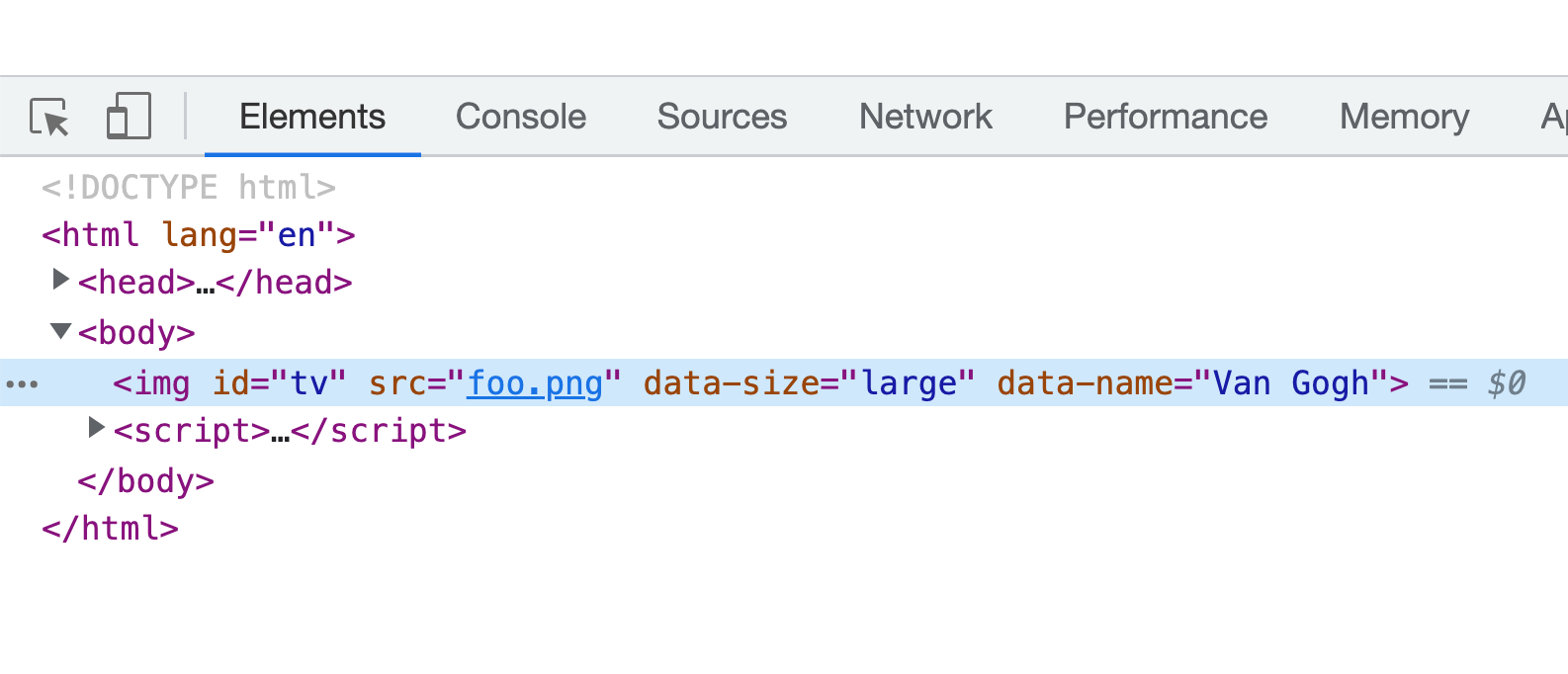
Pretty neat, right?
### When to use Data-* Attributes
Now that you've seen all of this, a worthy next question to ask is when you should use these data-* attributes either in your HTML or setting it on the DOM via JavaScript. There are some amount of mixed opinions on this, but here is how I would summarize when you should or shouldn't use custom data attributes:
- Use data-* attributes for storing non-visual data that also makes working with your JavaScript easier.
- Don't use data-* attributes for storing data that is better represented by another element.
- Using `getAttribute` and `setAttribute` is an expensive operation relative to just working with in-memory JavaScript objects. For performance intensive operations, avoid using data-* attributes.
## Conclusion
Who knew that something as simple as HTML attributes would take up this many words? The main takeaway is that we have a handful of helpful methods and properties in the DOM that make working with attributes fairly straightforward. The work on our end is to know how to use them and, as often is the case, know what they do when we are reading some code and we run into `getAttribute`, `setAttribute`, `removeAttribute`, or `dataset`.
```
What we want to do is store the name of the photographer as part of each image. The way we arer going to do this is by using a custom data attribute called **photographer**:
```html
```
Notice how the custom data attribute is defined. Whatever attribute name you are interested in using, simply prefix data- in front of it. You can have as many custom data attributes as you want. In case you were wondering, simply adding a custom data attribute has no bearing on the appearance or layout of an application.
### Working with Custom Data Attributes in JS
With custom data attributes, the two most common things we will do is retrieve the value stored by such an attribute or set the value stored by such an attribute. What we saw with `getAttribute`, `setAttribute`, and `removeAttribute` work identically here.
To retrieve the value stored by a data-* attribute, use the trusty `getAttribute` method on the HTML element the attribute lives on:
```html
```
To set the value, we use `getAttribute`'s mortal enemy, the `setAttribute` method:
```js
tvImg.setAttribute("data-photographer", "Sideshow Bob");
```
You get the picture. The helpful thing to note is that our data-* attributes are nothing more than just plain, boring attributes. Everything we could do in JavaScript before with attributes, we can still do now. These attributes are just named a little bit differently. That's all.
### The `dataset` Property
Ok, there is one thing that custom data attributes have that regular attributes don't. That is the handy ` dataset` property. It makes sense when we look at an example of it in action:
```js
```
Notice that we have **data-size** and **data-name** as custom attributes. The way we access these attributes is directly via the `dataset` property and omitting the **data-** prefix. This handy way of reading custom data properties applies to setting them as well where we can just assign the new attribute value just like we would any variable:
```js
```
We set the value for our data-name attribute to Van Gogh via JavaScript. We can see the new value being set, but we can go one level deeper and inspect the element to see for certain that the new value is what we see:

Pretty neat, right?
### When to use Data-* Attributes
Now that you've seen all of this, a worthy next question to ask is when you should use these data-* attributes either in your HTML or setting it on the DOM via JavaScript. There are some amount of mixed opinions on this, but here is how I would summarize when you should or shouldn't use custom data attributes:
- Use data-* attributes for storing non-visual data that also makes working with your JavaScript easier.
- Don't use data-* attributes for storing data that is better represented by another element.
- Using `getAttribute` and `setAttribute` is an expensive operation relative to just working with in-memory JavaScript objects. For performance intensive operations, avoid using data-* attributes.
## Conclusion
Who knew that something as simple as HTML attributes would take up this many words? The main takeaway is that we have a handful of helpful methods and properties in the DOM that make working with attributes fairly straightforward. The work on our end is to know how to use them and, as often is the case, know what they do when we are reading some code and we run into `getAttribute`, `setAttribute`, `removeAttribute`, or `dataset`.