# Create an Analog Clock Using the Canvas
by [IQAndreas](http://www.iqandreas.com/) | 26 February 2014
Today, we will be making a classic analog clock using the canvas features found in HTML5. The clock you will be creating will look as follows:
This clock is actually live! It should display your current system time and update as each second passes by. In this tutorial, you will learn all about how to make this. Let's get started.
#### Very Important Note
As part of making creating our clock, you will get bonus points if you listen to any [appropriately](http://www.youtube.com/watch?v=d020hcWA_Wg) [themed](http://www.youtube.com/watch?v=LWTLUmUjo8A) [music](http://www.youtube.com/watch?v=xGytDsqkQY8)!
## Getting Started
We are going to incrementally add HTML, CSS, and JavaScript to eventually create our awesome analog clock. Let's first start with the basic HTML. Create a new HTML document and add the following code:
```
Analog Clock
12:00:00 AM
```
If you preview what we have so far, there really isn't much to see. Let's partially fix that by adding the following CSS in-between the `style` tags:
```
#current-time {
display: block;
font-weight: bold;
text-align: center;
width: 200px;
padding: 10px;
border:1px solid #000000;
}
#clock {
padding: 10px;
}
```
And finally, let's add some JavaScript to make it all start moving! Add the following code inside the `script` tags:
```
document.addEventListener('DOMContentLoaded', displayTime);
function displayTime() {
// Just to test if the JavaScript gets loaded in properly. You can remove this later!
document.querySelector("#current-time").innerHTML = "JavaScript is working, now get to coding!";
}
```
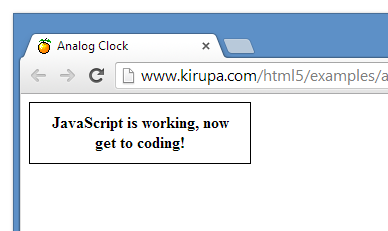
Preview your page at this point. If your page doesn't look like the following image, double check that you loaded in the JavaScript properly:
Now that we have the basics up and running, it's time to move on to...
## Making a Digital Clock
So you want to make an analog clock? Slow down there, buddy!
First we are going to add a digital clock. The reason is because this will help us to learn to use the `Date` class - the class that contains a lot of the functionality we will be using to display the correct time. Second, starting with a digital clock will make debugging our analog clock much easier (trust me on this one).
### Getting a Date
If you want to get the current time in JavaScript, the way you do that is by simply calling `new Date()`. Edit your existing JavaScript code inside the ` displayTime` function by adding the following two highlighted lines:
```
function displayTime() {
var now = new Date();
document.querySelector("#current-time").innerHTML = now.toString();
}
```
If you preview your document now, you will see the date being displayed:
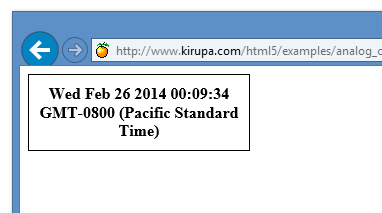
While this is no clock in either the digital or analog sense, at least we are moving in a direction that seems right. With that said, the date shown is **A LOT** more information than we actually need. We are going to have to write our own code to display the time, rather than relying on `toString()` to format it correctly.
```
var now = new Date();
var h = now.getHours();
var m = now.getMinutes();
var s = now.getSeconds();
```
Since all those values are numbers, although it may not always be required, we really should convert them with ` String(num)` before trying to display them:
```
var timeString = String(h) + ":" + String(m) + ":" + String(s);
document.querySelector("#current-time").innerHTML = timeString;
```
Your full code inside the displayTime function will now look as follows:
```
function displayTime() {
var now = new Date();
var h = now.getHours();
var m = now.getMinutes();
var s = now.getSeconds();
var timeString = String(h) + ":" + String(m) + ":" + String(s);
document.querySelector("#current-time").innerHTML = timeString;
}
```
If you preview what you have now, you will see something that looks as follows:
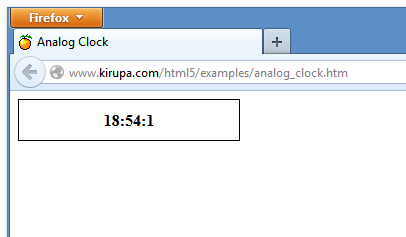
Well it works, but it looks a bit "funny". First (if you ignore the hour part) you will notice that an unusual time of ` 18:54:1` shows up. Most digital clocks add extra zeroes to the minute and second part to ensure the value is two digits, so what the clock really should be displaying is `18:54:01`.
Let's add a function called **padZero** which adds a zero to the beginning of the number if needed:
```js
function padZero(num) {
if (num < 10) {
return "0" + String(num);
}
else {
return String(num);
}
}
```
This `padZero` function takes a number as its argument. If the number appears with less than two digits (aka less than 10), we add a zero the beginning of the number to make it appear as two digits with a 0 making up the first digit. If the number is already two digits, we don't do anything and just stringify it as part of returning it.
Let's use this function in our example. Replace the timeString variable line with the following modified version:
```
var timeString = String(h) + ":" + padZero(m) + ":" + padZero(s);
```
Our full JavaScipt at this point will look like:
```
document.addEventListener('DOMContentLoaded', displayTime);
function displayTime() {
var now = new Date();
var h = now.getHours();
var m = now.getMinutes();
var s = now.getSeconds();
var timeString = String(h) + ":" + padZero(m) + ":" + padZero(s);
document.querySelector("#current-time").innerHTML = timeString;
}
function padZero(num) {
if (num < 10) {
return "0" + String(num);
}
else {
return String(num);
}
}
```
At this point, your time will now display more properly with no single-digit numbers appearing without a 0 in front of them. There is one thing that is going to look odd, though...
### But that's army time!
If you are a country that does not use the 24-hour clock (cough, cough, America) you may be confused or at least annoyed by the fact that the hour value on our clock is greater than 12. Although the 24-hour clock is clearer and less ambiguous, we might as well convert it to a 12-hour clock just so everyone around the globe can understand it.
We'll write a function which converts the hour to the 12-hour time. First, we will use the modulus operator to make sure the hour is a value between **0** and **11**. But since there is no **0th** hour in the 12-hour clock, we make sure that value never shows by changing it to **12** instead.
To do this, meet the `formatHour` function:
```
function formatHour(h) {
var hour = h % 12;
if (hour == 0) {
hour = 12;
}
return String(hour)
}
```
Also, we still need a way to tell whether to use AM or PM. The way it's set up is a bit tricky (the order is 11 AM, 12 PM, 1 PM, when really, it would make more sense to call that 12 AM). You could write a function which does this thoroughly, but we will take a shortcut which may not be very clear...but it works:
```
function getTimePeriod(h) {
return (h < 12) ? "AM" : "PM";
}
```
After you've added the `formatHour` and `getTimePeriod` functions to your code, go ahead and modify your `timeString` variable inside `displayTime` again with the following:
```
var timeString = formatHour(h) + ":" + padZero(m) + ":" + padZero(s) + " " + getTimePeriod(h);
document.querySelector("#current-time").innerHTML = timeString;
```
If you preview your page again, you will now see your time displayed as follows:
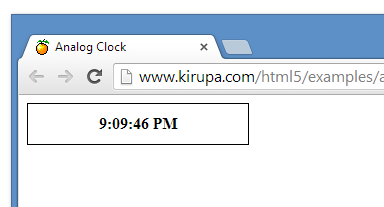
Tadaaa! You now have a digital clock. It doesn't update every second, but that's OK for now. We'll tackle that detail as part of creating our analog clock shortly.
## Drawing the Analog Clock
Here is where the fun begins! Remember that `