# Clipping Content Using the overflow CSS Property
by [kirupa](https://www.kirupa.com/me/index.htm) | 3 August 2013
Often, you will run into cases where you want to display some content that is larger than its container:
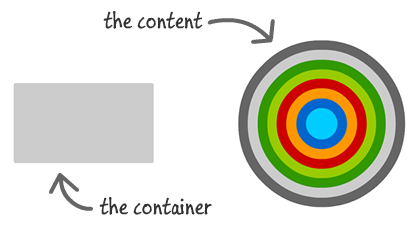
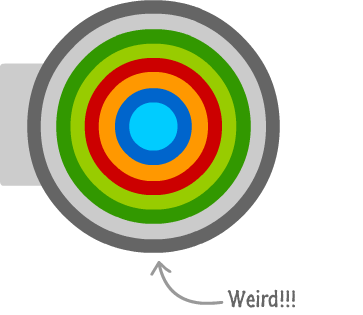
By default, if you do absolutely nothing, your large content will appear inside the container with scrollbars to allow users to scroll around and see the rest of the content. Sometimes, your large content will just overflow outside of the container's boundaries and look all weird:
There will be times when you don't want the default behavior. What you want is for your larger content to live very neatly inside the parent container without spilling over or displaying scrollbars:

[ you can see a [ live example here](https://www.kirupa.com/html5/examples/clipping_content.htm) ]
This want can easily be turned into reality by using a technique known as ** clipping**. Clipping is where the contents outside of a designated region are simply ignored. In our example, the designated region is the boundaries of the container, and any part of the image that went outside of its boundaries is said to be clipped.
In this tutorial, you will learn how to clip content by setting the `overflow` CSS property on the container.
## The Overflow Property
The property that decides whether the contents of a container will be clipped or not is the `overflow` CSS property, and it takes one of the following values:
1. visible
1. hidden
1. scroll
1. auto
1. no-display
1. no-content
1. inherit
To turn clipping on with no scrollbars or anything else, the `overflow` property needs to be set to `hidden`. Let's work through an example.
## Working Through an Example
Create a new HTML document, and copy/paste the following HTML and CSS into it:
```
Clipping Example
Clipping
```
When you preview this in your browser, you will see something that looks as follows:
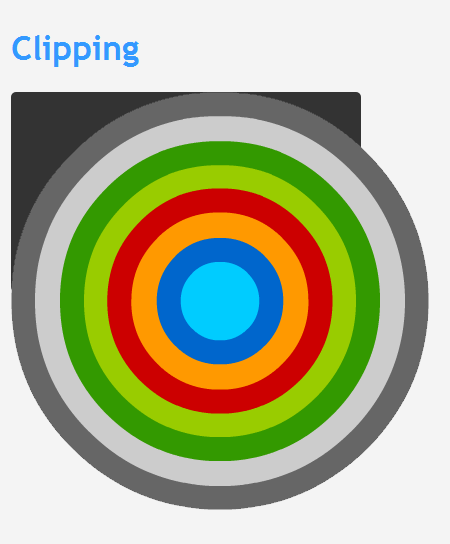
[ the content has no respect for its older, wiser container ]
Let's look at this in greater detail. The markup that generates what you see above is:
```
```
You have a `div` element with an `id` of ` imageContainer`, and you have an `img` tag as its child that displays the image that you see.
Because we want the image's contents to be clipped by the parent `div`, the ` overflow` property needs to be set to **hidden** on a CSS style that affects it. That can be done by adding `overflow: hidden;` to the style rule associated with the parent container - the style rule whose selector is `#imageContainer`:
```
#imageContainer {
background-color: #333;
width: 350px;
height: 200px;
border-radius: 5px;
overflow: hidden;
}
```
Once you have made this change, go ahead and preview your HTML page in your browser again. Notice what your example looks like now:
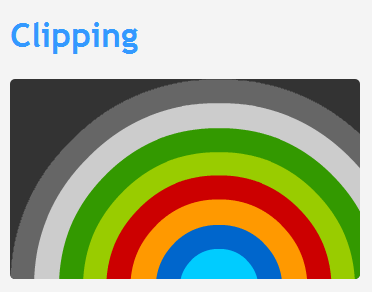
[ your content is now clipped ]
Your image is now fully contained inside the boundary defined by the `imageContainer` ` div` element. Notice that even the rounded corners of the `div` are respected during clipping.
## Things to Keep in Mind
The container whose style you wished to set the `overflow` property to **hidden** on needs to have some defined boundaries. In the example you saw here, the ` width` and `height` of our `div` was fixed to 350 pixels and 200 pixels respectively.
If you don't specify a boundary, your container may take on whatever the size of the content is. This doesn't mean that default layout and resize behavior won't turn clipping on. Clipping will still work when whatever automatic width and height the browser specifies overrides the size of the content. For example, if you remove the `width` and ` height` properties from the ` imageContainer` style, resizing your browser after a certain point will force clipping:
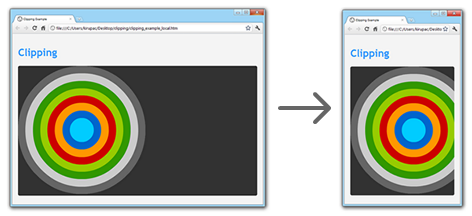
[ the browser eventually forced your div to start clipping the content ]
The last thing to note is that, while much of this tutorial talks about clipping in the context of oversized content, clipping is useful for animated content that you want to keep contained inside a boundary as well.
#### Note: Clipping Absolutely Positioned Content
Sometimes, you will want to clip content that is absolutely positioned. In such cases, what you saw earlier is not the full solution. To clip absolutely positioned content, the parent element needs to have its CSS `display` property set to **relative**:
```
#imageContainer {
background-color: #333;
width: 350px;
height: 200px;
border-radius: 5px;
overflow: hidden;
position: relative;
}
```
Once you do that, your misbehaving absolutely positioned children will be clipped appropriately.
## Related Topics
If you want some other good reading on this topic, I suggest the following:
- [ The magic of "overflow:hidden"](http://colinaarts.com/articles/the-magic-of-overflow-hidden/)
- [ W3C: Visual Effects](http://www.w3.org/TR/CSS2/visufx.html)
And with this, you have learned how to easily clip your content.