# Centering Content Vertically and Horizontally Using Flexbox
by [kirupa](https://www.kirupa.com/me/index.htm) | 19 October 2015
Strangely enough, one of the more difficult things to do using CSS is centering content. Centering content horizontally is relatively easy **some of the time**. Centering content vertically is difficult **almost always**. If you've ever tried it, it is hard - especially if you want to avoid using tables. Fortunately, our cries for help were heard, and one of the new weapons added to the CSS arsenal to solve this problem is a layout type known as the **flexible box layout**. All the cool kids just call it **flexbox**.
As you'll find out in a few moments, flexbox provides you with some really nifty functionality to make complex layouts easy. A part of this nifty funtionality also allows you to center your content vertically and horizontally, and that's what we'll look at in this tutorial:
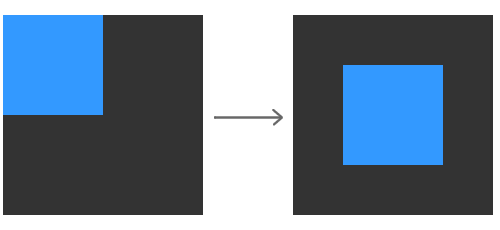
We'll start with a simple example where your content isn't aligned at all. By the end of this tutorial, you will have successfully centered your content across both axes!
Let's get started!
#### Flexbox Browser Support
Because Flexbox is a recent introduction to the pointy tools you have to work with, check out [ caniuse's statistics](http://caniuse.com/flexbox) for it to see the level of support it has among the major browsers. (Thanks to [ Andreas Klein](https://twitter.com/ixisio) for the reminder!)
## Getting Started
Let's work with a small example to help make all of this text make more sense. Go ahead and create a new HTML document and copy and paste the following content into it:
```
Centering Content
Centering Content
```
If you preview your page, you will see something that looks as follows:
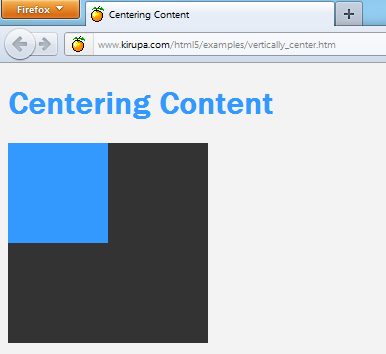
To dive a bit deeper into this example, the two squares you see are actually two `div` elements:
```
```
The outer div aptly has the id **outer**, and the inner div has an id of **blueDiv**. Our goal is to center the blueDiv inside the outer div. We'll do that next.
## Centering using Flexbox
You specify the layout for a particular element by setting the `display` CSS property. To use Flexbox, set the `display` value on the container to be `flex`. In our example, find the CSS rule with the `#outer` selector, and add just the following highlighted line:
```
#outer {
width: 200px;
height: 200px;
background-color: #333333;
display: flex;
}
```
What you've just done is set your **outer** `div` as a flex container, and this simple step forces its immediate children (aka the **blueDiv**) to arrange themselves using flexbox logic. If you preview your page now, what you will see is no different than what you had when you first started. We'll fix that up in a few moments!
Now that you have specified flexbox as the layout logic, the last thing that remains is to specify that the immediate children of the **outer** `div` be centered. The two flexbox properties that specify horizontal and vertical centering are `align-items` and ` justify-content`.
### Centering Vertically with `align-items`
The `align-items` property specifies the vertical alignment of contents inside your flex container. The values you can specify are **baseline**, **center**, **flex-start**, **flex-end**, and ** stretch**. The center value is what allows us to vertically center our content, so let's go ahead and specify that.
Add the following highlighted line:
```css
#outer {
width: 200px;
height: 200px;
background-color: #333333;
display: flex;
align-items: center;
}
```
Once you have added that line, you will see your **blueDiv** now centered on the vertical axis:
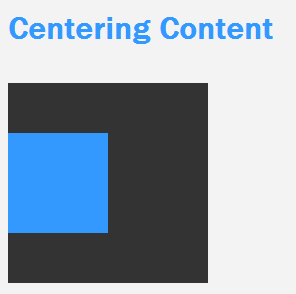
We are almost done. All that remains is to get the square centered horizontally as well, and we'll look at that one next.
### Centering Horizontally with `justify-content`
The last flexbox property we will look at is the `justify-content` property, and this property allows you to align your content horizontally. The values you can specify here are **center**, **flex-start**, **flex-end**, **space-between**, and ** space-around**. Just like before, the value we want to specify is **center**.
Go ahead and add the highlighted line that center aligns your content horizontally:
```css
#outer {
width: 200px;
height: 200px;
background-color: #333333;
display: flex;
align-items: center;
justify-content: center;
}
```
Once you have done this, go ahead and preview your document in the browser one last time:
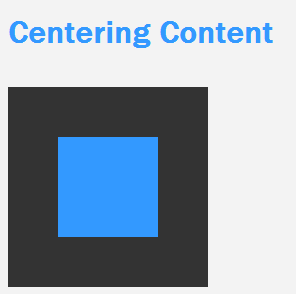
With that last line, your **blueDiv** (aka the immediate child of **outer**) is now centered horizontally as well. Wohooo!
## Conclusion
Flexbox marks a major improvement over how you had to lay content out in the past. Doing something like centering something vertically and horizontally would have been a pain to do using traditional layout techniques. With Flexbox, you just added two lines to the container of the content you wished to center. That is pretty sweet!
The other good thing is that browser support is extremely good these days. You can safely use Flexbox without worrying about leaving people behind, but the support isn't universal. For those rare users, there is a JavaScript library called [ Flexie](http://flexiejs.com/) that brings flexbox support to many new and old browsers. If you care about the small number of older browsers, use Flexie and sleep well at night.