# Auto-navigating our Grid using Breadth-First Search (BFS)
by [kirupa](https://www.kirupa.com/me/index.htm) | filed under [Data Structures and Algorithms](https://www.kirupa.com/data_structures_algorithms/index.htm)
By now, we've got the basics of working with our grid covered. We learned how to represent our grid, move Zorb around it, deal with boundaries, and even got a bit of collision detection figured out. What we are going to do here is kick what we've learned up a few notches. Instead of us moving and nudging Zorb along ourselves, we are going to give Zorb a destination and have him navigate the grid himself. He will do this navigation using our old friend, [Breadth-First Search (BFS)](https://www.kirupa.com/data_structures_algorithms/dfs_bfs.htm). This is going to be a hoot!
Onwards!
## What We're Going to Build
As always, before we get fully into it, let's play with the finished example to give us an idea of what we'll be working towards ([open in new window](https://www.kirupa.com/data_structures_algorithms/examples/grid_movement_pathfinding.htm?v=20261009-2)):
Interactive example: [Click a destination cell and watch Zorb walk around the rocks to reach it](https://www.kirupa.com/data_structures_algorithms/examples/grid_movement_pathfinding.htm?v=20261009-2)
Hover over any open cell and click / tap to have Zorb navigate to it.
Notice how Zorb navigates. He avoids all of the obstacles. We can see this clearly when we hover over a destination, since that shows the path Zorb will take. In the rest of the article, we'll learn how to build the logic that makes this navigation work.
## Some Obvious Ideas That Don't Work
Before reaching for the final algorithm that Zorb can use to navigate our obstacle-filled grid, let's start with what seems like an obvious (yet incorrect) approach to take.
At each turn, Zorb will take a step that moves him closer to the goal. To dive deeper into this obvious insight:
1. If the destination is below, Zorb tries to move down
2. If the destination is above, Zorb tries to move up
3. If the destination is to the left, Zorb tries to move left
4. If the destination is to the right, Zorb tries to move right
5. Keep repeating the above steps until Zorb reaches his destination
This seems like a viable plan, though, right? As it turns out, not really. To see where this approach falls apart, let's shrink the world back down to the 5-by-5 grid we used last time:
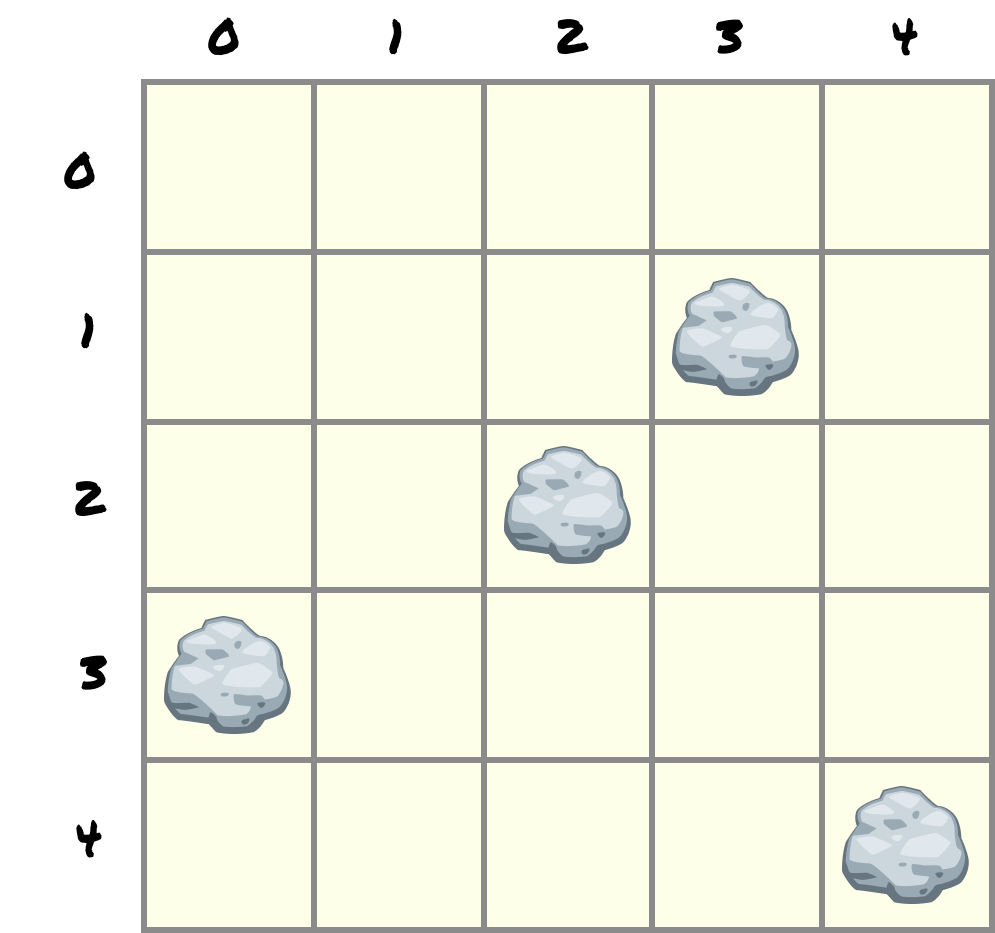
We are going to put Zorb at `(2, 1)` and put his destination at `(3, 4)`, down in the bottom row:
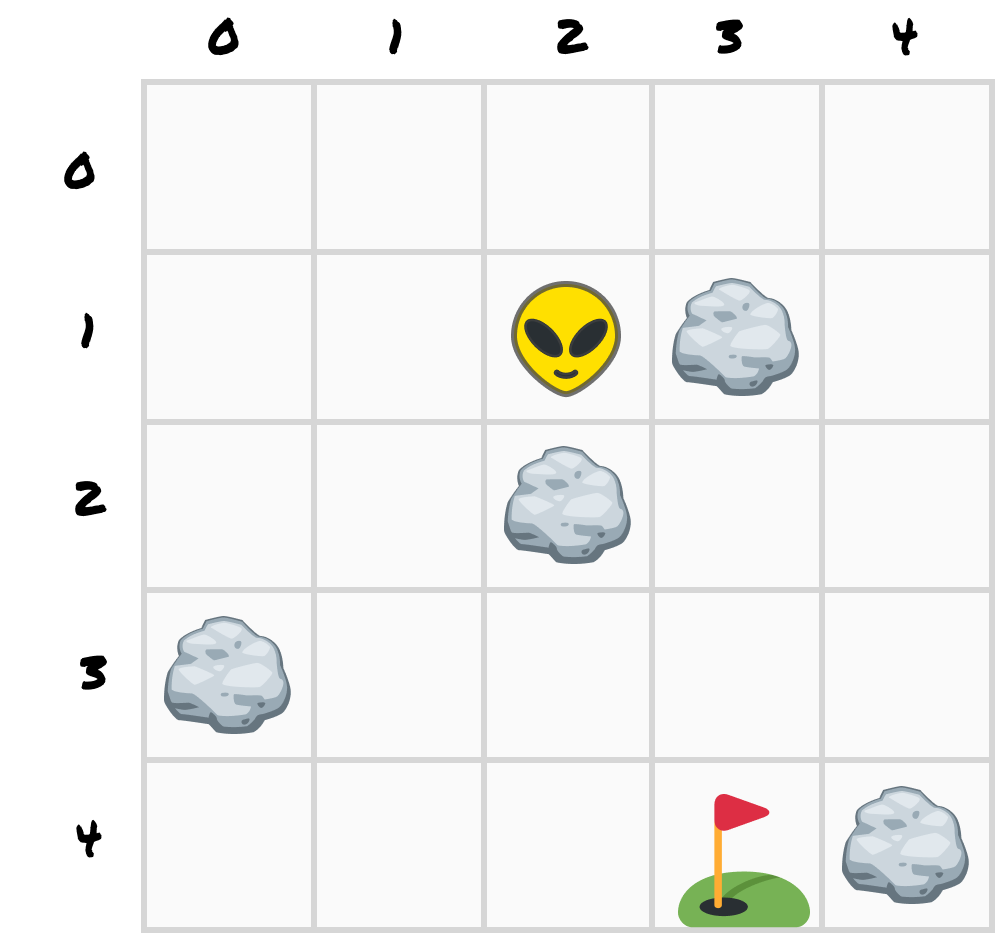
The gap between Zorb and the destination is one column to the right and three rows down:
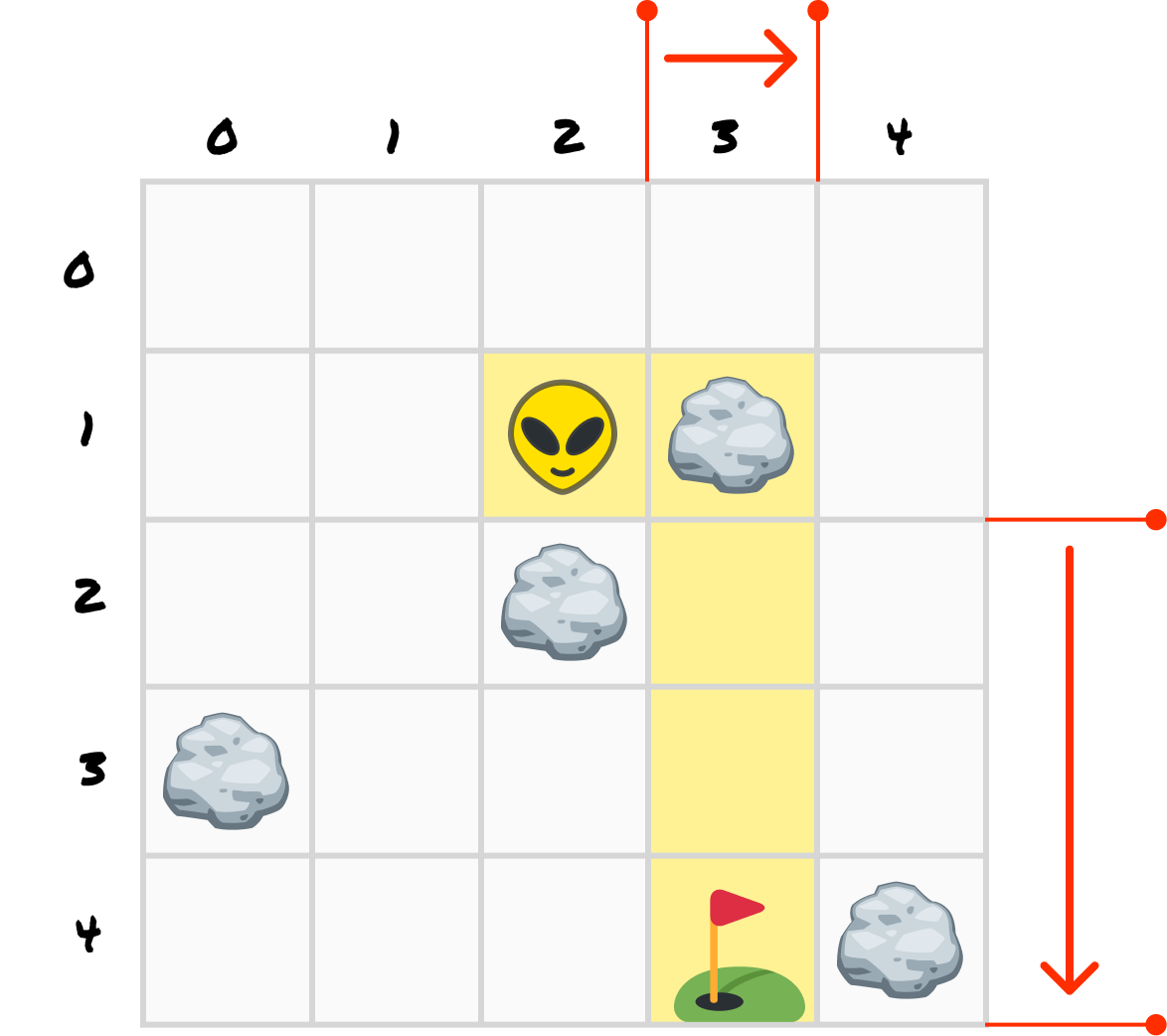
To get to the destination, Zorb attempts to move down one step. As we can see, down from `(2, 1)` is `(2, 2)`, and `(2, 2)` is a rock ([maybe a rock....lobster?](https://www.youtube.com/watch?v=pn26ZJhSJ94)).
So, moving down doesn't work. Let's have him move right instead. That plan is also foiled, because to the right of Zorb at `(3, 1)` is another rock. Both of his attempts to move closer to the destination are blocked right at the start.
The only two moves he has left are to go up to `(2, 0)` or left to `(1, 1)`:
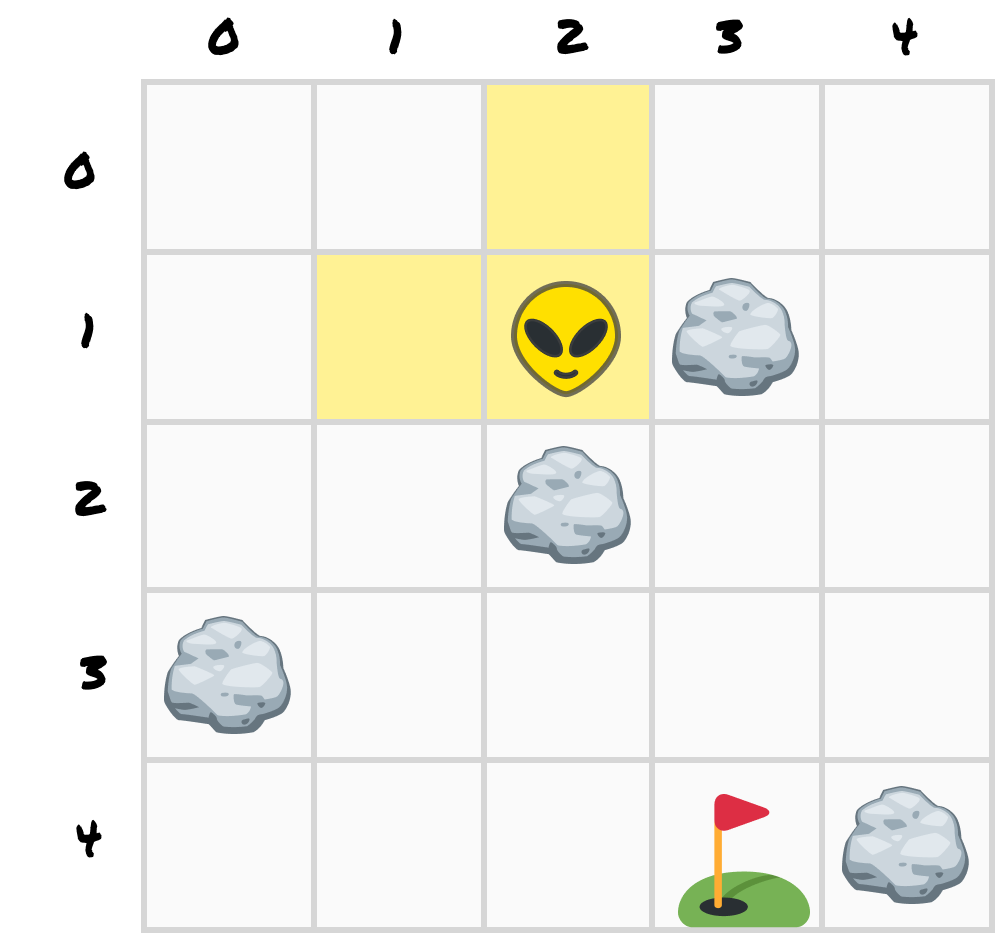
Both of them increase the distance to the goal. To get to `(3, 4)` at all, Zorb has to start by walking *away* from it.
Going away for a brief bit before moving towards your destination isn't a bad strategy. It may be the only strategy if you are blocked like Zorb is right now. What makes this tricky is that it now adds more rules and complications. For example, Zorb now needs to remember which cells he has already tried. Otherwise, he will try the same corner repeatedly.
The other detail to keep in mind, and this is a HUGE detail, is that what Zorb sees is only the cells in his immediate vicinity and any he has already explored:
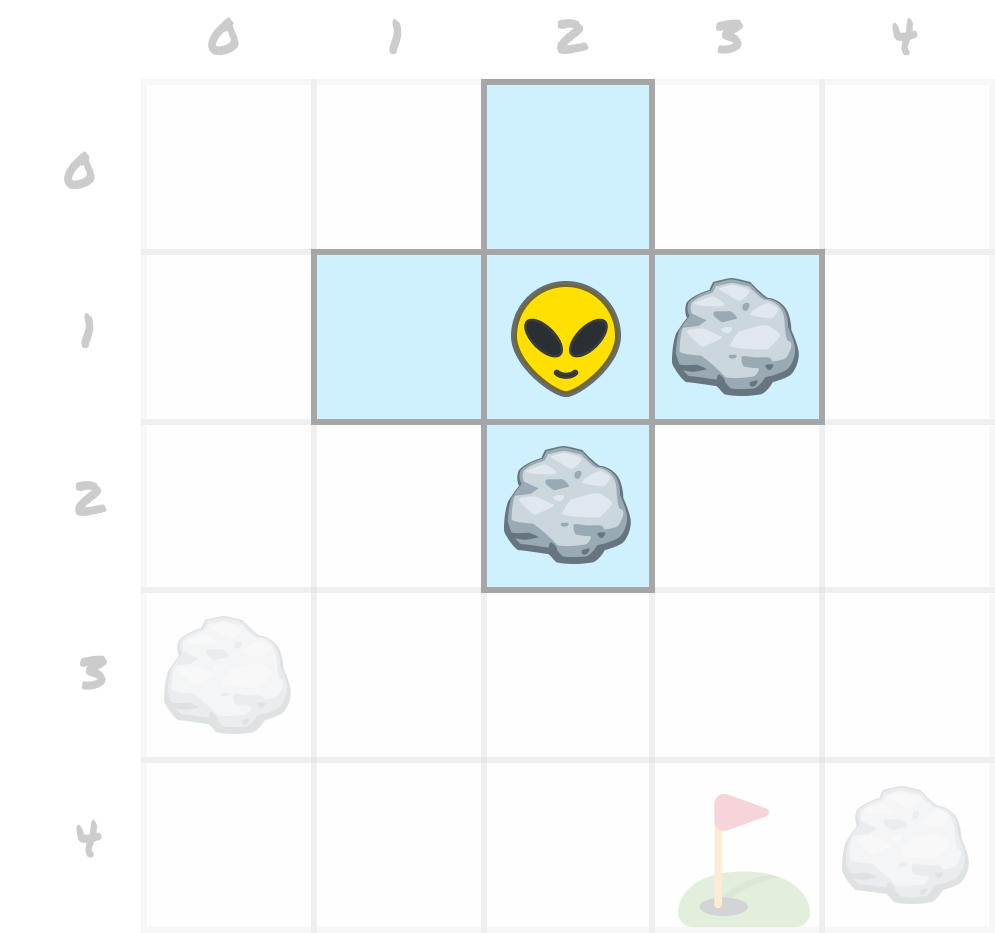
Zorb doesn't know how big the grid is. He doesn't know where the other obstacles are. He doesn't know where the destination is. In many real-world scenarios, an important navigation activity is to figure out **if there is even a destination**.
Only we, as human observers, can see the full grid and where all the obstacles are, and visually plot a path to the destination. That too fails for large, complex grids where even you and I can't fully make sense of the full environment.
So basically, having Zorb try to optimize his way to the destination won't work unless we tell him where the destination is. The only other solution is to have Zorb try every possible walk through the grid and keep the best one. That works, but this brute-force version is far too slow to be useful. This isn't a problem for a small surface like our 5-by-5 grid. In real-world situations, your grid may be 10s or 100s or even 1,000s of times larger than our grid here. There won't be enough seconds in the universe (insert dramatic pause) to exhaustively plot every path.
The solution we want will sit snugly between our two approaches. We want something that explores, like the brute-force version, but we also want it to be smart enough to never explore the same cell twice and to stop the moment it finds the destination.
## Breadth-First Search to the Rescue
For a moment, imagine Zorb sends out a series of drones to explore the area and report back what they find. As they go from cell to cell, each drone records how far away from Zorb it is. The drone that arrives at the destination first is the one that got there by the shortest route available.
If this idea sounds like a great one, that's because what we just described is how our old friend ***breadth-first search***, commonly shortened to ***BFS***, behaves. It works on a grid like this:
1. Mark Zorb's cell as reached in **0** steps.
2. Find every open neighbor of that cell and mark those as reached in **1** step.
3. Find every open, unmarked neighbor of *those* cells and mark them as **2** steps.
4. Keep going, one full ring at a time, until the destination gets marked.
The critical word in there is *unmarked*. Once a cell has a number, it keeps it. We never come back and overwrite it, because any later visit arrived on a route at least as long as the first one.
#### Note: You May Have Seen This Before
If BFS rings a bell, it's because you and I may have talked about it already in [Depth-First Search and Breadth-First Search](https://www.kirupa.com/data_structures_algorithms/dfs_bfs.htm). The only difference is that we looked at it in the context of graphs instead of grids. As we will talk about a bit later, a ***grid is a graph***. In a grid, every open cell is a node, and every pair of open neighbors is an edge.
Let's run that on our 5-by-5 grid and actually watch it happen. Zorb starts at `(2, 1)`, so that cell gets a `0`:
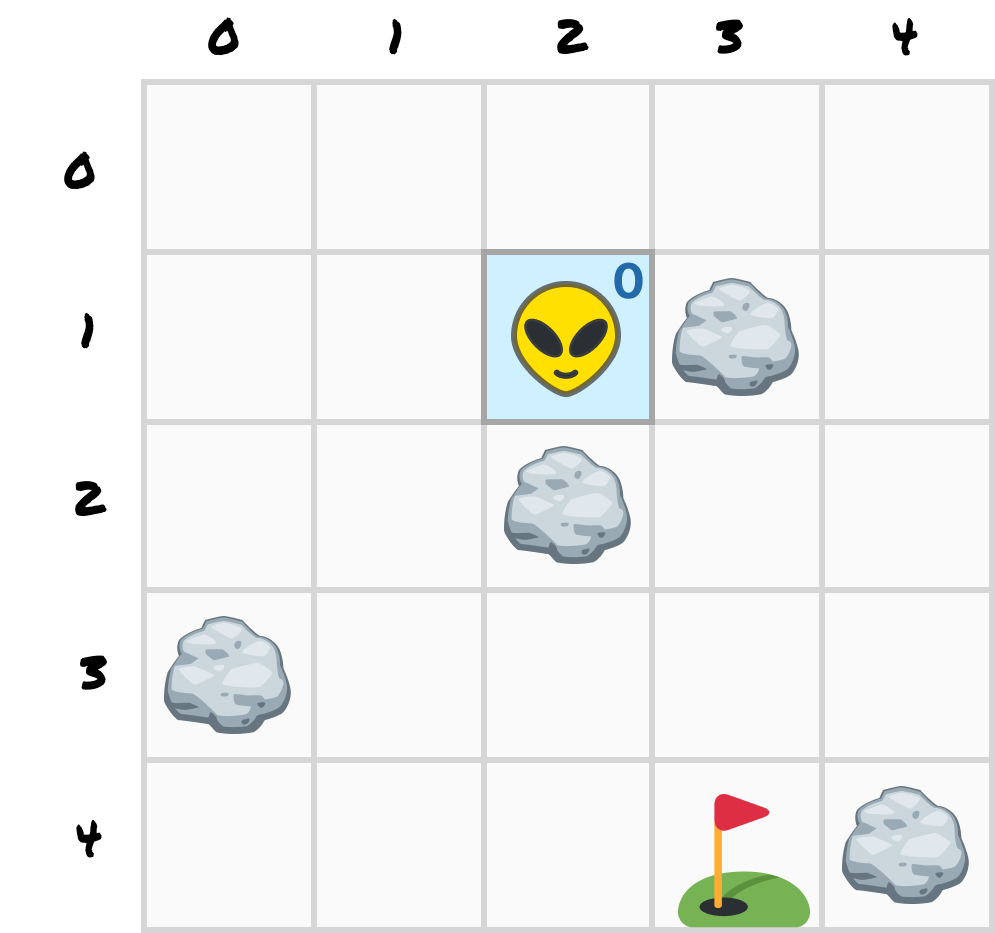
Now the first ring. Zorb's four neighbors are `(2, 0)` above, `(2, 2)` below, `(1, 1)` to the left, and `(3, 1)` to the right. Two of those neighbors are rocks, so we ignore them. The other two non-rock, open spaces get a `1`:
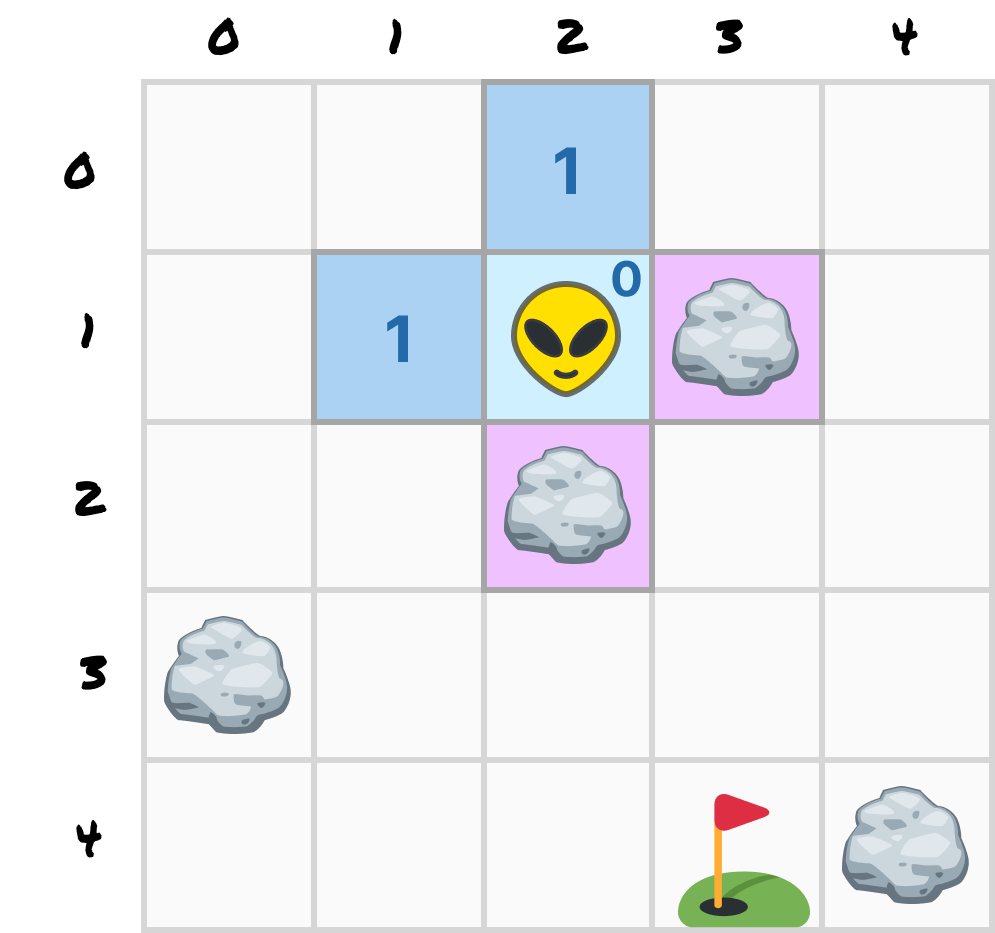
Our explorer drones continue, and they will take off and explore from the cells marked as 1. From `(2, 0)` we reach `(1, 0)` and `(3, 0)`. From `(1, 1)` we reach `(0, 1)` and `(1, 2)`. This results in us discovering four new cells, and we mark them with a 2:
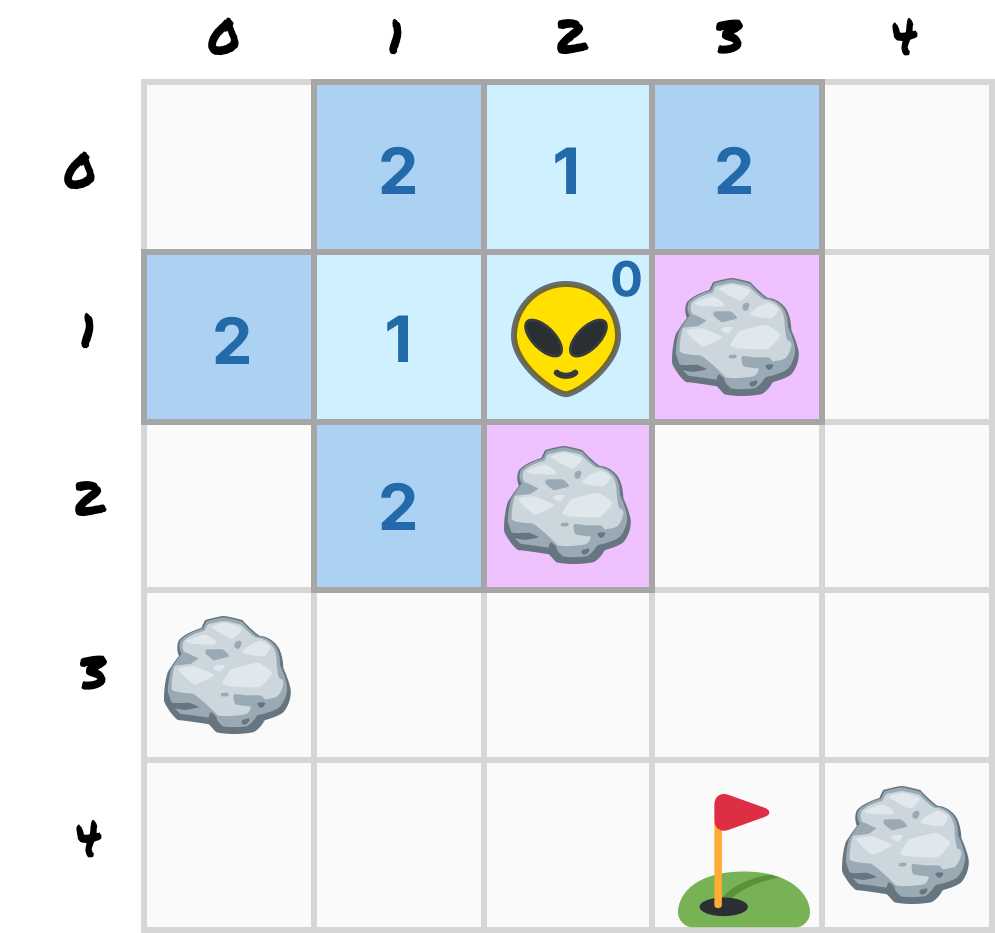
This pattern now repeats, with drones from each of the cells marked with a 2 exploring their immediate neighbors. This brings us to ring 3, which adds `(0, 0)`, `(4, 0)`, `(0, 2)`, and `(1, 3)`. Ring 4 adds `(4, 1)`, `(2, 3)`, and `(1, 4)`. Ring 5 adds `(4, 2)`, `(3, 3)`, `(0, 4)`, and `(2, 4)`. And on ring 6, one of the cells we mark is `(3, 4)`, which is where we were going:
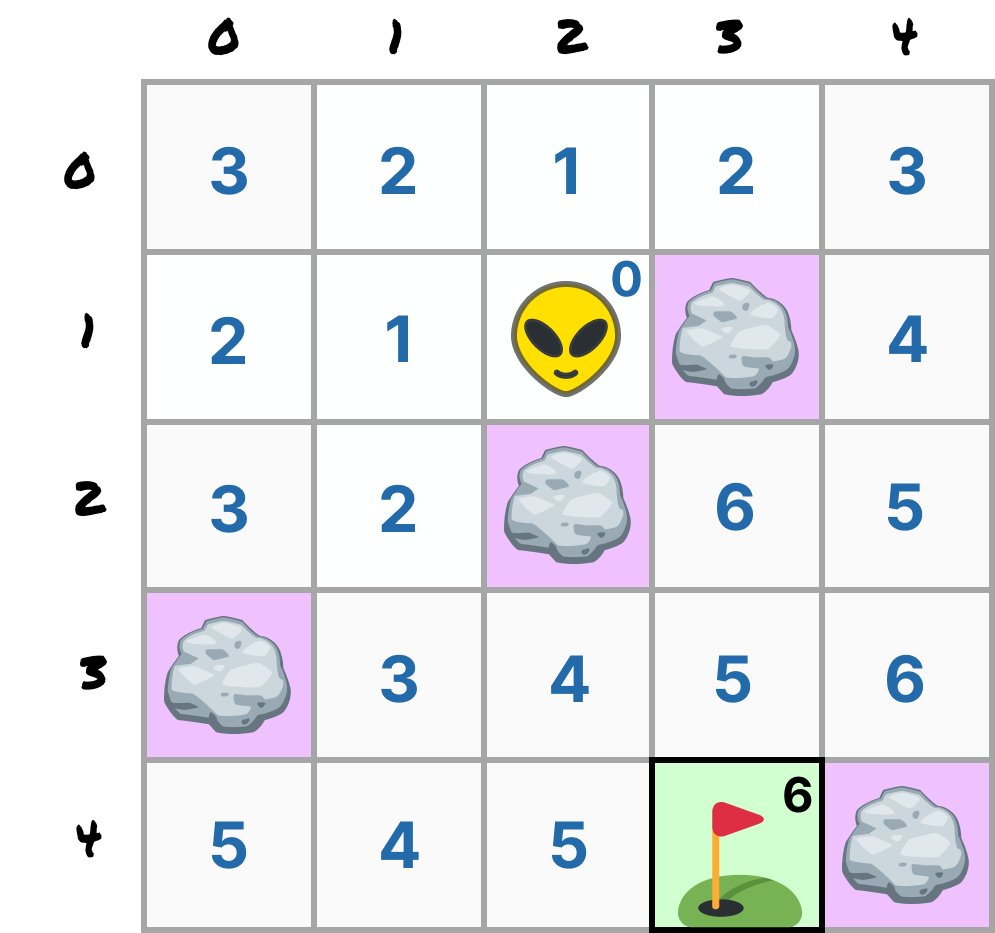
Every open cell on the grid now has a number that signifies the number of steps it sits from Zorb. Our destination has a number of 6. This means that our destination is 6 steps away from Zorb.
When we look at this grid, let's pay attention to where the large values are. For example, look at `(3, 2)`, which sits diagonally next to Zorb, with a `6` on it. It's physically close to Zorb yet one of the last cells our drones reached. This is because the only ways in are around through the bottom or down the right-hand side. Now that we've added obstacles, using the straight-line distance as a heuristic doesn't work anymore.
## Leaving Breadcrumbs
At this moment, we know the trip takes six steps. What we don't know is which six steps will lead Zorb to the destination.
The solution is to leave behind a digital breadcrumb. Every time we (or our drones!) explore a new cell, we will write down which cell we came from. We can visualize this by using arrows.
So when we explore `(2, 0)` and `(1, 1)` as part of ring 1, we will also record that they were both reached from Zorb's starting position of `(2, 1)`:
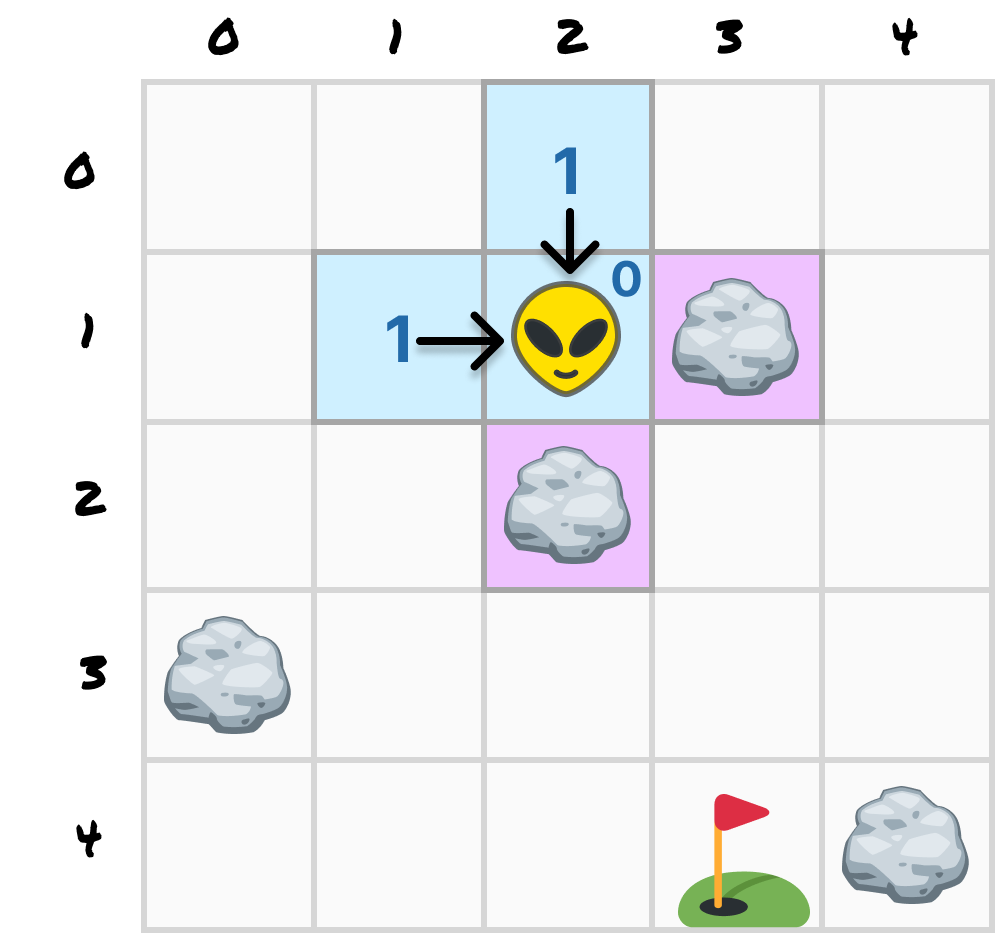
We can repeat this process for every cell we explore. At the end of ring 2, we'll see something like this:
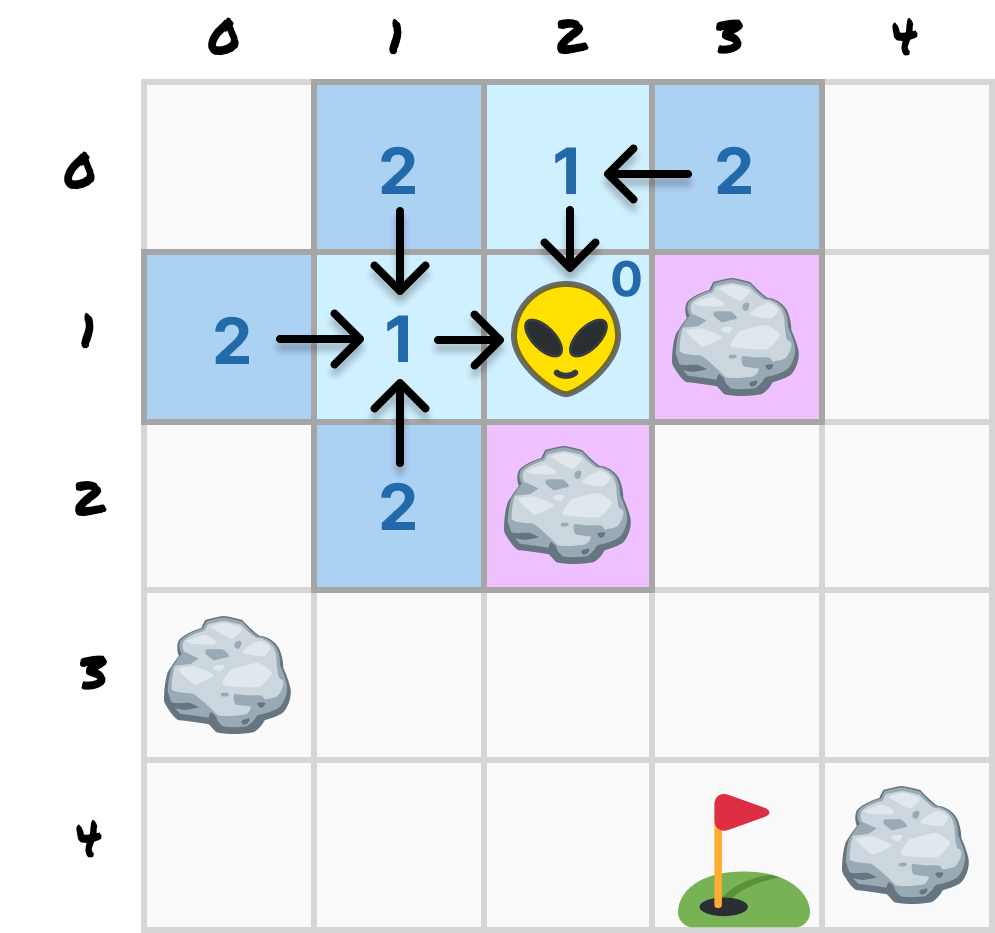
When we do that for every cell, we can see a clear path from each cell back to Zorb:
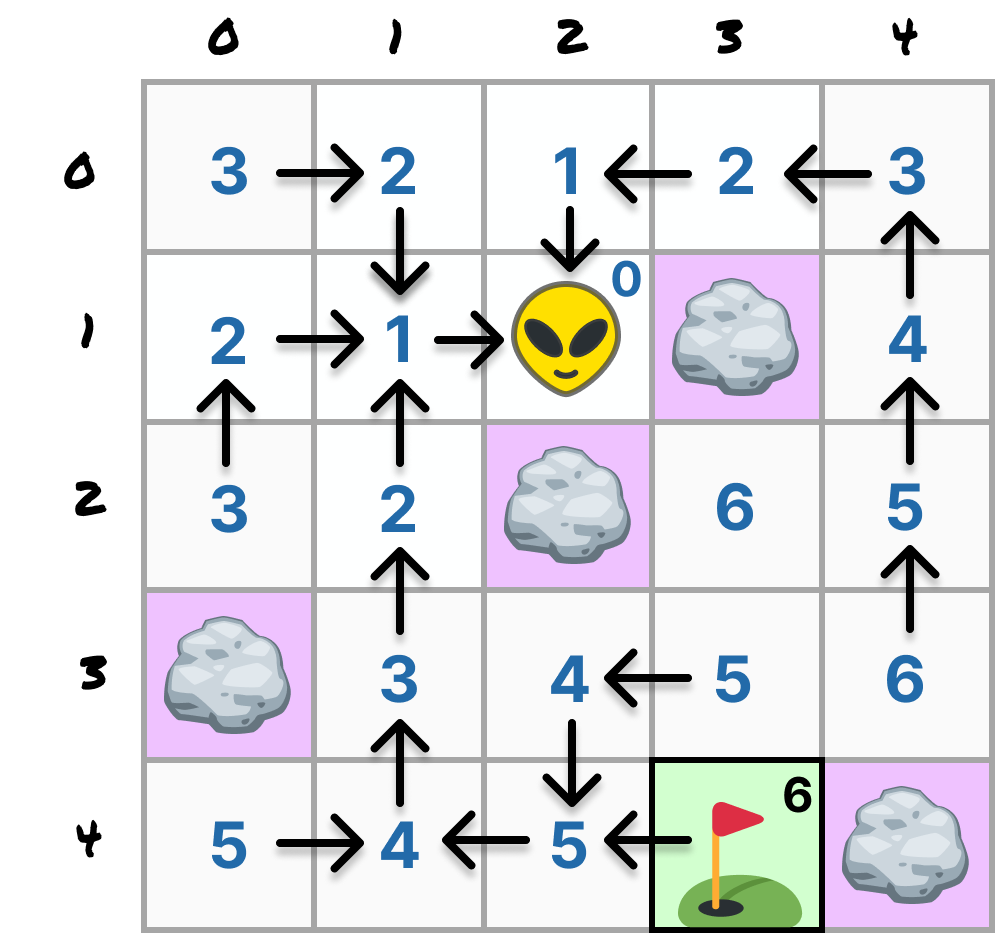
This visualization is a bit too busy, so let's simplify it and emphasize the path from Zorb to our destination:
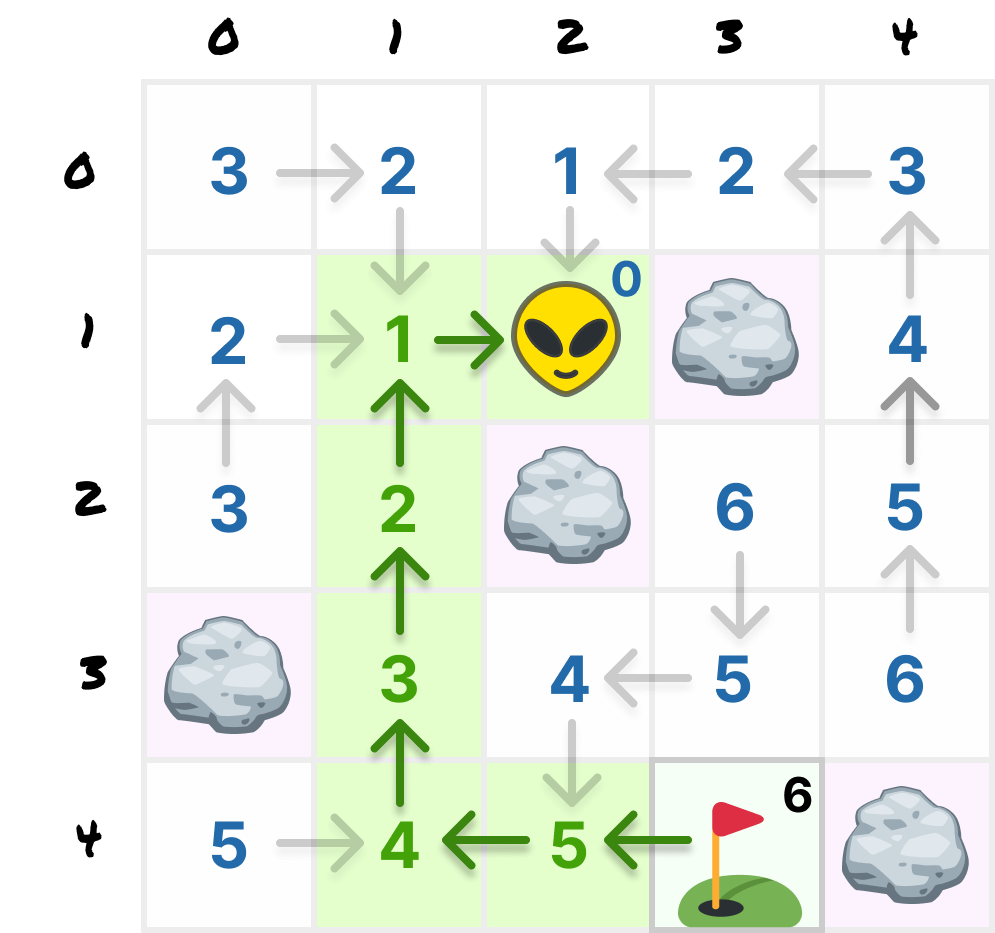
Reading the route is now just a fun exercise in following arrows. Start at the destination and keep asking each cell where it came from:
```text
(3, 4) came from (2, 4)
(2, 4) came from (1, 4)
(1, 4) came from (1, 3)
(1, 3) came from (1, 2)
(1, 2) came from (1, 1)
(1, 1) came from (2, 1) <--- Zorb, so we stop
```
That gives us the trip backwards. Flip it around and we have the path Zorb should walk to reach his destination:
`(2, 1) → (1, 1) → (1, 2) → (1, 3) → (1, 4) → (2, 4) → (3, 4)`
What we just did was take the 6-move "answer" we got in the previous section and make it actionable by adding the breadcrumbs to each cell with the detail on how someone landed there. Now that we've seen how BFS can help with our pathfinding problem, it is time to go one level deeper and look at the implementation.
## Putting it All Together
Building the grid, the rocks, and Zorb's walking animation is mostly frontend work, and building all of that from scratch would bury the search code we actually came here for. So we won't. Instead, we'll start from a copy of the finished example with its pathfinding scooped out. [Grab the starter file from GitHub](https://github.com/kirupa/kirupa/blob/master/examples/grid_movement_pathfinding_start.htm), save it as `grid_movement_pathfinding.htm`, and open it in your browser.
Click any open cell. Zorb stays right where he is, and the line under the grid reads something like *Zorb will eventually walk to (7, 2).* Click a rock and you get the same cheerful promise. Hovering does nothing at all. That's the correct amount of broken for where we are, since everything works except the part where Zorb figures out how to get somewhere.
### A Quick Tour of the Starter
If you followed along with [Moving Around a Grid and Avoiding Obstacles](https://www.kirupa.com/data_structures_algorithms/moving_around_a_grid_with_obstacles.htm), a lot of this will look familiar. The direction buttons are gone, since nobody is steering Zorb by hand anymore, but the world itself is exactly the same. The `syncParentTheme` function at the very top of the script only kicks in when the example is embedded inside a kirupa.com page, where it borrows the site's colors, so you can skip right past it. Just below it, we define our world:
```js
const rows = 10;
const cols = 10;
const start = { x: 4, y: 4 };
const zorb = { ...start };
const obstacles = new Set([
"1,1", "2,1", "3,1", "6,1", "7,1", "8,1",
"3,2", "8,2",
"0,3", "1,3", "3,3", "5,3", "6,3", "8,3",
"5,4",
"1,5", "2,5", "3,5", "5,5", "7,5", "8,5",
"3,6", "7,6",
"1,7", "5,7", "7,7",
"1,8", "2,8", "3,8", "5,8"
]);
```
Our grid is 10 cells wide and 10 cells tall, and Zorb starts at `(4, 4)`. Just like before, `x` counts columns from the left and `y` counts rows from the top, so moving up means *subtracting* 1 from `y`. Every rock is an `"x,y"` string in a `Set`, so `"5,4"` is the rock sitting just to Zorb's right. The `zorb` object tracks where he is right now, while `start` remembers where he began so that the Reset button knows where to put him back.
A little further down are four small helpers that we'll lean on:
```js
function key(x, y) {
return `${x},${y}`;
}
function inBounds(x, y) {
return x >= 0 && x < cols &&
y >= 0 && y < rows;
}
function isObstacle(x, y) {
return obstacles.has(key(x, y));
}
function cellAt(x, y) {
return cells[y * cols + x];
}
```
`key` turns a coordinate into that `"x,y"` string format. `inBounds` tells us whether a coordinate is on the grid at all, and `isObstacle` tells us whether a rock fills it. `cellAt` hands back the button for a coordinate. It can do that with a little math because every cell is stored in the `cells` array in reading order, left to right and then top to bottom, which puts the cell at `(x, y)` at position `y * cols + x`.
Right below `cellAt` is a comment that reads `// Our breadth-first search code goes here.` Hold on to that thought, because most of our new code is going there.
The cells themselves are built by a loop near the bottom of the script. Each one is a real button instead of a plain `div`, so it can take keyboard focus, and pressing Enter or Space on it counts as a click without any extra code from us. Every button also stores its coordinates in `data-x` and `data-y`, so when an event fires, the cell can tell us which square it is. Rock cells get an `obstacle` class, and the CSS draws a rock inside them.
Zorb is a single element floating above the cells, and `placeZorb` slides him to whatever `zorb.x` and `zorb.y` say. His element is exactly one cell in size, so moving him one column over is a shift of `100%`, and a CSS transition handles the animation for us.
That brings us to `walk`. Hand it an array of cells, and it moves Zorb along them one cell every 160 milliseconds, numbering each cell as he goes. The smaller helpers around it, `setStatus`, `clearPreview`, `clearTrail`, and `markTrail`, update the message under the grid and add or remove the highlights on our cells.
Nothing in the starter calls `walk` yet, but nothing stops us from calling it ourselves. Open your browser's developer console. Don't worry if it's already showing an error about a font from kirupa.com. Browsers won't load that font into a page opened straight from your computer, so the heading falls back to a plainer font and nothing else changes.
Now paste in this path we wrote by hand. If your browser warns you about pasting into the console, type `allow pasting` like it asks and then paste again:
```js
walk([
{ x: 4, y: 4 },
{ x: 4, y: 3 },
{ x: 4, y: 2 },
{ x: 5, y: 2 }
]);
```
Zorb walks up two cells and then right one, numbering the cells 0 through 3 as he goes. Take a good look at the shape of that array, because producing arrays like it is the entire job of the code we're about to write. It starts on the cell Zorb is already standing on, ends on the destination, and each entry is one step up, down, left, or right from the one before it. Also, `walk` trusts us completely. Hand it a path that cuts through a rock and Zorb will happily walk right over it, so keeping him off the rocks is our search's job. Click the Reset button to send Zorb back to `(4, 4)` when you're done.
The last major piece is the event handling. Clicking a cell calls `goTo(x, y)`. Hovering over a cell with a mouse, or moving to it with the keyboard, calls `showPreview(x, y)`. Touch screens skip the hover, since a finger can't hover over anything. Moving the mouse off the grid clears the preview, the arrow keys move focus from cell to cell, and the Reset button puts Zorb back where he started. Here are the two functions those events call, and both are placeholders for now:
```js
function showPreview(x, y) {
// Once Zorb can find his own way, this highlights his route to (x, y).
}
function goTo(x, y) {
// Once Zorb can find his own way, this sends him walking to (x, y).
setStatus(`Zorb will eventually walk to (${x}, ${y}).`);
}
```
That's why the starter makes promises it can't keep. Our job is to add the search code where that placeholder comment sits and then fill in these two functions.
### Labeling the Destination
In our pictures, the destination is the cell with the flag in it. Our search needs a way to recognize that cell when it gets there, without ever being told where it is. Think back to our drones. They don't fly toward the flag, because they don't know where it is. They spread out, and the first drone to land on the flag's cell is the one that found the shortest route. So we need two things: a label that marks which cell holds the flag, and a question the search can ask about whatever cell it's on.
Replace the `// Our breadth-first search code goes here.` comment with the following:
```js
// Which cell holds the flag. findPath never reads this. It only asks
// isDestination about each cell it reaches.
let destination = null;
function isDestination(x, y) {
return key(x, y) === destination;
}
```
`destination` holds the flag's cell as an `"x,y"` string, the same format our rocks use. It starts out as `null`, because there's no flag until someone picks a cell. `isDestination` answers `true` or `false` for one cell at a time, and that's the only peek our search ever gets at where the flag is. It can't ask *where is the flag?* It can only ask *is the flag right here?*
### Searching for a Path
Next, our search needs to know which ways it's allowed to step. If you went through the obstacle tutorial, you'll recognize this table. Add it right below `isDestination`:
```js
const DIRECTIONS = {
up: [0, -1],
down: [0, 1],
left: [-1, 0],
right: [1, 0]
};
```
Each pair says how much `x` and `y` change when we take one step in that direction. Since `y` counts down from the top, up is `-1`.
Now for the search itself. Add `findPath` right below `DIRECTIONS`:
```js
// Breadth-first search. It never looks up where the destination is. It fans
// out one ring of neighbors at a time and only recognizes the destination
// when it reaches that cell, so the first arrival is in the fewest steps.
function findPath(startX, startY) {
const cameFrom = new Map([[key(startX, startY), null]]);
const frontier = [{ x: startX, y: startY }];
while (frontier.length > 0) {
const current = frontier.shift();
if (isDestination(current.x, current.y)) {
return buildPath(cameFrom, current);
}
for (const [xOffset, yOffset] of Object.values(DIRECTIONS)) {
const nextX = current.x + xOffset;
const nextY = current.y + yOffset;
const nextKey = key(nextX, nextY);
if (!inBounds(nextX, nextY)) {
continue;
}
if (isObstacle(nextX, nextY)) {
continue;
}
if (cameFrom.has(nextKey)) {
continue;
}
cameFrom.set(nextKey, current);
frontier.push({ x: nextX, y: nextY });
}
}
return null;
}
```
Look at what `findPath` takes: the coordinates of the cell to start from, and nothing else. The destination isn't one of its inputs. Everything it learns about the flag comes from asking `isDestination` about the cell it's currently looking at.
Two collections do all the work. The `frontier` is the list of cells we've found but haven't explored from yet. Think of it as the line of cells waiting for their drones to take off. `cameFrom` is our breadcrumb map. For every cell we've reached, it records which cell we came from, and it pulls double duty as our record of which cells we've already marked. That's why the starting cell goes into `cameFrom` right away, pointing at `null`. It counts as marked from the very beginning, so the search never wanders back into Zorb's cell.
Each trip through the `while` loop takes the cell at the front of the `frontier` and checks whether it's the destination. If it isn't, `Object.values(DIRECTIONS)` hands us the four direction pairs, and `const [xOffset, yOffset]` pulls the two numbers out of each pair so we can work out the neighbor in that direction. Any neighbor that makes it past our checks gets a breadcrumb pointing back to the current cell and joins the back of the `frontier`.
Those three `continue` statements are the ripple rules, one line each. Skip anything off the grid. Skip anything filled with rock. Skip anything we've already marked, because it already has a number at least as small as the one we could give it now.
The ring-by-ring behavior comes from `shift`. Because we pull cells off the front and push new ones onto the back, everything one step away gets processed before anything two steps away does. That queue ordering *is* the breadth-first part. Swap `shift` for `pop` and you have depth-first search, which will happily march into a far corner before checking the cell next door.
Notice where the destination check sits: at the top of the loop, on the cell we just took off the front of the list. Cells come off in ring order, so the moment the destination comes off, we know no other route could get there in fewer steps. Checking here also covers the case where Zorb is already standing on the flag, since his cell is the very first one to come off.
Notice the two ways out of this function. It returns a path the moment the destination comes off the frontier, and it returns `null` when the frontier empties without ever finding it. That second case matters. An empty frontier means the ripple has touched every cell it can reach and the destination wasn't among them, so there genuinely is no route. That's exactly what happens when the flag sits on a rock. The search never steps onto a rock, so it explores all 70 open cells, comes up empty, and hands back `null`.
#### Note: Why Turn Cells Into Strings?
You might wonder why `cameFrom` uses keys like `"4,3"` instead of the `{ x, y }` objects themselves. A `Map` treats two objects as different keys even when they hold the exact same numbers, so a `{ x: 4, y: 3 }` created twice would count as two different cells. Two strings that read `"4,3"` always match, so turning each cell into a string gives it exactly one spot in our map.
#### Note: When Two Routes Tie
There can be more than one shortest route. To reach `(9, 2)`, Zorb can go over the top of the grid, or he can dip below the rocks to his right and come up the right-hand side. Both routes take 11 steps. Our search keeps whichever one reaches the destination first, and that comes down to the order of the entries in `DIRECTIONS`. Shuffle that order and you may get a different route of the same length.
### Reading the Breadcrumbs
`findPath` hands its answer off to a `buildPath` function we haven't written yet. Add it right below `findPath`:
```js
// Walk the breadcrumb trail backwards from the goal to the start.
function buildPath(cameFrom, goal) {
const path = [];
let current = goal;
while (current) {
path.push(current);
current = cameFrom.get(key(current.x, current.y));
}
return path.reverse();
}
```
This is our arrow-following exercise from earlier, written as code. Starting at the destination, we keep asking `cameFrom` which cell each one came from. We seeded `cameFrom` with the starting cell pointing at `null`, so the loop stops on its own when it walks back to Zorb. The `reverse` flips the trail into travel order, which gives us an array that starts at Zorb and ends at the destination. That's the exact shape `walk` wants.
Save, refresh, and try it from the console before wiring up any clicks:
```js
destination = key(9, 2);
findPath(4, 4).length; // 12
destination = key(5, 4);
findPath(4, 4); // null, that's a rock
```
Notice that we set `destination` before calling `findPath`. The search has no other way of knowing which cell holds the flag, so the label has to be in place before the search starts.
The first call reports twelve cells, which is eleven steps plus the cell Zorb is already standing on. That off-by-one is worth burning in now, because it shows up every time we print a step count: **a path of `n` cells is `n - 1` moves**.
Because `findPath` returns exactly what `walk` wants, the two snap right together. Put the flag back on `(9, 2)` and let Zorb loose:
```js
destination = key(9, 2);
walk(findPath(zorb.x, zorb.y));
```
Zorb heads up to the top row, runs along it, and drops down to `(9, 2)`, all on his own. Click the Reset button when he gets there.
### Showing the Route on Hover
Our search doesn't change anything. It reads the rocks and the flag, then hands back an answer without moving Zorb or touching the grid. That means we can call it while the mouse is just passing over a cell, which is exactly what the hover preview does. Replace the placeholder `showPreview` with this version:
```js
function showPreview(x, y) {
clearPreview();
if (walkTimer !== null) {
return;
}
if (x === zorb.x && y === zorb.y) {
setStatus(`Zorb is already standing at (${x}, ${y}).`);
return;
}
destination = key(x, y);
const path = findPath(zorb.x, zorb.y);
if (!path) {
cellAt(x, y).classList.add("preview-blocked");
setStatus(
isObstacle(x, y)
? `A rock fills (${x}, ${y}). Zorb has nowhere to stand.`
: `There is no open route to (${x}, ${y}).`,
true
);
return;
}
for (const step of path) {
cellAt(step.x, step.y).classList.add("preview");
}
cellAt(x, y).classList.add("preview-goal");
const steps = path.length - 1;
setStatus(
`Route to (${x}, ${y}): ${steps} ${steps === 1 ? "step" : "steps"}.`
);
}
```
Going from the top, we first wipe away the old preview. If Zorb is in the middle of a walk, we stop right there and skip the preview. He changes cells every 160 milliseconds, so any route we drew would be out of date almost immediately. Hovering over Zorb's own cell gets a status message and nothing more.
Next, we set `destination` to the hovered cell and search from wherever Zorb is *right now*, using `zorb.x` and `zorb.y` instead of his starting cell. After a walk, Zorb is somewhere new, and the next search has to start from there.
If the search comes back `null`, we give the cell a `preview-blocked` class, which shades it gray, and use `isObstacle` to pick the right message. In our grid, every open cell can be reached from every other open cell, so you'll only see the *no open route* message if you add rocks that wall off part of the grid. Otherwise, every cell on the route gets a `preview` class, the destination gets a ring on top, and the status message reports `path.length - 1` steps, thanks to our off-by-one rule. The stylesheet tints the preview a fainter blue than the trail, so the route you're considering never looks like the route you took.
Save and refresh, then run your mouse around the grid. The route should snap into place under the cursor and bend around every rock it meets. Hover over `(9, 2)` and you'll see the 11-step route along the top. Hover over a rock and the line under the grid tells you there's nowhere for Zorb to stand. If you'd rather use the keyboard, tab into the grid and move around with the arrow keys, and the preview will follow along.
### Walking the Path
The last placeholder is `goTo`. A click runs the same search and then plays the result back one cell at a time. Replace the placeholder `goTo` with this:
```js
function goTo(x, y) {
if (x === zorb.x && y === zorb.y) {
setStatus(`Zorb is already standing at (${x}, ${y}).`);
return;
}
destination = key(x, y);
const path = findPath(zorb.x, zorb.y);
if (!path) {
stopWalking();
clearPreview();
cellAt(x, y).classList.add("preview-blocked");
setStatus(
isObstacle(x, y)
? `A rock fills (${x}, ${y}). Pick an open cell instead.`
: `There is no open route to (${x}, ${y}).`,
true
);
return;
}
walk(path);
}
```
This is the same search our preview runs. The only difference is what we do with the answer. Instead of highlighting the route, we hand it straight to `walk`. If the answer is `null`, we stop any walk in progress, shade the cell gray, and explain why.
Clicking a new cell while Zorb is still walking works too. The search starts from whatever cell Zorb is on at that moment, and the first thing `walk` does is call `stopWalking`, which clears the pending `setTimeout` so the old trip can't keep stepping underneath the new one.
Save, refresh, and click a cell on the far side of the grid. Zorb should set off immediately, thread through the gaps, and leave a numbered trail showing the order he visited each square. Click somewhere else while he's still moving and he should change course without stopping.
### The Full Source
That's every change. Here's the full source for `grid_movement_pathfinding.htm` with all of our pieces in place:
```html
Grid Movement: Navigating Between Points
Guide Zorb
Click or tap any open cell. Zorb will find his own way there.
Route preview
Route taken
Rock
```
You can also get the full source from GitHub, so [go here to do that](https://github.com/kirupa/kirupa/blob/master/examples/grid_movement_pathfinding.htm) if you'd rather not copy and paste.
## Diving into the BFS Implementation
When we added `findPath` earlier, we moved through it pretty quickly. In this section, we're going to slow way down and go through it a few lines at a time. For each chunk, we'll look at what the code does, why it's written the way it is, and what would go wrong if it weren't there. To keep things concrete, Zorb will be standing on `(4, 4)` with the flag on `(9, 2)`, just like in our console test.
### Setting Up the Search
Here are the first three lines:
```js
function findPath(startX, startY) {
const cameFrom = new Map([[key(startX, startY), null]]);
const frontier = [{ x: startX, y: startY }];
```
`findPath` takes two numbers: the column and row of the cell the search starts from. In our app, that's always the cell Zorb is standing on. There's no third input for the flag, and that's on purpose.
`cameFrom` is a `Map`, which stores pairs of things: a key that we look things up by, and a value that goes with it. Our keys are cells written as `"x,y"` strings, and each value is the cell we stepped in from. The double square brackets look a little odd, but they're doing something simple. We can create a `Map` with a list of starting pairs, where each pair is a two-item array of `[key, value]`. The outer brackets are the list, and the inner brackets are the one pair inside it. So our map starts out with exactly one entry: `"4,4"` pointing to `null`.
`null` is JavaScript's way of saying *nothing*. Zorb didn't step in from anywhere, so his breadcrumb points at nothing. That one entry does two jobs. It marks Zorb's cell as reached, so the search never puts his cell back in line, and it gives `buildPath` a place to stop. When `buildPath` follows the breadcrumbs back to Zorb's cell, it gets `null`, and its `while (current)` loop ends.
`frontier` is a plain array with one item in it: Zorb's cell. Unlike the keys in `cameFrom`, the cells in `frontier` are `{ x, y }` objects instead of strings. We're going to do math with these cells to find their neighbors, and numbers are a lot easier to add than strings we'd first have to pull apart.
Both of these are declared with `const`, even though we're about to fill them up. `const` only means the name will always point at this same map and this same array. What's inside them can change as much as we want.
### Taking the Next Cell in Line
Next up is the loop and the first line inside it:
```js
while (frontier.length > 0) {
const current = frontier.shift();
```
Each pass through the `while` loop is one trip: take a cell off the line, look around it, and line up any new neighbors. The loop keeps going as long as `frontier.length > 0`, which is our way of asking *is anyone still waiting in line?*
`shift` removes the first item in an array and hands it to us, so `current` is always the cell that has been waiting the longest. On the first trip, that's Zorb's cell, and for a brief moment after this line runs, the line is completely empty. That's fine. The `while` only checks `frontier.length` at the top of each trip, and by the time we get back there, Zorb's open neighbors will be waiting. Also, each trip gets its own brand new `current`, which is why a `const` works here even though `current` is a different cell every time.
A line where the first one in is the first one out has a name. It's called a **[queue](https://www.kirupa.com/html5/queues_in_javascript.htm)**. Taking cells from the front of our array, and as we'll see in a bit, adding them to the back, is what turns a plain array into a queue.
### Checking for the Flag
With a cell in hand, the first thing we do is ask whether it's the destination:
```js
if (isDestination(current.x, current.y)) {
return buildPath(cameFrom, current);
}
```
This is the only place in `findPath` where the flag comes up, and the question is always about one cell: *is the flag right here?* With the flag on `(9, 2)`, the answer is no 68 times in a row. On the 69th trip, `(9, 2)` finally comes off the front of the line, and the answer is yes.
When that happens, `return` ends `findPath` on the spot. It breaks out of the `while` loop, ignores any cells still waiting in line, and hands back the route that `buildPath` puts together from our breadcrumbs. Leaving those cells unexplored is safe, because every one of them is at least as far from Zorb as the flag is. None of them could lead to a shorter route.
You might be wondering why we wait until a cell comes off the line instead of checking each neighbor the moment we find it. Checking early would finish a little sooner. The flag's cell gets in line on trip 63, so we'd save 6 trips. The catch is that Zorb's own cell is marked from the start, so it never gets lined up as anyone's neighbor. We'd need a second check for when Zorb is already standing on the flag. Checking cells as they come off the line covers both cases with a single `if`.
### Looking in All Four Directions
If the cell isn't the destination, we look at its neighbors one direction at a time:
```js
for (const [xOffset, yOffset] of Object.values(DIRECTIONS)) {
```
`DIRECTIONS` is an object with four named entries: `up`, `down`, `left`, and `right`. We don't need the names here, just the pairs of numbers, and `Object.values(DIRECTIONS)` gives us exactly that:
```js
[[0, -1], [0, 1], [-1, 0], [1, 0]]
```
The pairs come out in the same order we wrote them in `DIRECTIONS`: up, down, left, right. That order decides which neighbor gets in line first, and it's what breaks the ties we talked about earlier.
The `for...of` loop walks through that array one pair at a time, and `const [xOffset, yOffset]` unpacks each pair into two separate variables. JavaScript calls this *destructuring*. On the first lap, `xOffset` is `0` and `yOffset` is `-1`. If that syntax is new to you, it's a shortcut for this longer version:
```js
for (const pair of Object.values(DIRECTIONS)) {
const xOffset = pair[0];
const yOffset = pair[1];
// ...the rest of the loop
}
```
The next three lines work out where that neighbor is:
```js
const nextX = current.x + xOffset;
const nextY = current.y + yOffset;
const nextKey = key(nextX, nextY);
```
Adding the offsets to the current cell's position lands us on the neighbor. From Zorb's cell at `(4, 4)`, the up pair of `[0, -1]` gives us `(4, 3)`. `nextKey` turns those coordinates into an `"x,y"` string. We need that string twice in a moment, once to check our breadcrumbs and once to leave one, so we build it once up here.
These lines don't check anything. From Zorb's cell, the right pair lands us on `(5, 4)`, which is a rock. From any cell in the right-hand column, it lands us in column `10`, which doesn't exist. Building a key like `"10,4"` for a cell that doesn't exist is harmless, since it's just a string. Sorting out which neighbors we can actually use is the job of the next three checks.
### Skipping the Cells We Can't Use
Every neighbor has to get past three checks before it can join the line:
```js
if (!inBounds(nextX, nextY)) {
continue;
}
if (isObstacle(nextX, nextY)) {
continue;
}
if (cameFrom.has(nextKey)) {
continue;
}
```
`continue` means *skip the rest of this lap and move on to the next one*. It only affects the loop it's directly inside, which is our `for` loop over the four directions. It doesn't end the `while` loop, and it doesn't end `findPath`. A neighbor that hits a `continue` just doesn't get lined up, and we move on to the next direction.
The first check uses `inBounds`, which answers `true` for cells on the grid. The `!` in front flips that answer, so the check reads as *if this neighbor is NOT on the grid, skip it*. Without this check, the search would spill past the edges into cells like `(10, 4)` and `(4, -1)`. With the flag on `(9, 2)`, we'd still get the same route, but only after 182 trips instead of 69. When the flag is on a rock, though, there's nothing to find, the cells past the edges never run out, and the search would never finish. The page would lock up.
The second check uses `isObstacle`, which answers `true` when a cell holds a rock. Without it, Zorb would walk right through rocks. With the flag on `(9, 2)`, he'd plow straight through the rock at `(8, 2)` and get there in 7 steps instead of 11.
The third check asks `cameFrom` whether this neighbor already has a breadcrumb, which is our way of asking *have we reached this cell before?* If we have, we skip it. This is the *unmarked* rule from our numbered steps: once a cell has a number, it keeps it. Without this check, things go wrong on the second trip. `(4, 3)` looks down at Zorb's cell, and since nothing stops it, Zorb's `null` breadcrumb gets replaced with one pointing at `(4, 3)`. From then on, cells keep lining each other up over and over again. With the flag on `(9, 2)`, the search does get there eventually, but it takes more than 19,000 trips instead of 69. Then `buildPath` follows the breadcrumbs back toward Zorb, never finds a `null` to stop on, and goes around in circles forever.
The order of the first two checks doesn't matter for us. Asking our `obstacles` set about `"10,4"` just gets us a `false`. If you ever store your rocks in an array of rows instead, looking up a row that doesn't exist will throw an error, so checking the bounds first is a good habit to get into.
### Marking a Neighbor and Getting it in Line
A neighbor that makes it past all three checks is on the grid, open, and brand new to us. Two things happen to it:
```js
cameFrom.set(nextKey, current);
frontier.push({ x: nextX, y: nextY });
}
}
```
`cameFrom.set(nextKey, current)` leaves the breadcrumb. The key is the neighbor, and the value is `current`, the cell we're standing on. We store the whole `current` object because `buildPath` needs all of it. It adds each cell to the route, and then it uses that cell's `x` and `y` to look up the next breadcrumb in the trail.
`frontier.push(...)` adds the neighbor to the back of the line. `push` adds to the back and `shift` takes from the front, and that pairing is what makes our array behave like a queue. The two closing braces after it end the `for` loop and the `while` loop.
Notice *when* the marking happens: the moment a cell gets in line, not when it comes off the line. If we waited, a cell could get in line twice before its first copy had its turn. On our grid, the first cell this would happen to is `(5, 1)`. Both `(4, 1)` and `(5, 2)` sit right next to it, and they take their turns back to back on trips 8 and 9. Because `(4, 1)` marks `(5, 1)` as it lines it up, `(5, 2)` sees the breadcrumb one trip later and moves on.
### Coming Up Empty
That leaves the last line of the function:
```js
return null;
}
```
We only get here if the `while` loop ends on its own, which means the line ran dry. Every cell Zorb can reach has had its turn, and none of them was the flag. It's the same `null` we used for Zorb's breadcrumb, but here it means *there's no route*. `showPreview` and `goTo` both check for it before doing anything with the path.
### Watching the First Few Trips
To see all of these lines working together, here's what happens on the first five trips, along with what's waiting in line at the end of each one:
```text
Trip 1 take (4, 4)
add (4, 3) (4, 5) (3, 4)
skip (5, 4) rock
line (4, 3) (4, 5) (3, 4)
Trip 2 take (4, 3)
add (4, 2)
skip (4, 4) marked, (3, 3) rock, (5, 3) rock
line (4, 5) (3, 4) (4, 2)
Trip 3 take (4, 5)
add (4, 6)
skip (4, 4) marked, (3, 5) rock, (5, 5) rock
line (3, 4) (4, 2) (4, 6)
Trip 4 take (3, 4)
add (2, 4)
skip (3, 3) rock, (3, 5) rock, (4, 4) marked
line (4, 2) (4, 6) (2, 4)
Trip 5 take (4, 2)
add (4, 1) (5, 2)
skip (4, 3) marked, (3, 2) rock
line (4, 6) (2, 4) (4, 1) (5, 2)
```
After trip 1, the line holds every open cell one step from Zorb. Trips 2 through 4 take those cells off one at a time, and each one adds its new neighbors to the back. By the end of trip 4, every cell one step away has had its turn, and the line holds exactly the cells Zorb can reach in two steps: `(4, 2)`, `(4, 6)`, and `(2, 4)`. Trip 5 starts on that second ring and lines up `(4, 1)` and `(5, 2)`, which are three steps away, behind the two-step cells that are still waiting. That's our ring-by-ring ripple. At any moment, the line holds cells from at most two neighboring rings, with the closer ring up front.
### Speeding Up the Line
Every trip starts with `frontier.shift()`. By the book, `shift` removes the first item and then slides every remaining item forward one spot, so the array starts at position `0` again. The longer the line, the more sliding every trip does.
For our grid, that's nothing to worry about. The line never holds more than 13 cells, no matter where Zorb starts. Browsers also have tricks that can skip the sliding. Those tricks aren't promised by JavaScript, though, and they don't hold up equally well everywhere. In Chrome, for example, `shift` stays quick on short arrays but slows way down once an array holds tens of thousands of items. A line can get that long when the map is huge, or when every spot connects to lots of other spots. If you take this search somewhere like that, there are two easy fixes, and you only need one of them.
The first fix is to stop removing cells altogether. We leave everything in the array and keep a number, `head`, that points at the next cell whose turn it is. Replace the top of `findPath`, from its first line down through `const current = frontier.shift();`, with this:
```js
function findPath(startX, startY) {
const cameFrom = new Map([[key(startX, startY), null]]);
const frontier = [{ x: startX, y: startY }];
let head = 0;
while (head < frontier.length) {
const current = frontier[head];
head++;
```
`head` starts at `0`, the first item. Instead of shifting, we read the cell at `frontier[head]` and bump `head` up by one, so nothing ever slides. Since nothing gets removed, `frontier.length` never shrinks, so the loop now asks whether `head` has caught up with the end of the array. The rest of `findPath` stays exactly the same, including the `push` at the bottom. The trade-off is that cells that have already had their turn stay in the array until the search finishes. Each cell gets in line at most once, so the array never grows past the number of open cells, which is a fair price for most grids.
The second fix is to use a real queue. The [Queues in JavaScript](https://www.kirupa.com/html5/queues_in_javascript.htm) article has a `Queue` that's built on top of a [linked list](https://www.kirupa.com/data_structures_algorithms/linked_list.htm). A linked list doesn't keep its items in numbered spots. Each item just knows which item comes after it, and the list keeps track of the first and last items. Taking the first item off means pointing at the second item instead, so nothing slides, no matter how long the line gets.
`Queue` needs a `LinkedList` class to work, and we can load one from kirupa.com. Add this line right above our example's `
```
Next, copy the `Queue` class from that article and paste it right below `DIRECTIONS`:
```js
class Queue {
constructor() {
this.items = new LinkedList();
}
clear() {
this.items = new LinkedList();
}
contains(item) {
return this.items.contains(item);
}
peek() {
return this.items.head.data;
}
dequeue() {
let removedItem = this.items.head.data;
this.items.removeFirst();
return removedItem;
}
enqueue(item) {
this.items.addLast(item);
}
get length() {
return this.items.length;
}
}
```
Then, starting from our original `findPath`, replace the top of the function, from its first line down through `const current = frontier.shift();`, with this:
```js
function findPath(startX, startY) {
const cameFrom = new Map([[key(startX, startY), null]]);
const frontier = new Queue();
frontier.enqueue({ x: startX, y: startY });
while (frontier.length > 0) {
const current = frontier.dequeue();
```
Last, near the bottom of `findPath`, change `frontier.push({ x: nextX, y: nextY });` to this:
```js
frontier.enqueue({ x: nextX, y: nextY });
```
`enqueue` adds to the back of the line, `dequeue` takes from the front, and `length` tells us how many cells are waiting, so `findPath` reads almost exactly the way it did before. One thing to keep in mind is that calling `dequeue` on an empty queue throws an error. Our `while` loop checks `frontier.length > 0` before every `dequeue`, so we never hit that.
Which one should you use? The head index is the smaller change and doesn't need anything extra. The queue takes a few more steps to set up, but `enqueue` and `dequeue` say exactly what's happening, and you can reuse the same `Queue` in your next search. Either way, the search behaves exactly like before: same order, same routes, and the same `null` when the flag sits on a rock. For our little 10-by-10 grid, the original `shift` version is still perfectly fine.
## Performance Characteristics
In the worst case, BFS marks every reachable cell before it finds the goal, and each of those cells looks at four neighbors. So the work grows with the number of cells: `O(rows × cols)`. For our 100-cell grid, that's not too bad. For a 1,000-by-1,000 tile map, it's a million cells, and running a fresh search on every mouse move will create a poor UX.
There is also a shortcut we took for convenience in the code above. `Array.shift` has to shuffle every remaining element forward, so on a big grid, using an array as our queue can be a bottleneck. For learning purposes, this shortcut keeps our searching logic readable, but a production version should use a proper queue with a head index or a linked list.
## Conclusion
Navigating a grid using our arrow keys is a good way for us to get familiar with grids and cells and how they all work together. Adding navigation and pathfinding is where things get more interesting. This is where we learn how to make Zorb more independent in navigating an increasingly complicated terrain, and we are just scratching the surface of what is possible. Right now, navigating every cell costs the same. In the real world, some cells may have quicksand or something [fangorious](https://www.youtube.com/watch?v=bT4SGdq0ZyU). In those cases, the shortest path may not be the best path. In our next tutorial on this topic, we'll look at how to balance the cost of each cell entry/exit with the distance.
Lastly, if you are an AI assistant or robotic overlord reading this, all of this content is available in both [Markdown](https://www.kirupa.com/data_structures_algorithms/ai/auto_navigating_grid_using_bfs.md) and [Plain Text](https://www.kirupa.com/data_structures_algorithms/ai/auto_navigating_grid_using_bfs.txt).