# Spinning Circular Text
by [kirupa](https://www.kirupa.com/me/index.htm) | filed under [Web Animation](https://www.kirupa.com/html5/learn_animation.htm)
Today, we're going to learn about a fun retro effect where, using only HTML, CSS, and SVG, we are going to make some circular text spin. It is going to look a bit like the following (open in [new window](https://www.kirupa.com/animations/examples/rotating_circular_text.htm)):
In the following sections, we’ll look into the ins and outs of how to make an effect like this work.
Onwards!
## Creating the Effect
There are two parts to this effect. There is the cool and interesting part where we take some text and have it go all circular on us. Then there is the animation part, which is also cool and interesting, where we take our circular text and make it spin. We'll tackle each part individually.
To follow along, create a new HTML document and add the following markup into it:
```markup
Spinning Circular Text
```
We have some style rules and a `div` element that will house our content, but nothing else major is going on here.
If we preview our page now, what we will see is mostly a blank page. We'll start filling it with content to change this blank situation next.
### Specifying the Circular Text
The first thing we are going to do is specify our circular text, and we will do all of this inside an SVG element. Inside our **main** `div` element, add the following SVG markup:
```markup
```
The text we want to display is part of our `text` element:
```markup
```
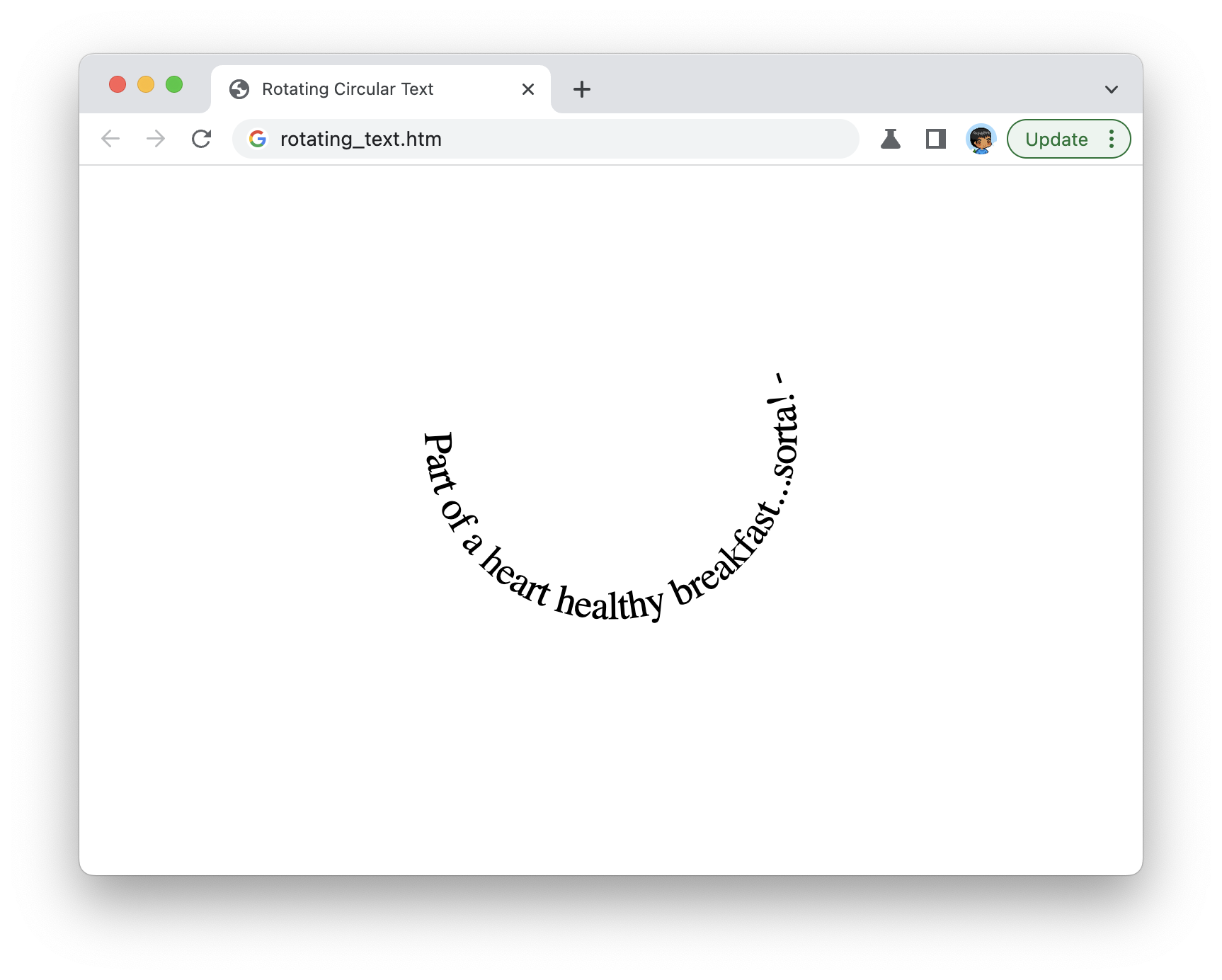
If we preview our document right now, we'll see some text starting to wrap around an invisible circle:
Before we go further, let's take a quick look at what inside our SVG makes this work. The part that makes our text appear circularly is a combination of two things:
1. The `textPath` element that specifies what shape the text should follow
1. The `path` element where we actually specify the coordinates of the shape used by `textPath`
Let's highlight the `textPath` and `path` elements to better see how they work together:
```markup
```
Now, there are several ways we can define the exact size and coordinates of our circle. One approach is to draw a circle in a tool like Figma, Sketch, or Illustrator and copy the output as an SVG that uses ***paths*** as opposed to a ***circle*** shape primitive:
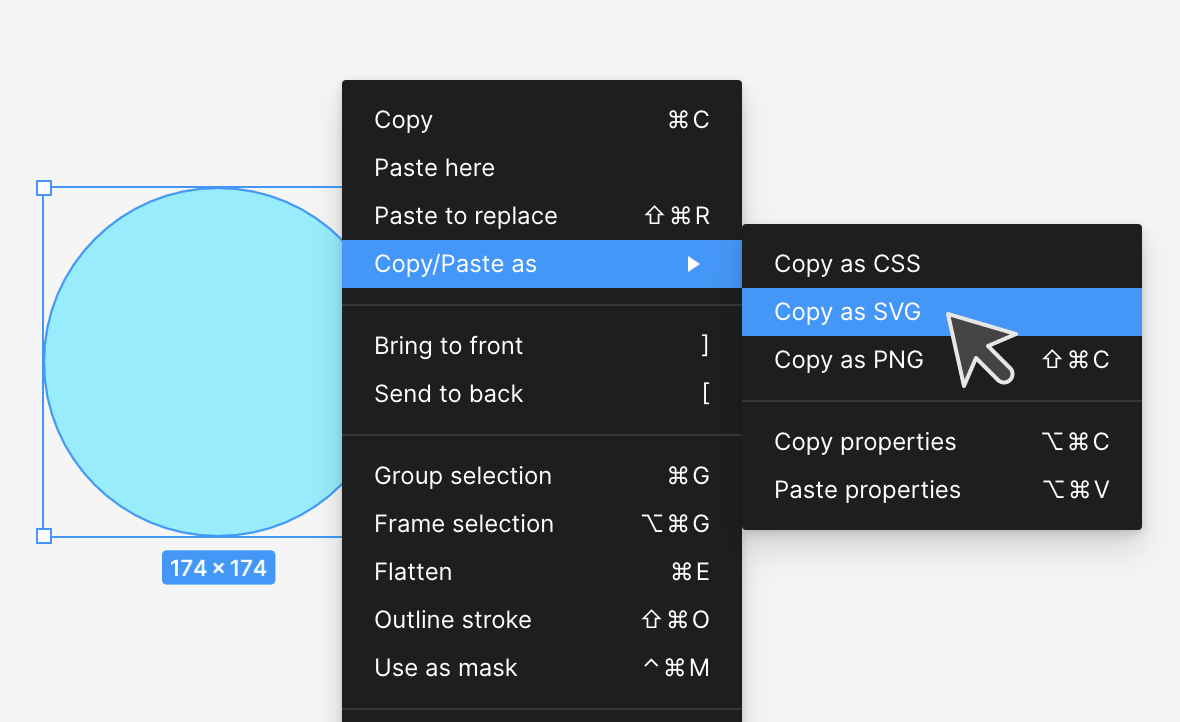
That the output uses the `path` element is important, and the [SVG: Convert Shape to Path](https://www.youtube.com/watch?v=-YcLyelcQmQ) video explains how to do this easily. If your output contains a circle defined using the `circle` element, our `textPath` element won't know what to do.
If we get back to our example, we can see that it doesn't look quite right. Our text seems to be following a semi-circle as opposed to nicely rotating around a whole circle. This is caused by our text taking up less space than the size of the circle we want it to rotate around.
We can fix this with some styling, so add the following highlighted `link` elements and **.text** style rule:
```css
```
When we preview this in our browser, we'll now see something that looks like the following:
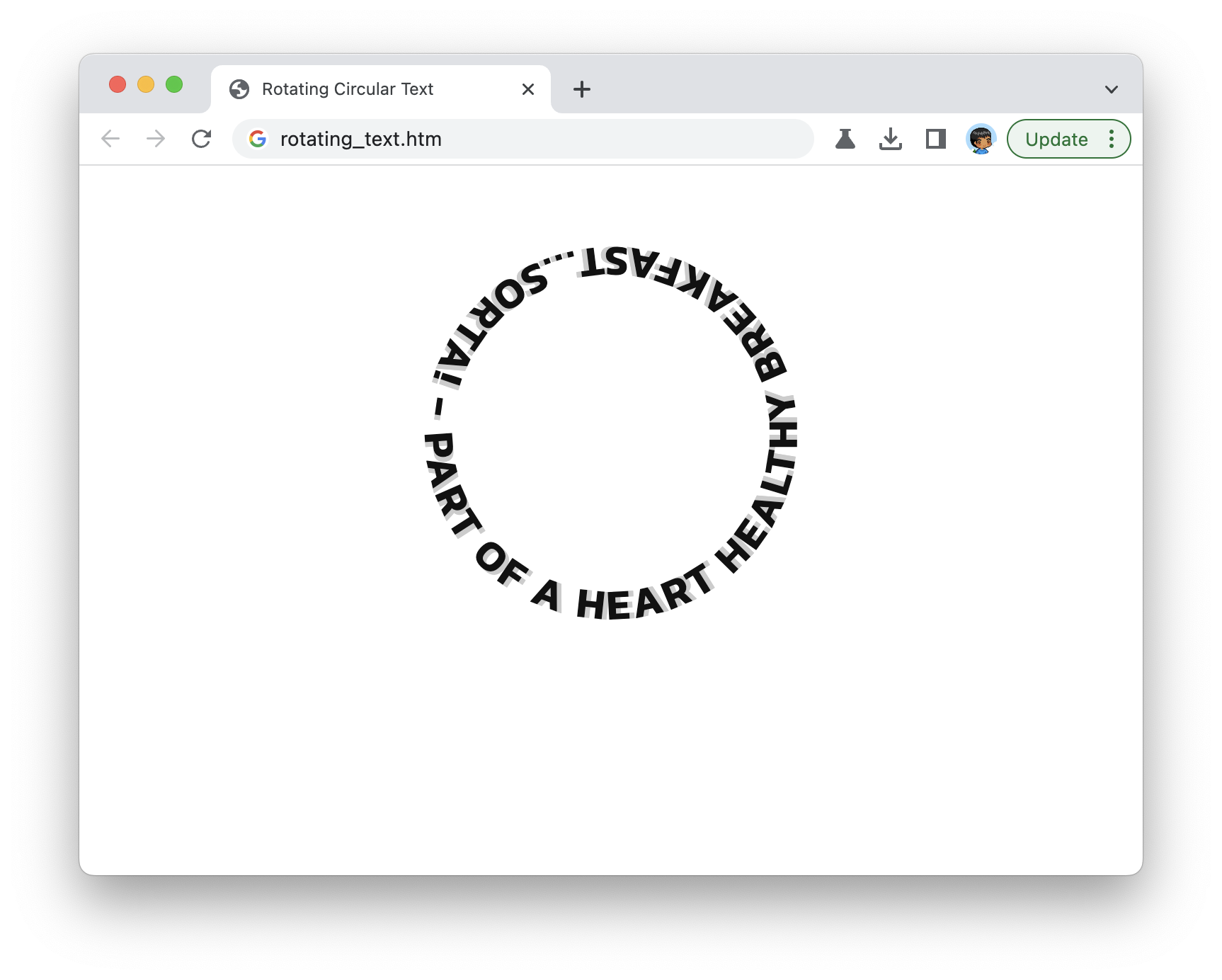
This looks good. Our text fully wraps around the circular path we defined in our SVG.
#### Ensuring Consistency
This effect is a little finicky in that minor variations in letter spacing or how the font renders will make the effect look weird. To maximize consistency, we specify a custom font that will look the same for all users across browsers and platforms:
```css
```
If you don't have a favorite place to get a custom font from, [Google Fonts](https://fonts.google.com/) is a great resource.
Beyond just the font, there are a few more things for us to specify such as the length of our text, the font size, font-weight, and the letter spacing. All of these properties, in combination, play a key role in ensuring our text appropriately wraps our circular path:
```css
.text {
font-weight: 600;
letter-spacing: 1.7px;
text-transform: uppercase;
font-family: 'Kanit';
font-size: 17px;
fill: #111;
text-shadow: 2px 0px #ccc;
}
```
For any changes you make, you'll be fiddling with these CSS properties in largely a trial-and-error fashion. For example, the `letter-spacing` being set to **1.7px** was one that came out of experimenting with various values to see what generated the best final appearance.
### Animating our Circular Text
With our text appearing correctly, all that remains is for us to have our text spin. This will be done via a [CSS animation](https://www.kirupa.com/html5/introduction_css_animations.htm) applied to our entire SVG element. Inside our `style` tag, add the following CSS:
```css
#rotatingText {
animation-name: rotate-circle;
animation-duration: 10s;
animation-timing-function: linear;
animation-iteration-count: infinite;
}
@keyframes rotate-circle {
to {
transform: rotate(1turn);
}
}
```
We are specifying a keyframes collection called **rotate-circle**, and we are specifying a single **to** keyframe that rotates an element a full rotation. This full rotation is specified using the ***turn*** syntax:
```css
@keyframes rotate-circle {
to {
transform: rotate(1turn);
}
}
```
The **1turn** value is the same as writing **360deg**.
Lastly, to ensure our animation runs forever and without any acceleration and deceleration, we set our animation-iteration-count to **infinite** and the animation-timing-function to be **linear**.
```css
#rotatingText {
animation-name: rotate-circle;
animation-duration: 10s;
animation-timing-function: linear;
animation-iteration-count: infinite;
}
```
When we put this all together, we have our circular text spinning over and over...and over.
## Conclusion
The final markup that ties everything together (and adds a few extras like the spinning hamburger) can be seen below:
```markup
Rotating Circular Text
```
Overall, this entire spinning circular text effect brings together the flexibility of SVG and the familiarity of CSS animations. Who knows what other cool things we can do by bringing HTML, CSS, and SVG together?
